

Observability
Review Streamkap system health and data lineage across sources, transforms, and destinations, including audit record-count comparisons and consumer groups.
Observability
Navigate to Observability in the project sidebar to see the observability dashboard.
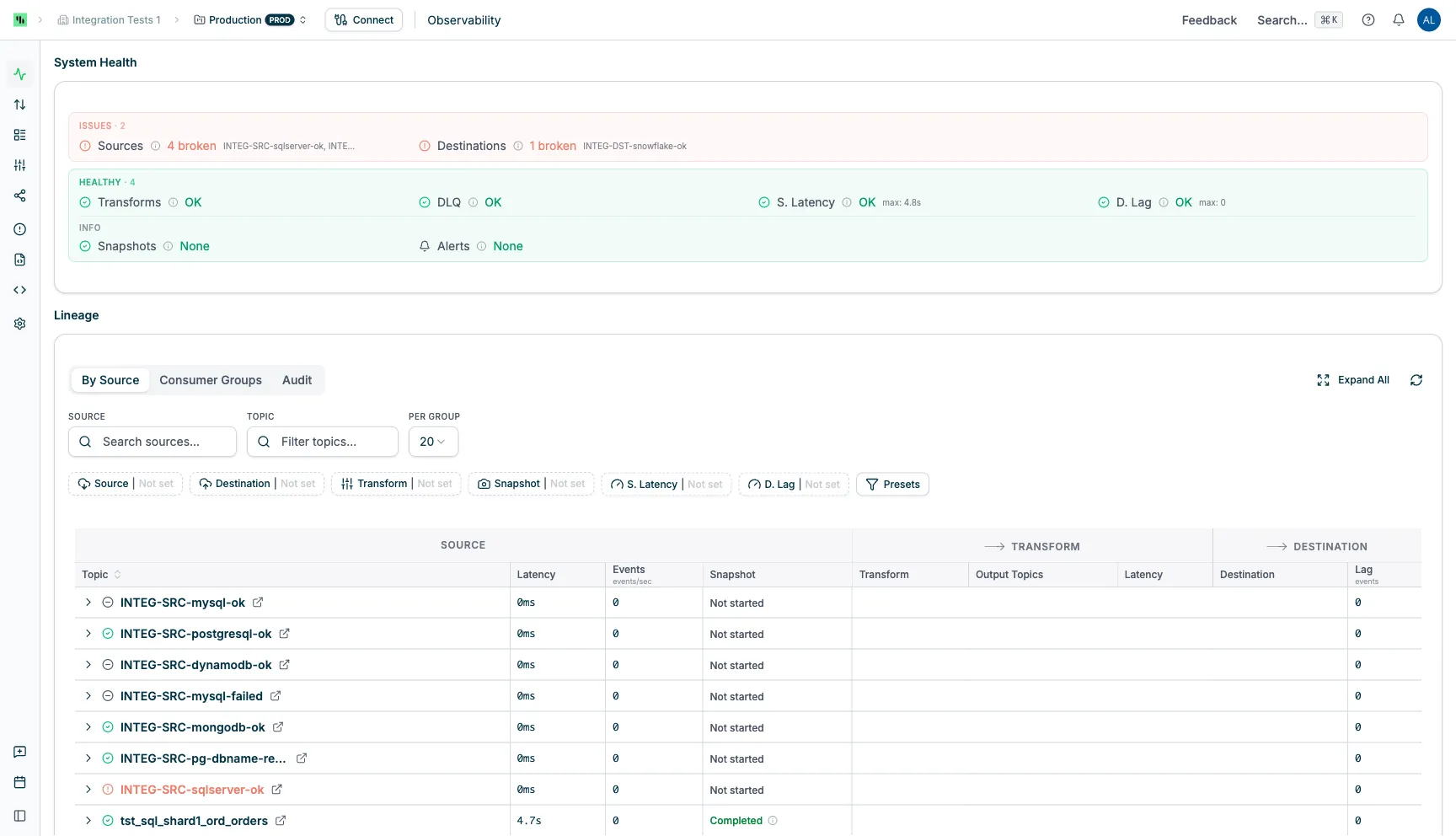
The observability view includes:
- System Health — operational status summary at the top
- Lineage — data flow details with three tabs: By Source, Consumer Groups, and Audit
System Health
Summarizes operational status. Items are grouped into colored sections based on their current state.
Issues
Red section — appears only when there are active problems.
| Indicator | Description |
|---|---|
| Sources | Source connectors in an error state. Shows count and names of affected sources. |
| Destinations | Destination connectors in an error state. Shows count and names of affected destinations. |
| Transforms | Transform jobs that have failed. Shows count of affected transforms. |
Warnings
Amber section — appears only when there are active warnings.
| Indicator | Description |
|---|---|
| Sources | API sources that are Throttled: waiting out a vendor’s rate limit, and resuming on their own. Shows the count. When a source is also broken, Sources moves to Issues. |
| DLQ | Dead Letter Queue topics containing undeliverable records. |
| S. Latency | Topics where source latency exceeds 10 minutes. Shows max latency. |
| D. Lag | Topics where the destination consumer has fallen behind. Shows max lag. |
Healthy
Green section — shows all indicators that are currently OK. When everything is healthy, all issue and warning indicators appear here.
Info
Shows general operational metrics below the Healthy section:
| Indicator | Description |
|---|---|
| Snapshots | Topics currently performing an initial data load from the source. |
| Alerts | Unread alert notifications for this project. |
Lineage
Shows how data flows through your pipelines — from sources, through optional transforms, to destinations.
By Source
Groups topics by their source connector (default tab).
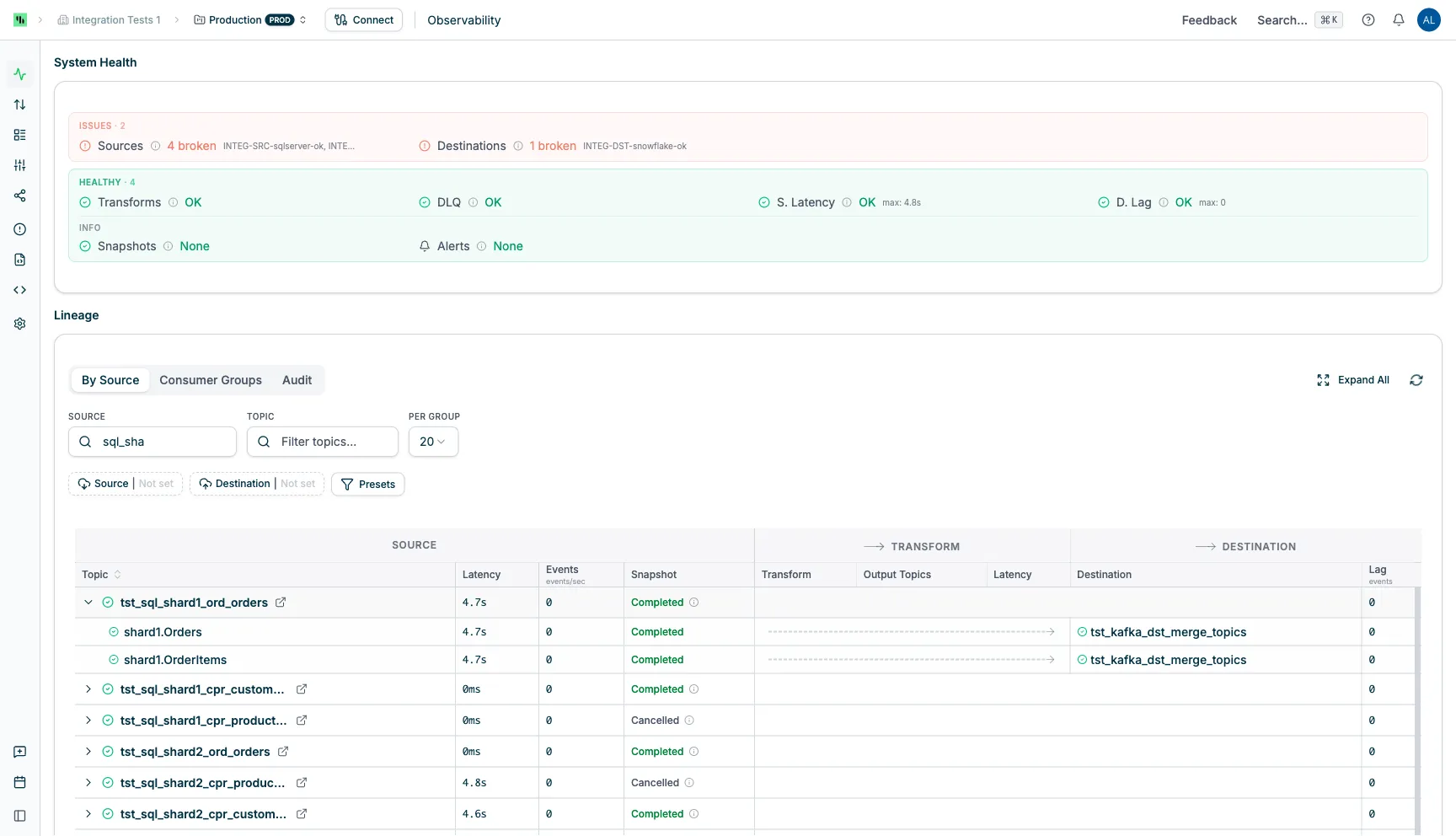
Each source row shows the source name, connector type icon, status, and aggregate metrics. Click a row or use Expand All to see individual topics:
| Source columns | Transform columns | Destination columns |
|---|---|---|
| Topic name, Status, Latency, Events (events/sec), Snapshot progress | Transform name, Output Topics, Latency | Destination name, Status, Lag (events) |
Audit
Compares record counts between sources and destinations to verify data completeness.
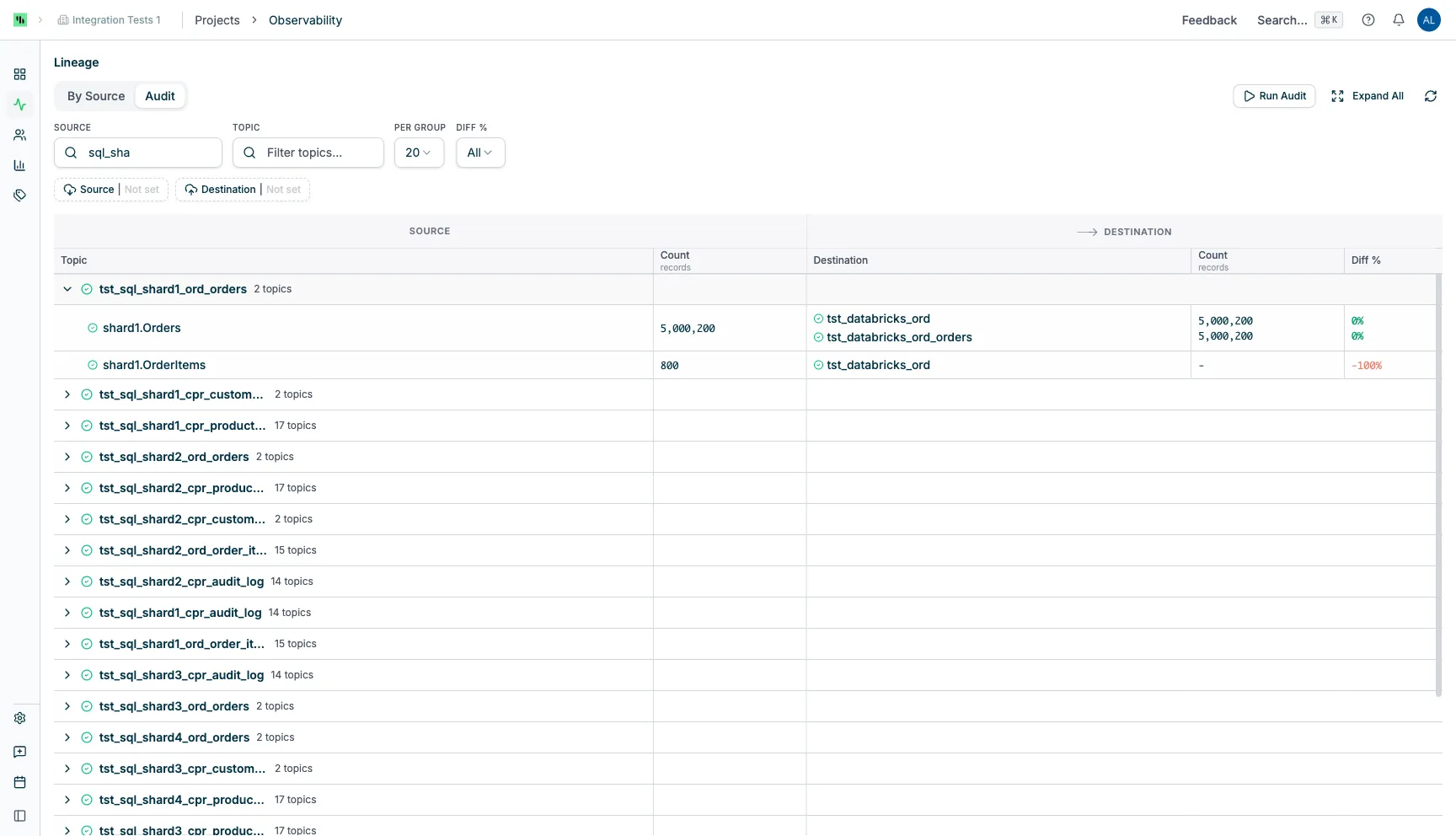
Each source row shows the source name, connector type icon, and topic count. Expand to see per-topic details:
| Source columns | Destination columns |
|---|---|
| Topic name, Count (records) | Destination name, Count (records), Diff % |
The Diff % column shows the percentage difference between source and destination record counts, color-coded by severity:
- Green (0–1%) — counts match or near-match
- Amber (2–10%) — minor drift
- Red (>10%) — significant drift
Audit-specific controls:
- Run Audit — triggers record count collection for all sources on the current page
- Diff % dropdown — filters topics by drift percentage range (All, 0–2%, 2–10%, 10–50%, 50–100%, >100%)
Consumer Groups
Displays Kafka consumer groups and their health status.
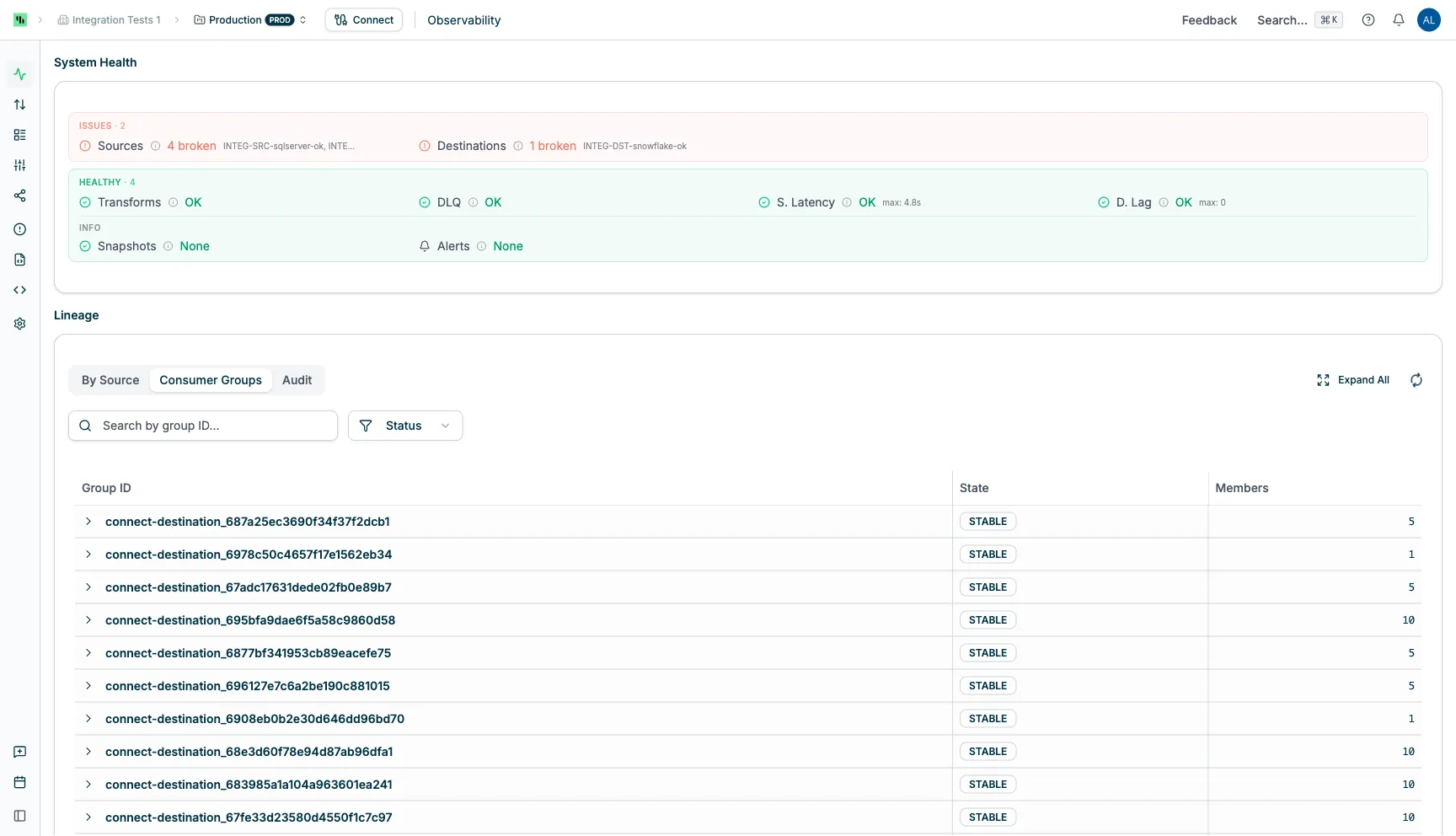
Each row shows the Group ID (linked to the consumer group detail page), State (Stable, Empty, Dead, PreparingRebalance, CompletingRebalance, Unknown), and Members count. Expand a row to see individual members with their Member ID, Client ID, and Host.
Consumer Groups filters:
- Search — filter by group ID
- Status — filter by group state
Filters
All lineage tabs provide search, filtering, and pagination controls.
Search
- Source search — server-side search on source/group names
- Topic search — filters topics within expanded groups. When active, groups auto-expand to show matching topics.
- Per group — controls how many topics display per expanded group (5, 10, 20, or 50)
Entity Filters
Filter badges appear below the search bar. Available filters vary by tab:
| Filter | By Source | Audit | Consumer Groups |
|---|---|---|---|
| Source | Yes | Yes | — |
| Destination | Yes | Yes | — |
| Transform | Yes | — | — |
| Snapshot | Yes | — | — |
| S. Latency | Yes | — | — |
| D. Lag | Yes | — | — |
| Status | — | — | Yes |
The S. Latency and D. Lag filters support comparison operators (>, >=, <, <=, =, !=) with numeric values.
Presets
The Presets dropdown (By Source tab) provides quick filter toggles:
- Has Destination — topics with at least one destination pipeline
- Has Transform — topics with at least one transform
- DLQ — Dead Letter Queue topics
- Orphaned — topics without destination pipelines
Pagination and Controls
- Expand All / Collapse All — toggles all groups at once
- Refresh — manually re-fetches data (auto-refreshes every 10 seconds)
- Page size — configurable items per page
- Page navigation — navigate between pages of results
Related Documentation
- Alerts — proactive notifications for pipeline issues
- Consumer Groups — consumer group management and offset resets
- Topics — Kafka topic metrics and message inspection
- Transforms — transform configuration and monitoring
- Logs — troubleshoot pipeline and connector issues
- DLQ Operations — manage dead letter queue topics
Project health
The dashboard summarises entity counts, status, and time-series metrics for a project at a glance.