

Projects
Switch between Streamkap projects across regions and environments, view availability state, and manage details, location, API tokens, and Kafka access.
A Streamkap project is the complete infrastructure stack for your Change Data Capture (CDC) pipelines, including Apache Kafka, Apache Flink, Debezium, connectors, and supporting components. Projects are isolated environments that can represent different stages (Development, Staging, Production) or geographic regions.
Overview
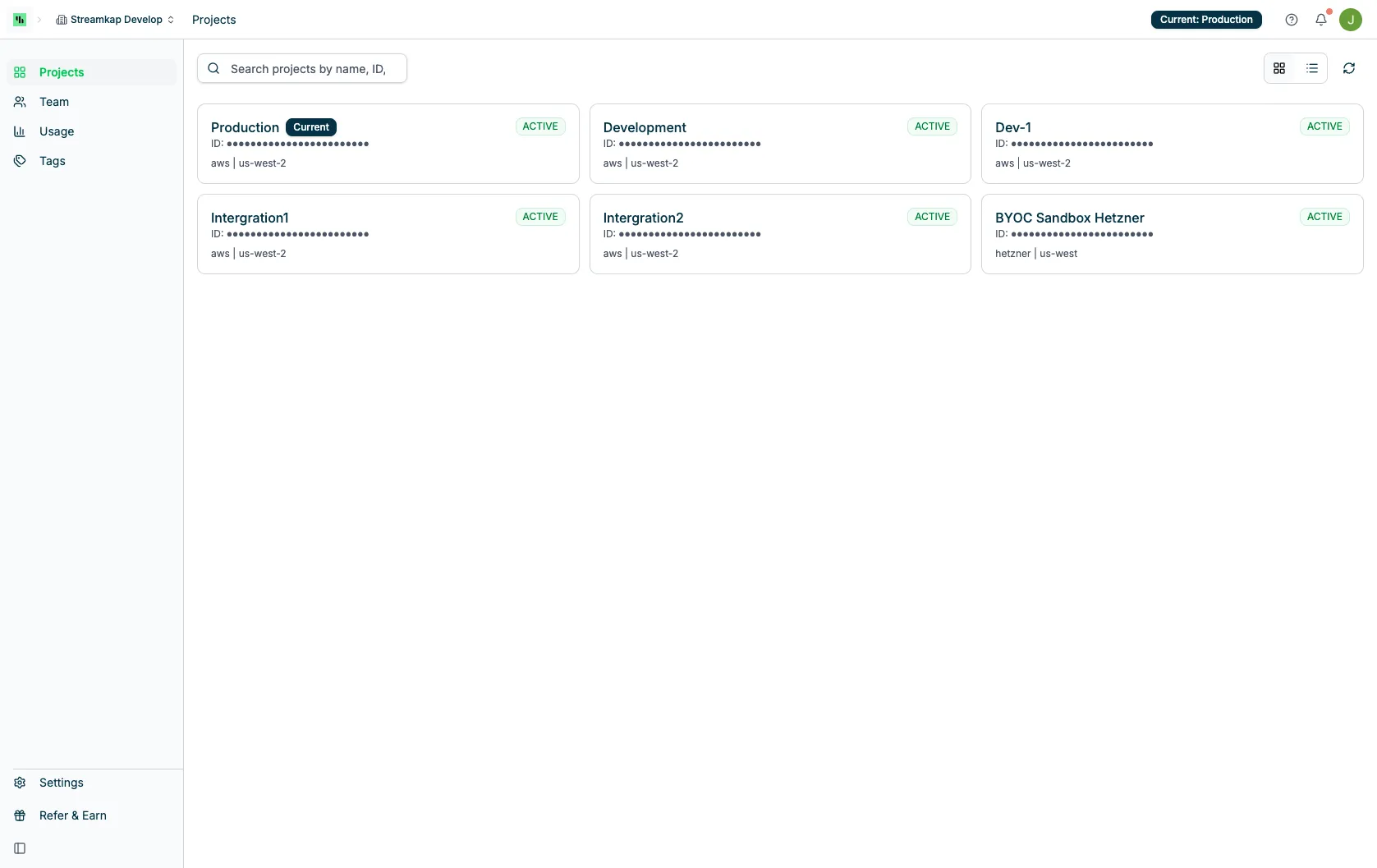
The Projects page displays all projects in your organization with their current status:
Project Architecture
Each Streamkap project includes:
- Pipelines: pipelines streaming source topics and/or transformed topics to destinations
- Source Connectors: Database CDC connectors (MySQL, PostgreSQL, DynamoDB, etc.)
- Destination Connectors: Data warehouse/lake connectors (Snowflake, BigQuery, ClickHouse, etc.)
- Transforms: Data transformation engine
- Topics: Kafka topics for data streams
- Monitoring: Metrics, logs, and alerts infrastructure
Project States
AVAILABLE: The project is fully operational and ready to use:
- All infrastructure components are running
- Connectors can be created and managed
- Data pipelines can process events
- Marked with green badge
- Shows
CURRENTif you’re actively using this project
UNAVAILABLE: The project exists but is not currently operational:
- Infrastructure is paused or stopped
- Cannot create or modify connectors
- Data pipelines are not processing
- Marked with gray badge
Projects List
The Projects page displays the following information for each project:
- Name: Project identifier
- Shows
CURRENTbadge for the active project
- Shows
- Type: Project environment type (e.g.,
production,development) - Created On: Timestamp when the project was provisioned
- State: Current operational status (
AVAILABLE,UNAVAILABLE) - Cloud: Cloud provider (AWS, Azure, GCP)
- Region: Geographic region (e.g.,
us-west-2,us-east-1,ap-southeast-2)
Search
Use the search bar to filter projects by name:
- Type to filter the project list in real-time
- Useful when managing many projects across environments
Switching Between Projects
To switch from one project to another:
Navigate to Projects
Click on your organization name or the Projects link in the navigation to view all available projects.
Select Target Project
Click on the project you want to switch to in the projects list.
Wait for Switch
The page will reload and you’ll be redirected to the selected project’s dashboard.
Verify Current Project
Check the project selector in the top navigation bar to confirm you’re in the correct project.
Project Settings
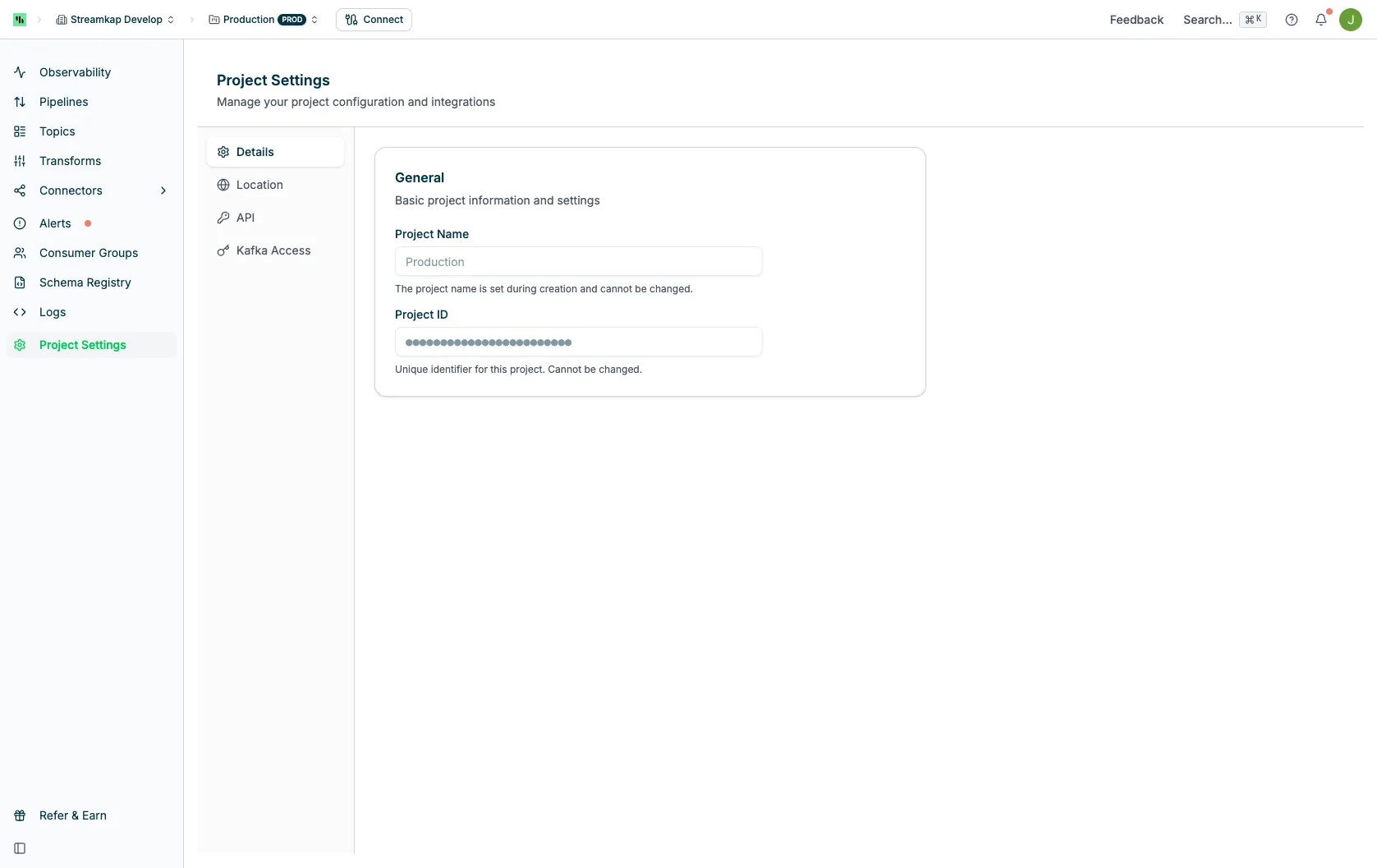
Click on a project to access its settings. The Project Settings page contains multiple tabs for managing different aspects of your project:
Details Tab
View and manage basic project information:
- Project Name: The display name for this project
- Project ID: Unique identifier (use “Copy” button for API calls and support tickets)
- Environment Type: Production, Development, Staging, etc.
- Created Date: When the project was provisioned
Location Tab
View the deployment location for this project:
- Cloud Provider: AWS, Azure, or GCP
- Region: Geographic region where the project is deployed
API Tab
Access API configuration for programmatic access:
- API Tokens: Navigate to create and manage API tokens for this project
- API Documentation: Links to API reference documentation
Kafka Access Tab
Manage Kafka connectivity for external clients:
- Kafka Brokers: Copy the broker connection string for external client connections
- Kafka Users: Manage authentication credentials for Kafka access
Common Use Cases
Environment Separation
Maintain separate projects for different environments:
Development Project:
- Test schema changes and new connectors
- Experiment with transforms and pipelines
- Lower resource allocation, smaller dataset
- Region: Choose closest to development team
Staging Project:
- Mirror production configuration
- Run integration tests
- Validate deployments before production
- Same region as production for realistic testing
Production Project:
- Live data pipelines
- High availability configuration
- Optimal region for data sources
- Monitoring and alerting enabled
Geographic Distribution
Create projects in multiple regions for:
Data Locality:
- Reduce latency by placing projects near data sources
- Comply with data residency regulations (GDPR, etc.)
- Example: EU project for European databases, US project for American databases
Disaster Recovery:
- Replicate pipelines across regions
- Failover capability for business continuity
- Active-active or active-passive configurations
Global Operations:
- Support teams in different time zones
- Reduce network latency for distributed teams
- Scale horizontally across regions
Creating New Projects
To request a new project:
Contact Streamkap Support
Reach out via the Help button in the top navigation bar or email support@streamkap.com.
Provide Project Requirements
Specify the following:
- Environment type: Production, Development, Staging, etc.
- Cloud provider: AWS, Azure, or GCP
- Region: Geographic location (e.g., us-west-2, eu-central-1)
- Expected throughput: Data volume and connector count
- Special requirements: VPC peering, private link, compliance needs
Project Provisioning
Streamkap will provision the infrastructure:
- Kafka cluster setup
- Flink deployment
- Networking configuration
- Monitoring setup
Access Confirmation
You’ll receive confirmation when the project is ready, and it will appear in your Projects list.
Managing Project Resources
Each project has independent resources:
Connectors
Sources and destinations are project-specific:
- Must be recreated in each project
- Cannot be moved between projects
- Configuration can be exported/imported
Pipelines
Data pipelines exist within a single project:
- Define data flow from source to destination
- Cannot span multiple projects
- Must be recreated in each environment
Topics
Kafka topics are isolated to each project:
- Topic names can be reused across projects
- Data is not shared between projects
- Replication limited to project boundaries
Billing
Usage is tracked per project:
- View project-specific usage in Billing page
- Switch projects to see different usage metrics
- Projects are billed independently
Best Practices
- Use Consistent Naming: Name projects clearly (e.g., “Production-US-East”, “Development-EU”)
- Document Project Purpose: Maintain documentation of what each project is for
- Limit Production Access: Restrict who can switch to production projects
- Test in Non-Production First: Always validate changes in dev/staging before production
- Monitor Project Health: Regularly check project state and resource usage
- Copy IDs for Automation: Store project IDs in your infrastructure as code
- Keep Kafka Brokers Secure: Treat broker connection strings as sensitive data
- Rotate API Tokens: Regularly rotate tokens for security
- Plan for Multi-Region: Consider geographic distribution for global operations
- Align Regions with Data: Place projects near your data sources to reduce latency
Troubleshooting
Project Shows UNAVAILABLE
If a project is unexpectedly unavailable:
- Check Project Status: Contact Streamkap support for infrastructure status
- Verify Billing: Ensure account is in good standing
- Review Recent Changes: Check if project was intentionally paused
- Check Maintenance Window: Project may be undergoing scheduled maintenance
Cannot Switch Projects
If you cannot switch to another project:
- Refresh Page: Reload the browser page
- Clear Cache: Clear browser cache and cookies
- Check Permissions: Verify you have access to the target project
- Contact Support: Reach out if the issue persists
Kafka Brokers Not Connecting
If external clients can’t connect using the broker connection string:
- Verify Credentials: Ensure you have valid Kafka Access credentials
- Check Network: Verify network connectivity and firewall rules
- Confirm Project State: Project must be AVAILABLE for connections
- Review Security: Check SSL/TLS configuration if required
- Use Correct Port: Verify you’re using the correct port (usually 9092 or 9093 for SSL)
API Token Not Working
If API tokens don’t authenticate:
- Verify Token Scope: Ensure token is for the correct project
- Check Expiration: Tokens may have expiration dates
- Confirm Permissions: Token must have required permissions for the operation
- Regenerate Token: Create a new token if issues persist
Related Documentation
- Kafka Access - Manage Kafka users and obtain credentials for broker connections
- Pipelines - Create and manage data pipelines within a project
- Sources - Configure source connectors in your project
- Destinations - Configure destination connectors in your project
- Usage - View organization-level usage and billing information
- API Reference - Use API tokens for programmatic project management
Organising resources
Tagging groups sources, destinations, and pipelines across a project.