

Alerts
Configure real-time alerts for pipeline and connector events in Streamkap, with delivery channels like Slack, email, webhooks, and MongoDB recovery alerts.
Alerts provide real-time notifications for critical events in your Streamkap environment, including pipeline state changes, connector actions, latency issues, and system events. Configure delivery channels and customize which alerts you receive to stay informed about your data infrastructure.
Overview
The Alerts page displays a chronological log of all events and notifications in your Streamkap service:
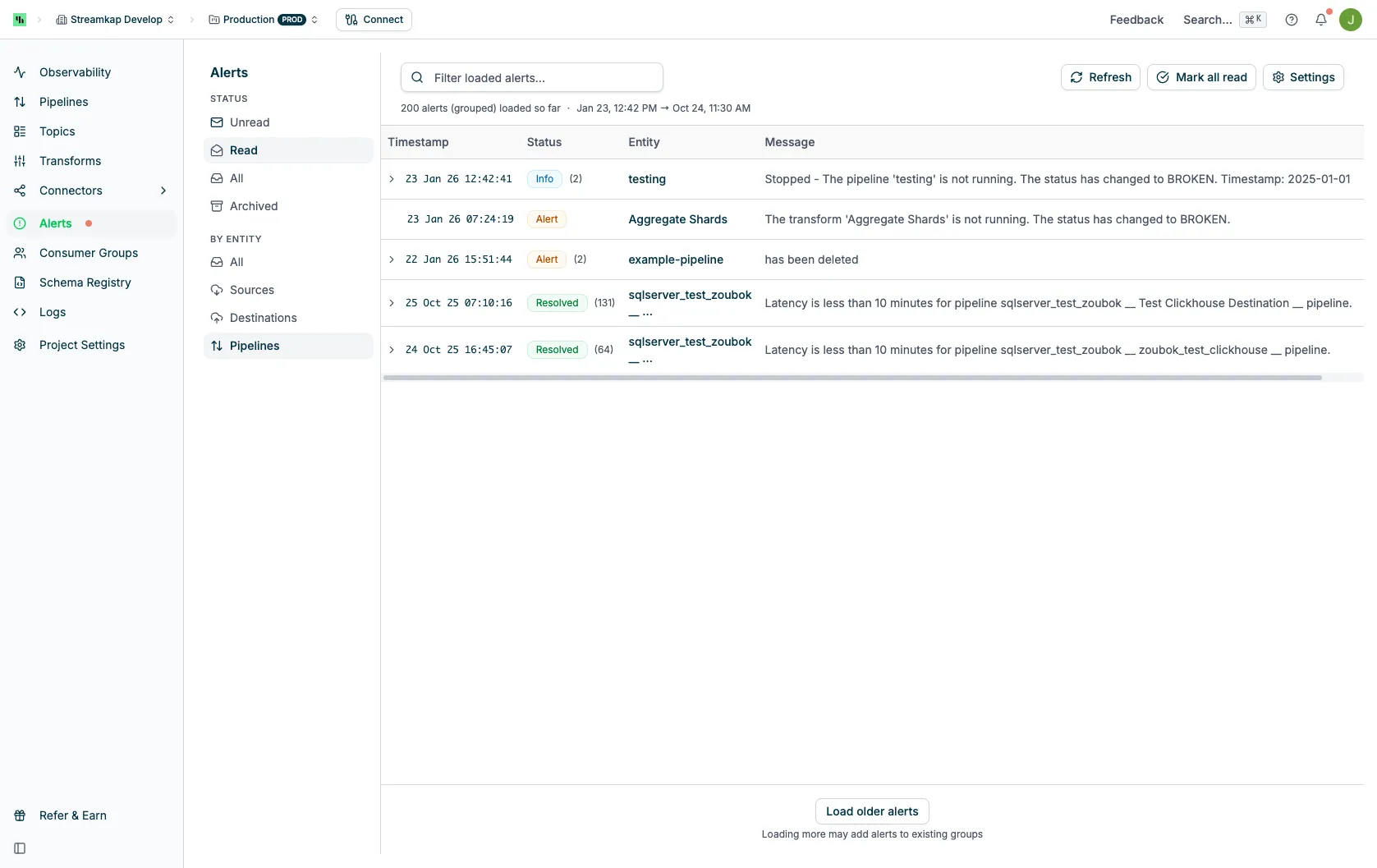
Table Columns
The Alerts table displays the following information:
- Name: The resource name (connector, pipeline, service) that triggered the alert
- Click the name to navigate to the resource detail page
- Green names with dots indicate unread alerts
- Type: The resource type (Source, Destination, Pipeline, Service, etc.)
- Issue: A brief description of the alert event with an information icon
- Click to expand and view full details
- Common events: created, updated, deleted, stopped, resumed, broken, running
- Date: When the alert was triggered
- Relative time (e.g., “1 days ago”)
- Absolute timestamp (e.g., “October 3rd at 7:06 PM”)
- Actions: Envelope icon to toggle read/unread status
- Click the envelope icon to mark an unread alert as read
- Click the envelope icon to mark a read alert as unread
Quick Actions
At the top of the page:
- Search: Filter alerts by searching issue text
- Filter by tags: Dropdown to filter by tags (Select All, Sources, Destinations, Pipelines)
- Show only unread: Checkbox to display only unread alerts
- Show archived: Checkbox to display only archived alerts
- Mark all as read: Button to mark all visible alerts as read
- Alerts Settings: Opens the configuration modal to manage integrations and preferences
Alerts Configuration
Click the Alerts Settings button to open the configuration modal with two tabs: Settings and Preferences.
Settings Tab
Configure integration channels to receive alerts outside the Streamkap app:
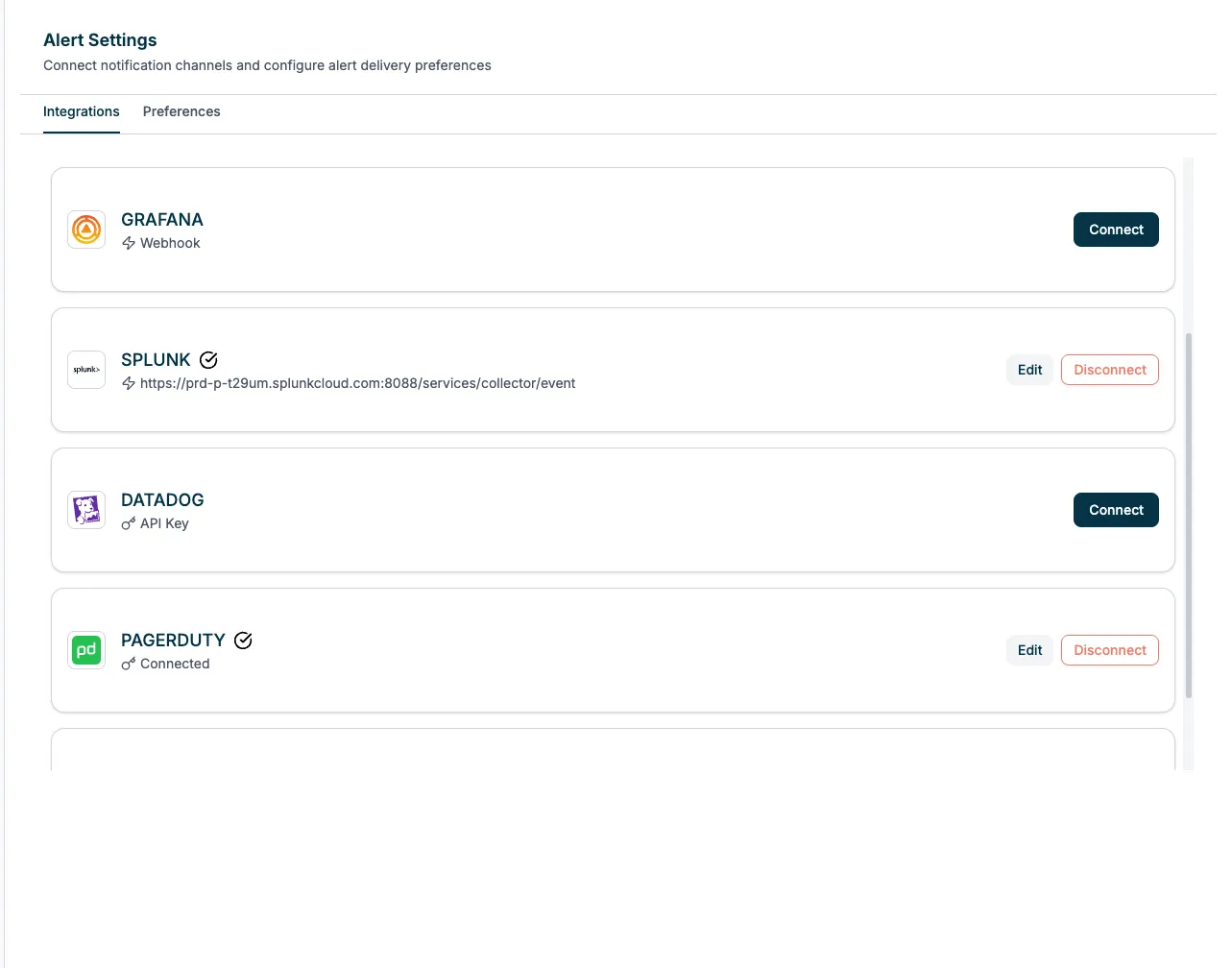
Available integrations:
- Status: Connect to configure email notifications
- Setup: Enter email address(es) to receive alerts
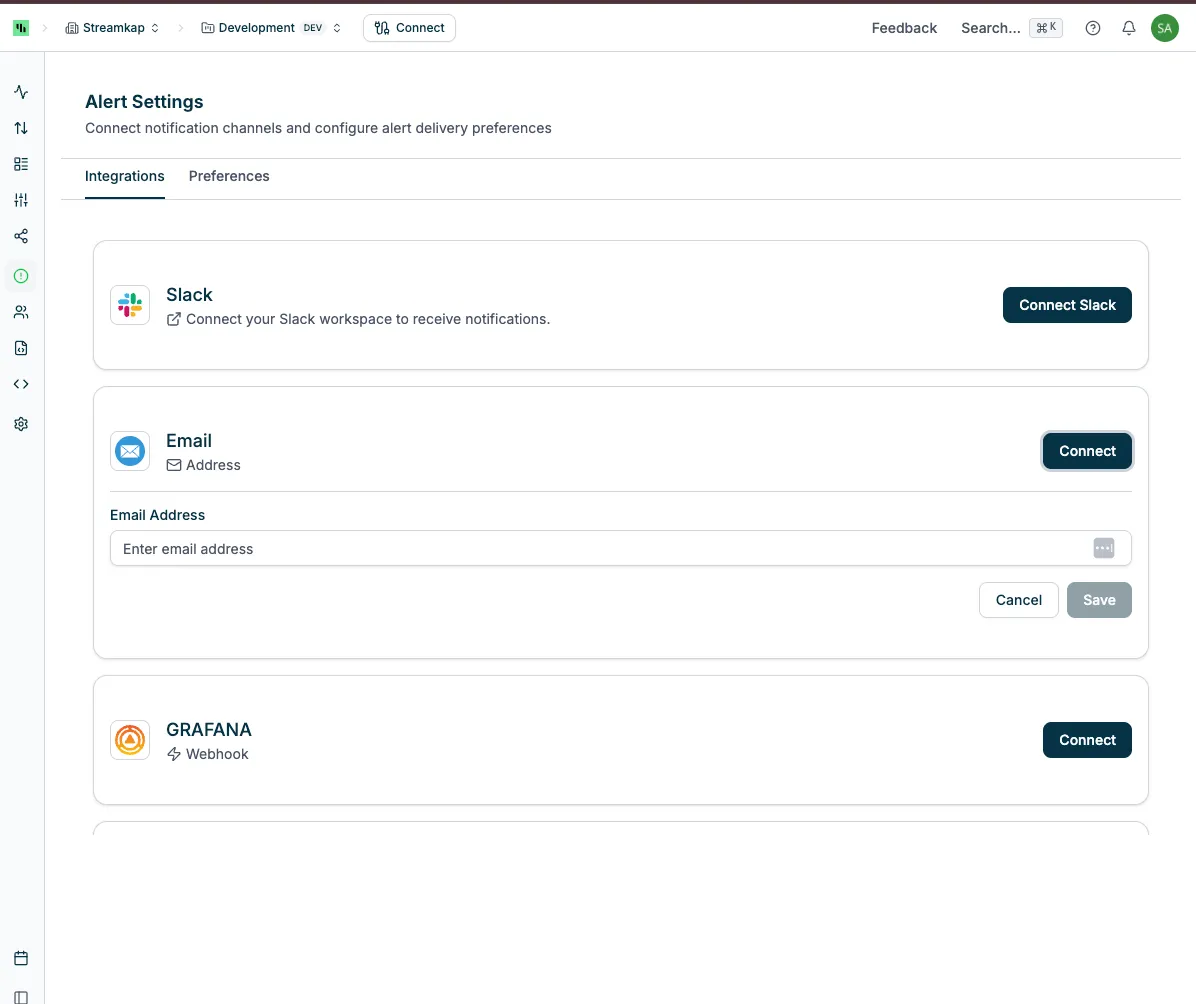
SLACK
- Status: Connect via OAuth
- Setup:
- Click Connect Slack button
- You’ll be redirected to Slack, where you can select the channel or user you want to receive the notification.
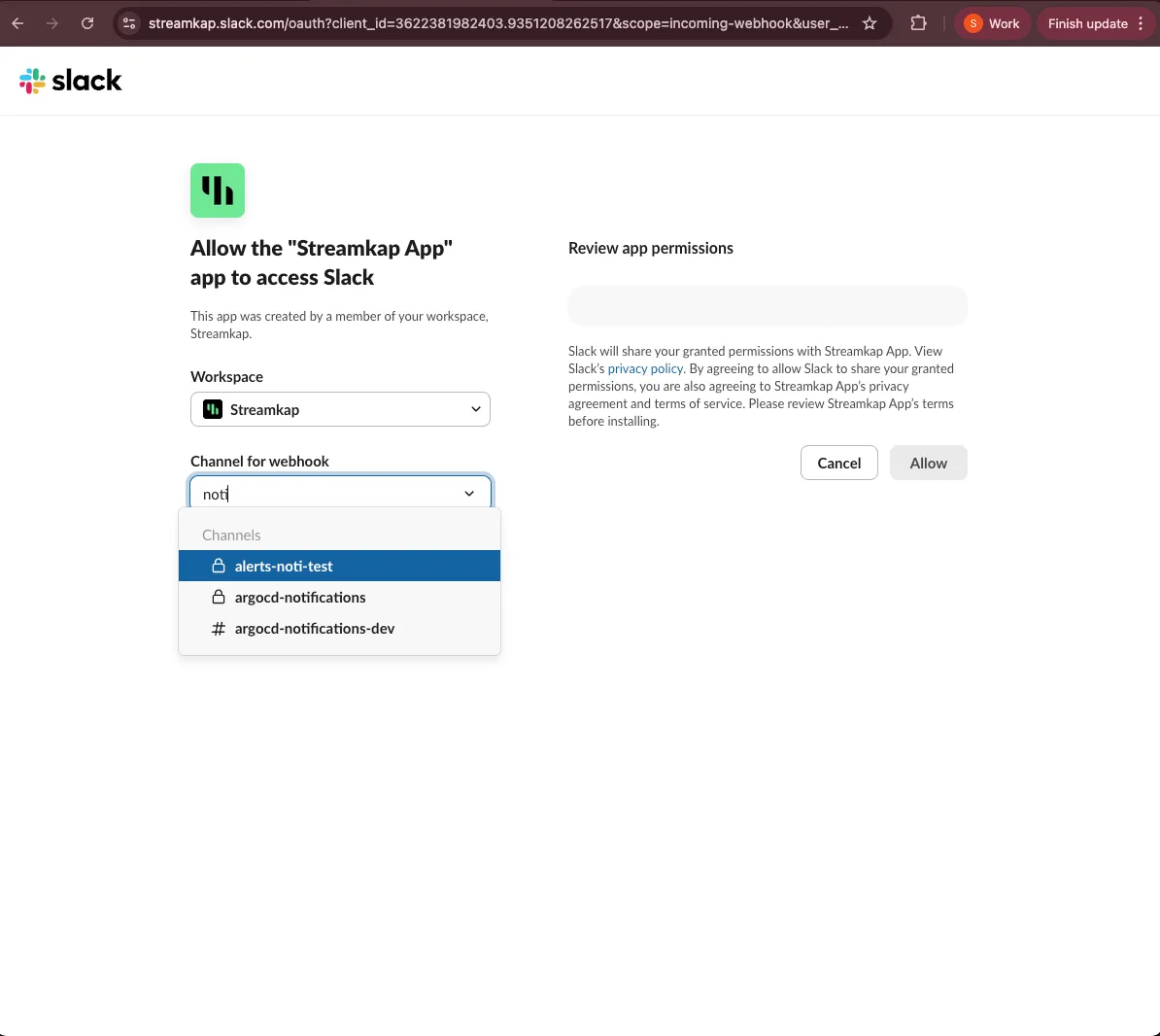
- After clicking the Allow button, you’ll be redirected to the Alert settings page showing the connected channel or user.
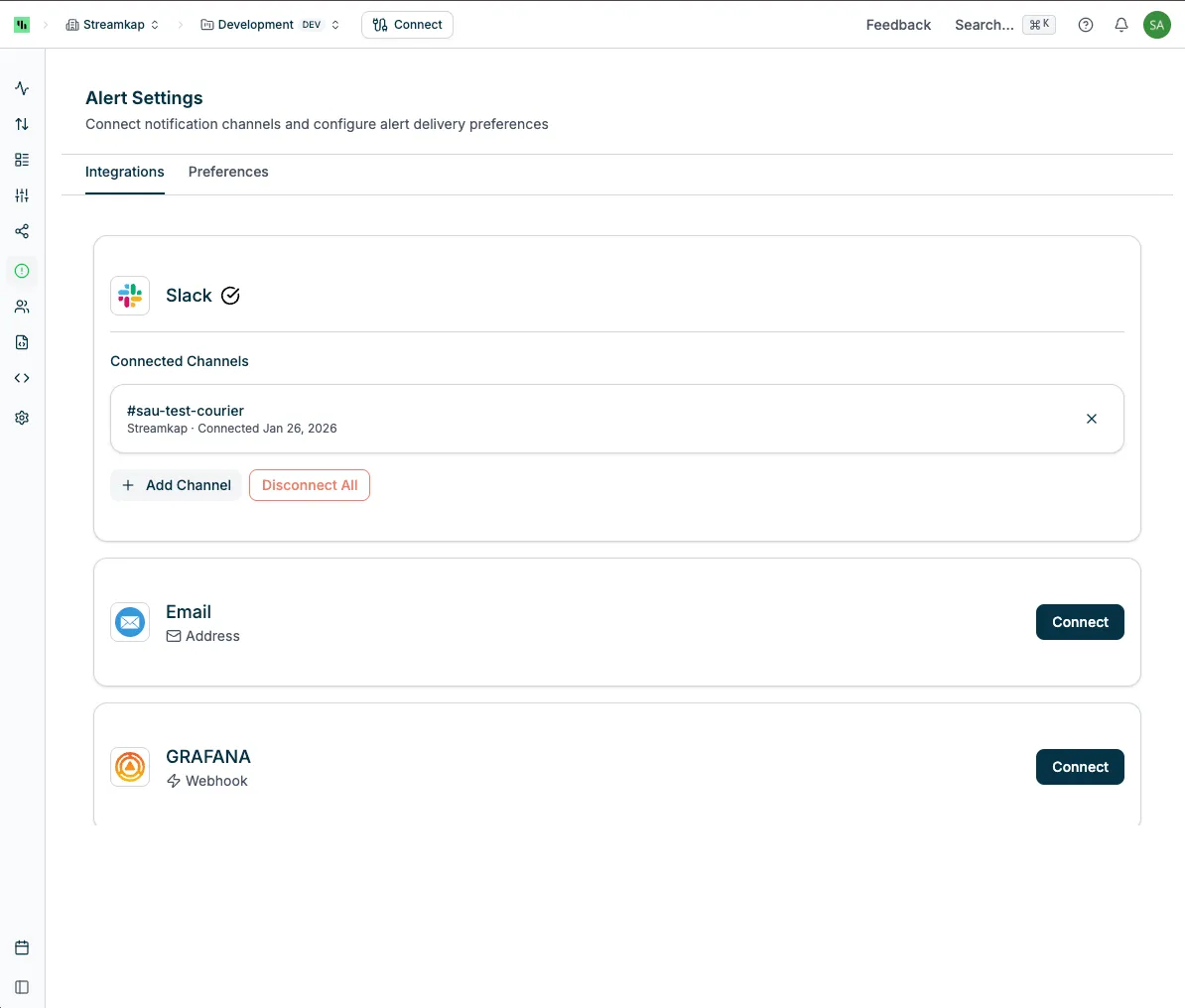
- You can connect another channel or user by clicking Add Channel button.
GRAFANA
- Status: Example shows “Disconnect” button when connected
- Setup:
- Go to Grafana
- Navigate to Alerts & IRM -> Alerting -> Contact points.
- Click + Add contact point.
- Enter a name for the contact point.
- From the Integration list, select Webhook.
- In the URL field, copy in your Webhook URL.
- (Optional) Configure additional settings.
- Click Save contact point.
- Copy Webhook URL from Grafana and paste it into the Webhook URL field in the Alert Settings page, then click Save.
- Data format:
{
    "data": {
        "action_type": "stopped",
        "datetime": "2026-01-14 21:53:06",
        "entity_id": "685d6baefd035ce5558ad92f",
        "entity_name": "example-source-mongodb",
        "entity_type": "sources",
        "message": "Source: example-source-mongodb has been stopped at 2026-01-14 21:53:06",
        "pending_datetime": "2026-01-14 21:53:06",
        "state": "TRIGGERERD",
        "tenant_id": "c115d79d-5aef-4f6f-8185-a15901c993f8",
        "threshold_value": "None",
        "value": "None"
    }
}
GRAFANA LOKI
- Status: Each alert is sent to the Loki push API (
/loki/api/v1/push) as one JSON log line. - Use it to send alerts directly to your Loki data source. Grafana contact points send notifications; they do not provide an inbound webhook URL.
- Setup for Grafana Cloud:
- Sign in to Grafana Cloud, open your stack in the Cloud Portal, and click Details on the Loki card.
- Copy the URL (for example
https://logs-prod-006.grafana.net) and the User, which is a number. - In your stack, go to Administration > Cloud access policies and create an access policy with the
logs:writescope. Click Add token on it and copy the token. Grafana shows it only once. - In the Alert Settings page, click Connect on Grafana Loki, enter the Loki URL, User ID and Token, and click Save.
- Fields:
- Loki URL: Required. The base URL of your Loki, or of the gateway in front of it. Must use HTTPS without embedded credentials or a fragment. A URL that already ends in
/loki/api/v1/pushis accepted; any query parameters are preserved. - User ID: Optional. With a Token, Streamkap uses HTTP basic authentication, which Grafana Cloud requires. A User ID without a Token is rejected.
- Token: Optional. On its own it is sent as a bearer token, for a self-hosted Loki behind an authenticating proxy. Leave both empty for a Loki that needs no authentication.
- Tenant (X-Scope-OrgID): Optional. Sent as the
X-Scope-OrgIDheader, for a Loki running in multi-tenant mode. Use a single tenant ID of up to 150 characters, following Loki’s tenant ID restrictions.
- Loki URL: Required. The base URL of your Loki, or of the gateway in front of it. Must use HTTPS without embedded credentials or a fragment. A URL that already ends in
- The token is never shown again after you save. When you edit an authenticated integration, enter the token again. To remove authentication, disconnect the integration and reconnect with both User ID and Token empty.
- Alerts reach Loki only for the alert types that have Webhook/API enabled in the Preferences tab.
- Alerts are sent from Streamkap’s control plane, not from inside your cloud account. See Streamkap IP Addresses for network guidance and confirm the control-plane egress IPs for your deployment with Streamkap before configuring your firewall.
- Labels use a fixed set of names:
service_nameandsource(bothstreamkap),severity,alert(the alert type, orentity_actionfor create, update, stop and similar events),state,entity_typeandtenant_id. Labels without a value are omitted. Connector IDs and names stay in the log line, so they do not create a separate stream per connector. - Query example (Grafana Explore, Loki data source):
{service_name="streamkap"} | json | data_entity_name="example-source-mongodb" - Data format:
The log line is JSON:{ "streams": [ { "stream": { "service_name": "streamkap", "source": "streamkap", "severity": "info", "alert": "entity_action", "state": "TRIGGERED", "entity_type": "sources", "tenant_id": "c115d79d-5aef-4f6f-8185-a15901c993f8" }, "values": [["1768427586000000000", "<log line>"]] } ] }{ "title": "Source example-source-mongodb stopped", "message": "Source: example-source-mongodb has been stopped at 2026-01-14 21:53:06", "severity": "info", "data": { "action_type": "stopped", "datetime": "2026-01-14 21:53:06", "entity_id": "685d6baefd035ce5558ad92f", "entity_name": "example-source-mongodb", "entity_type": "sources", "state": "TRIGGERED", "tenant_id": "c115d79d-5aef-4f6f-8185-a15901c993f8" } }
SPLUNK
- Status: The system will call the /services/collector/event to send data.
- Setup:
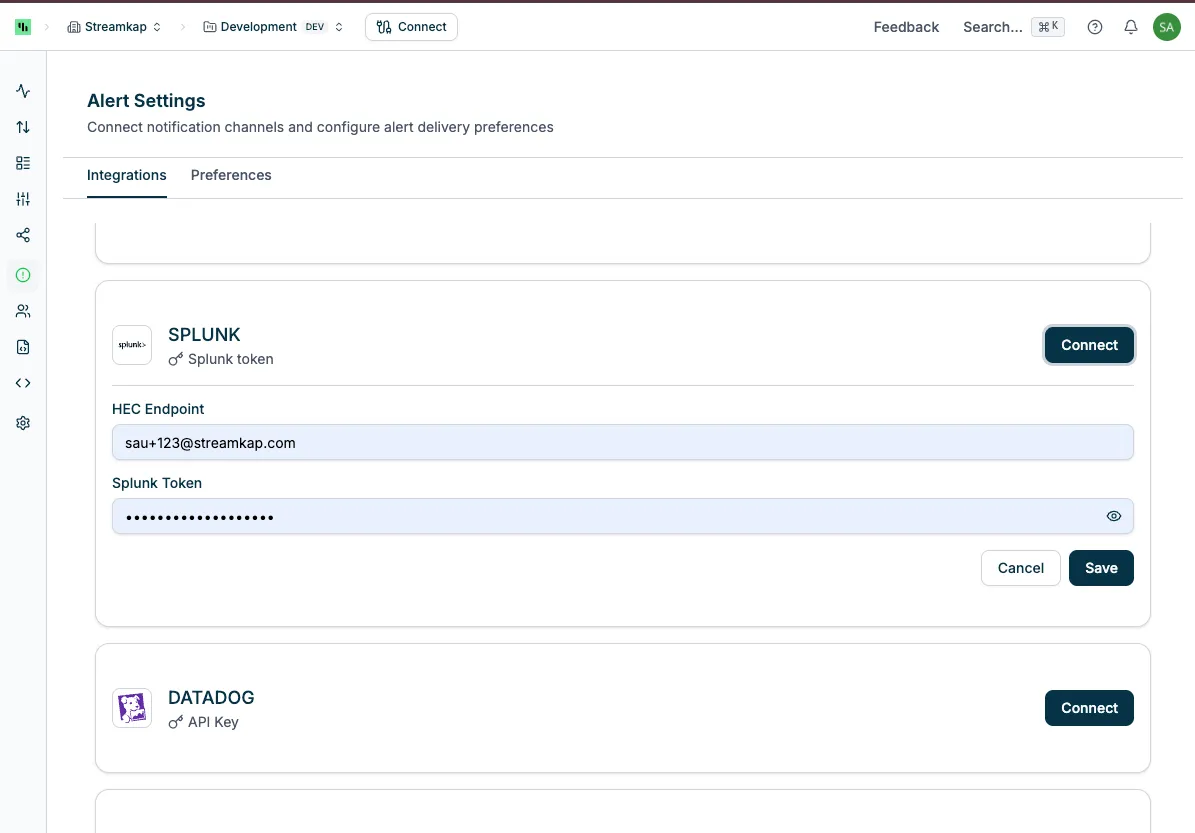
- Go to Splunk
- Navigate Settings > Data inputs and click HTTP Event Collector.
- Click New Token button.
- In the Input Settings step, do not need to add any index.
- Click Submit button.
- Copy the Token Value and paste it into the Splunk Token field in the Alert Setting page
- Enter the HEC endpoint (Please use the https with port 443) and click Save button.
- Data format:
{
  "event": "Destination: Test anil 4 has been resumed",
  "fields": {
    "action_type": "resumed",
    "datetime": "2026-01-07 14:46:46",
    "entity_id": "67e41d2daea865c2ce982b55",
    "entity_name": "Test anil 4",
    "entity_type": "destinations",
    "pending_datetime": "2026-01-07 14:46:46",
    "state": "TRIGGERERD",
    "tenant_id": "82d4a52a-987a-41ab-b199-ac02718a918f",
    "threshold_value": "None",
    "value": "None"
  },
  "source": "Streamkap"
}
DATADOG
- Status: The system will call the Event v2 API to send data.
- Setup:
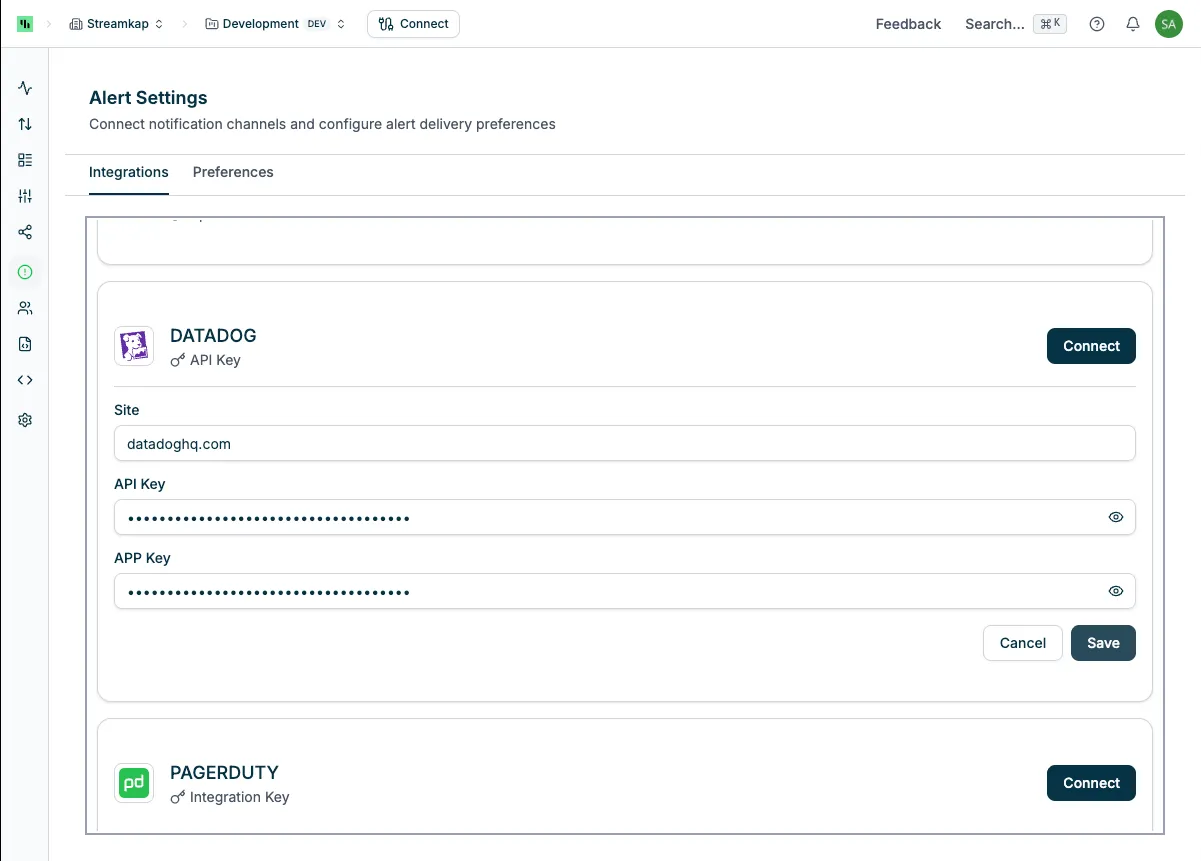
- Go to Datadog.
- Navigate User > API keys and click New Key and create a new API Key.
- Navigate User > Application keys and click New Key and create a new Application Key with:
- Scope:
events_read - Actions API Access:
Enabled
- Enter your Datadog site (copy it from your Datadog page URL), API Key, and Application Key.
- Click Save.
- Data format:
{
  "data": {
    "attributes": {
      "attributes": {
        "custom": {
          "action_type": "resumed",
          "datetime": "2026-01-07 14:46:46",
          "entity_id": "67e41d2daea865c2ce982b55",
          "entity_name": "Test anil 4",
          "entity_type": "destinations",
          "pending_datetime": "2026-01-07 14:46:46",
          "state": "TRIGGERERD",
          "tenant_id": "82d4a52a-987a-41ab-b199-ac02718a918f",
          "threshold_value": "None",
          "value": "None"
        },
        "status": "warn"
      },
      "category": "alert",
      "host": "app.streamkap.com",
      "message": "Destination: Test anil 4 has been resumed at 2026-01-07 14:46:46",
      "tags": [
        "source:streamkap"
      ],
      "title": "Destination: Test anil 4 has been resumed"
    },
    "type": "event"
  }
}
PAGERDUTY
- Status: The system will call the Event v2 API to send data.
- Setup:
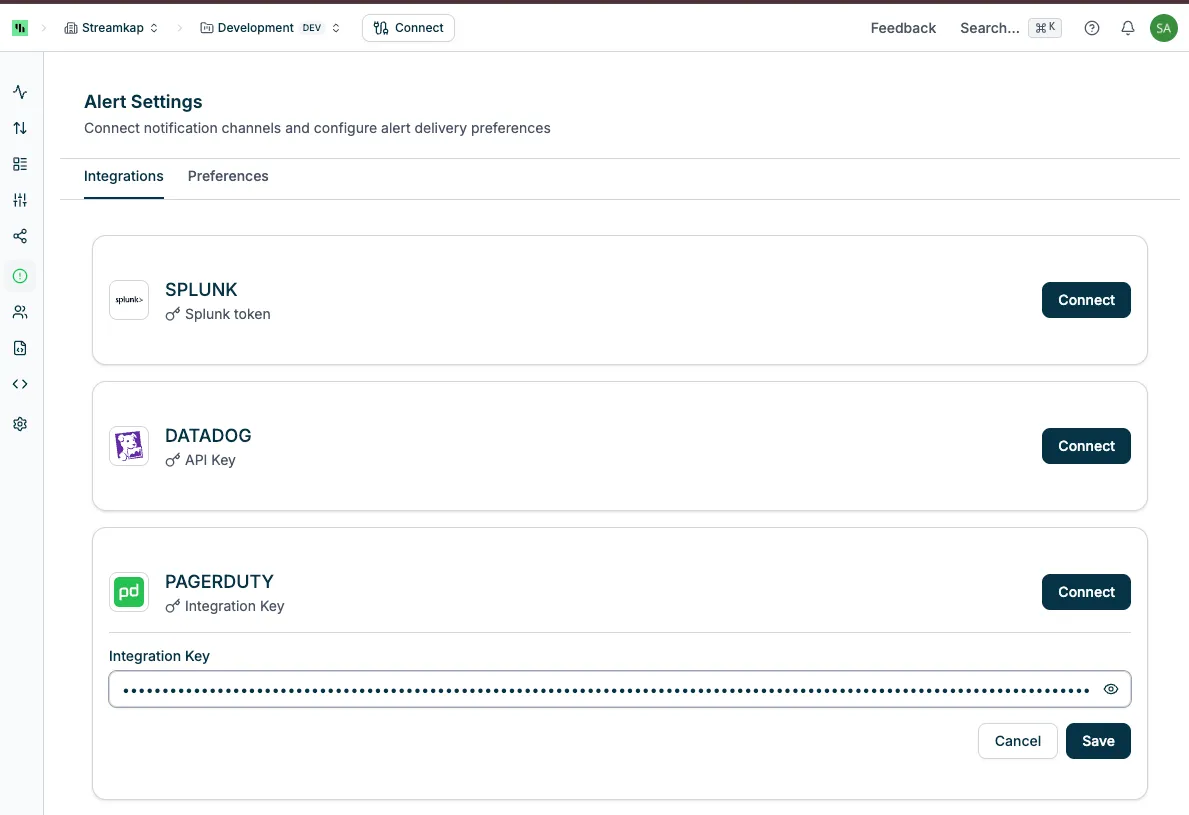
- Go to PagerDuty.
- Navigate Integration > Service integrations and click + New Serivce to create a new service.
- In the Integration step, you must to choose the Events API V2, then click Create Service button.
- Copy the Integration Key and paste it into the Integration Key field in the Alert Setting page
- Click Save.
- Data format:
{
  "payload": {
      "summary": "Destination: Test anil 4 has been resumed at 2026-01-07 14:46:46",
      "source": "https://app.streamkap.com",
      "severity": "error",
      "custom_details": {
        "action_type": "resumed",
        "datetime": "2026-01-07 14:46:46",
        "entity_id": "67e41d2daea865c2ce982b55",
        "entity_name": "Test anil 4",
        "entity_type": "destinations",
        "pending_datetime": "2026-01-07 14:46:46",
        "state": "TRIGGERERD",
        "tenant_id": "82d4a52a-987a-41ab-b199-ac02718a918f",
        "threshold_value": "None",
        "value": "None"
      }
  }
}
CUSTOM WEBHOOK
- Type: Webhook
- Status: Connect to configure
- Setup: Provide incoming webhook URL and the authentication
- Available authetication:
- NONE
- BASIC: Need to provide username and password
- BEARER: Need to provide the bearer token
Preferences Tab
Configure which alert types you want to receive and through which channels:
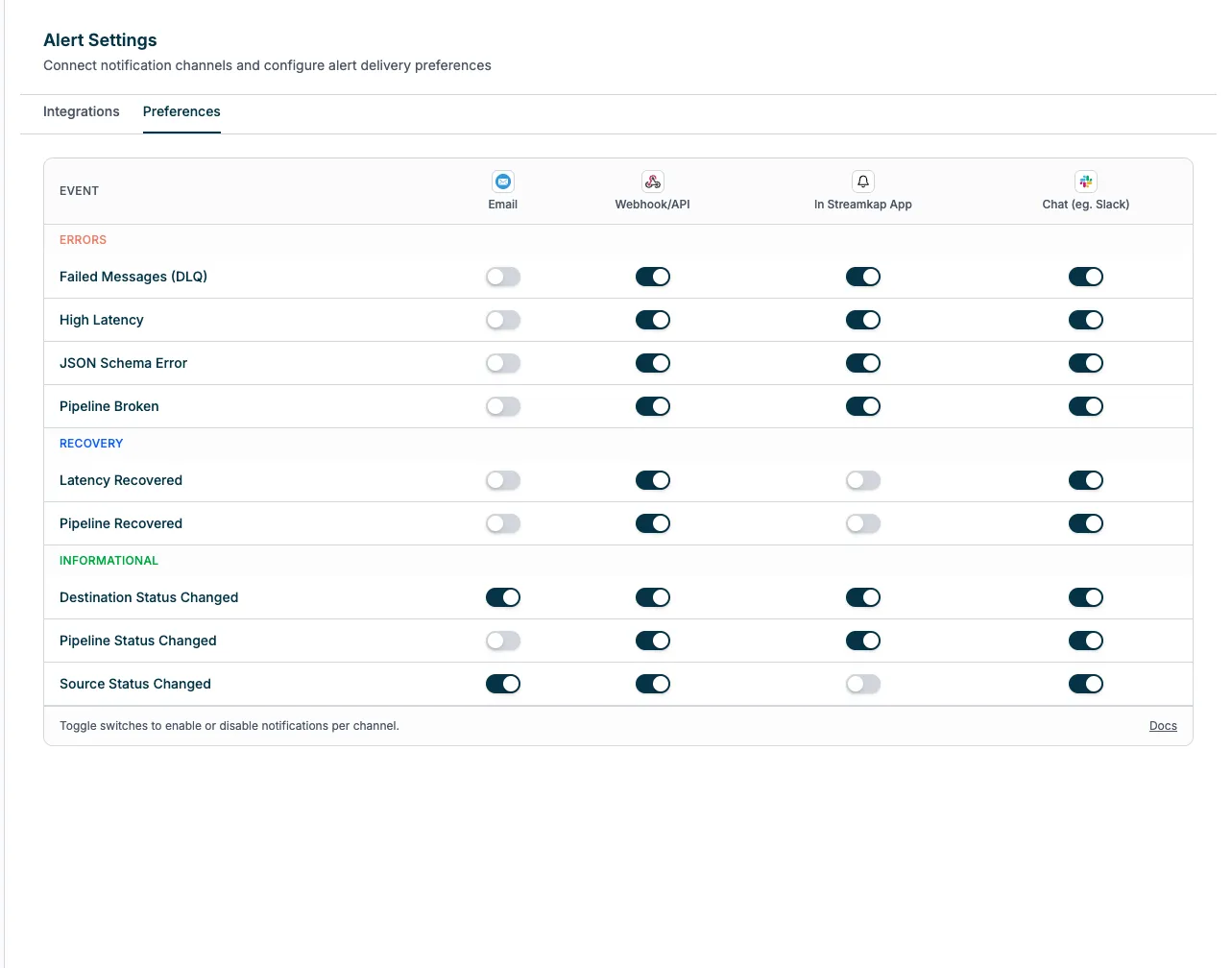
Alert categories and their enabled channels:
Destination Actions
- Events: Destination connector created, updated, deleted, stopped, resumed
- Default channels: (expand to configure)
Pipeline Actions
- Events: Pipeline created, updated, deleted, stopped, started
- Enabled channels: Email
Recovery - Pipeline Is Running
- Events: Pipeline recovered from error state and is now running
- Enabled channels: Email, In App, Chat & Webhook
Recovery - Pipeline Latency less than 10 minutes
- Events: Pipeline recovered from latency less than 10 minutes
- Enabled channels: Email, In App, Chat & Webhook
Source Actions
- Events: Source connector created, updated, deleted, stopped, resumed
- Enabled channels: Email, In App, Chat & Webhook
Triggered - Pipeline Dead Letter Queue
- Events: Messages sent to dead letter queue due to processing errors
- Enabled channels: Email, In App, Chat & Webhook
- Critical alert for data quality issues
Triggered - Pipeline JSON Column
- Events: Destination has any json columns
- Enabled channels: Email, In App, Chat & Webhook
- Critical alert for data quality issues
Triggered - Pipeline Latency greater than 10 minutes
- Events: Pipeline processing latency exceeds threshold
- Enabled channels: Email, In App, Chat & Webhook
- Important for monitoring real-time performance
Triggered - Pipeline Not Running
- Events: Pipeline stopped unexpectedly or failed to start
- Enabled channels: Email, In App, Chat & Webhook
- Critical alert for system availability
Setting Up Alerts
Navigate to Alerts Page
Click Alerts in the sidebar to view your alerts.
Open Alerts Settings
Click the Alerts Settings button in the top right corner.
Configure Integration Channels
In the Settings tab:
- Click Connect next to each integration you want to enable
- Follow the setup wizard for each channel:
- Email: Enter email addresses
- Slack: Authorize OAuth connection
- Teams/Discord/Mattermost/Grafana: Provide webhook URLs
- Grafana Loki: Provide the Loki URL and, for Grafana Cloud, the user ID and token
- Test the connection to ensure proper configuration
Customize Alert Preferences
Switch to the Preferences tab:
- Click on each alert category to expand it
- Select which channels should receive each type of alert
- Enable channels by checking the boxes (Email, In App, Chat & Webhook)
- Disable alerts you don’t need by unchecking all channels
Save Configuration
Your changes are saved automatically as you configure each setting.
Alert Types
Connector Events
Source and Destination Actions
- Created
- Updated (configuration changed)
- Deleted
- Stopped/paused
- Resumed/started
Runtime Recovery Alerts
- MongoDB resume token recovered — connector auto-recovered from an unresumable change-stream position; events in a known window may be missing.
Pipeline Events
State Changes
- Created
- Updated (settings modified)
- Deleted
- Started
- Stopped
- Broken (encountered error)
- Recovered (returned to running state)
Performance Alerts
- Pipeline latency exceeds 10 minutes
- Pipeline dead letter queue triggered
- Pipeline not running (unexpected stoppage)
Service Events
- Service configuration changes
- Service status updates
- Resource quota alerts
MongoDB Resume Token Recovery
This alert fires when a MongoDB source connector auto-recovers from an unresumable change-stream position. It is informational, not a failure — the connector has continued streaming — but it indicates that events in a known time window may not have reached the destination.
When it fires
The alert fires after the connector encounters one of:
ChangeStreamFatalError(error code 280)InvalidatedResumeTokenError(error code 260)ChangeStreamHistoryLost(error code 286)
…and the recovery option is enabled on the connector (streamkap.recovery.invalid.resume.token = skip_to_latest). Instead of failing the task, the connector discards the unresumable position, reopens the change stream from the current end of the oplog, and emits this alert so you know events in the gap window may be missing.
The alert is evaluated on Streamkap’s alert cycle over a 30-minute look-back window, so it can arrive a few minutes after the recovery itself.
These conditions typically arise from:
updateLookupagainst a deleted document. An update event references a document that is deleted before the change stream’s resume token can be persisted. MongoDB then rejects any attempt to resume from that token.- Oplog history loss. The connector was offline or behind long enough that the resume position fell out of the oplog retention window.
Payload
Every channel (in-app, email, Slack, webhook) receives the same data envelope. Key fields:
| Field | Description |
|---|---|
entity_name |
Connector name |
entity_id |
Connector ID (links to the connector page in the Streamkap app) |
recovery_attempt |
Consecutive recovery attempt number (resets to 1 on healthy streaming) |
error_code |
MongoDB error code (280 / 260 / 286, or -1 if matched by message text) |
error_message |
Truncated MongoDB server response |
gap_start |
YYYY-MM-DD HH:MM:SS — last successful resume position before the failure. May be (unknown) if the failure happened before any event was processed in the current task lifetime. |
gap_end |
YYYY-MM-DD HH:MM:SS — wall-clock time when recovery skipped to the latest oplog position |
datetime |
YYYY-MM-DD HH:MM:SS — alert timestamp |
Events whose oplog timestamp falls between gap_start and gap_end may be missing from the destination.
Webhook consumers (PagerDuty, Splunk, Datadog, generic) receive the rendered message plus all the fields above in the structured payload, ready for filtering or alert routing on the consumer side.
What to do when this alert fires
- Identify affected data. The gap window (
gap_start→gap_end) tells you which time range in the source may have under-delivered to the destination. The connector itself continues streaming normally after the alert fires. - Decide whether to replay. For collections with strict completeness requirements, trigger a snapshot over the affected collections to backfill. For collections where occasional missed updates are acceptable, no action may be required.
- Investigate the root cause if alerts are frequent. Repeated firings on the same connector usually point to either oplog sizing (consider increasing oplog retention in MongoDB) or a workload pattern that combines
updateLookupwith rapid document deletes — discussed further in the MongoDB source connector documentation.
Configuring the recovery behaviour
Recovery is off by default — a MongoDB source fails on an unresumable position unless you opt in. Turn it on per connector:
- Open the MongoDB source in the Streamkap app and edit its configuration.
- Expand the Advanced section and set Invalid Resume Token Recovery to Skip to latest, keep streaming.
- Optionally set Max Consecutive Recoveries to bound how many times the connector may recover before it gives up and fails.
- Save. The connector restarts with recovery enabled.
The underlying connector properties:
| Property | UI field | Default | Effect |
|---|---|---|---|
streamkap.recovery.invalid.resume.token |
Invalid Resume Token Recovery | fail |
fail preserves the standard fail-fast behaviour. skip_to_latest enables auto-recovery. |
streamkap.recovery.max.consecutive.attempts |
Max Consecutive Recoveries | -1 (unlimited) |
Circuit breaker. After this many consecutive recoveries with no successful events between them, the connector falls through to FAILED state and the standard failure alerts fire. 0 trips immediately (equivalent to fail); > 0 trips after N. The count resets as soon as events flow again. |
Setup details are in the MongoDB Atlas and MongoDB (Generic) guides.
Alert Channels
In-App Notifications
All alerts appear in the Alerts page within the Streamkap app. Unread alerts are indicated with green text and a dot indicator.
Email Notifications
Receive alerts via email to configured addresses. Emails include:
- Alert title and severity
- Resource name and type
- Event description
- Timestamp
- Direct link to resource in Streamkap
Slack Integration
Post alerts to Slack channels with rich formatting:
- Colored indicators based on severity
- Resource details and links
- Inline actions (when applicable)
- Thread support for related alerts
Webhook Integrations
Teams, Discord, Mattermost, and Grafana receive alerts via webhooks with structured payloads including:
- Event metadata
- Resource information
- Timestamp
- Severity level
- Direct link to Streamkap
Managing Alerts
Marking Alerts as Read
- Click the envelope icon on an individual alert to toggle its read/unread status
- Click Mark all as read at the top to mark all visible alerts as read
- Unread alerts appear with green text and remain visible when “Show only unread” is enabled
Filtering Alerts
- Search: Type in the search box to filter by issue text
- Type: Use the dropdown to show only specific resource types
- Unread Toggle: Enable “Show only unread” to hide alerts you’ve already seen
Pagination
- View 20, 50, or 100 alerts per page using the dropdown
- Navigate between pages using Previous/Next buttons or page numbers
Best Practices
- Configure Critical Alerts First: Set up notifications for pipeline failures, dead letter queues, and high latency alerts
- Use Multiple Channels: Configure both email and chat integrations for redundancy
- Customize by Environment: Use different Slack channels or email lists for production vs. development services
- Review Regularly: Check the Alerts page periodically to identify patterns or recurring issues
- Test Integrations: After setting up webhooks, trigger a test alert to verify delivery
- Tune Thresholds: Adjust latency thresholds and alert frequency to reduce noise while maintaining awareness
Troubleshooting
Not Receiving Alerts
If alerts aren’t being delivered:
- Check Integration Status: Ensure the integration shows “Connected” in Settings tab
- Verify Webhook URLs: Copy and test webhook URLs in a tool like curl or Postman
- Check Email Spam: Email alerts may be filtered as spam initially
- Review Preferences: Confirm the alert type has the correct channels enabled
- Test Connection: Disconnect and reconnect the integration
Too Many Alerts
If you’re overwhelmed with notifications:
- Disable Low-Priority Alerts: Uncheck channels for informational alerts in Preferences
- Use Filters: Set up separate channels for different severity levels
- Adjust Thresholds: Consider increasing latency thresholds if appropriate
- Mute Specific Types: Disable alerts for routine operations like connector updates
Slack Not Posting
If Slack integration isn’t working:
- Re-authorize: Disconnect and reconnect the Slack integration
- Check Permissions: Ensure the Streamkap app has permission to post in your workspace
- Verify Channel: Confirm the target Slack channel still exists
- Test OAuth Token: OAuth tokens may expire; reconnecting refreshes the token
Grafana Loki Not Receiving Alerts
If alerts don’t appear in Loki:
- Enable the channel: In the Preferences tab, turn on Webhook/API for the alert types you want in Loki.
- Widen the query: Search
{service_name="streamkap"}over the last hour, with no other filters. - Check credentials: For Grafana Cloud, User ID is the numeric Loki user and the token needs the
logs:writescope. After editing the integration, enter the token again. - Check network access: Loki must be reachable from Streamkap’s control plane. Review Streamkap IP Addresses and confirm the control-plane egress IPs with Streamkap; allowing traffic only from your own cloud account is insufficient.
Related Documentation
- Logs - View detailed system logs for debugging
- Pipelines - Manage data pipelines
- Sources - Configure source connectors
- Destinations - Configure destination connectors
- Projects - Manage Streamkap projects