Team Management can be found in Account preferences under the Workspace section. Click your avatar in the top navigation bar and select Account preferences to access these settings.
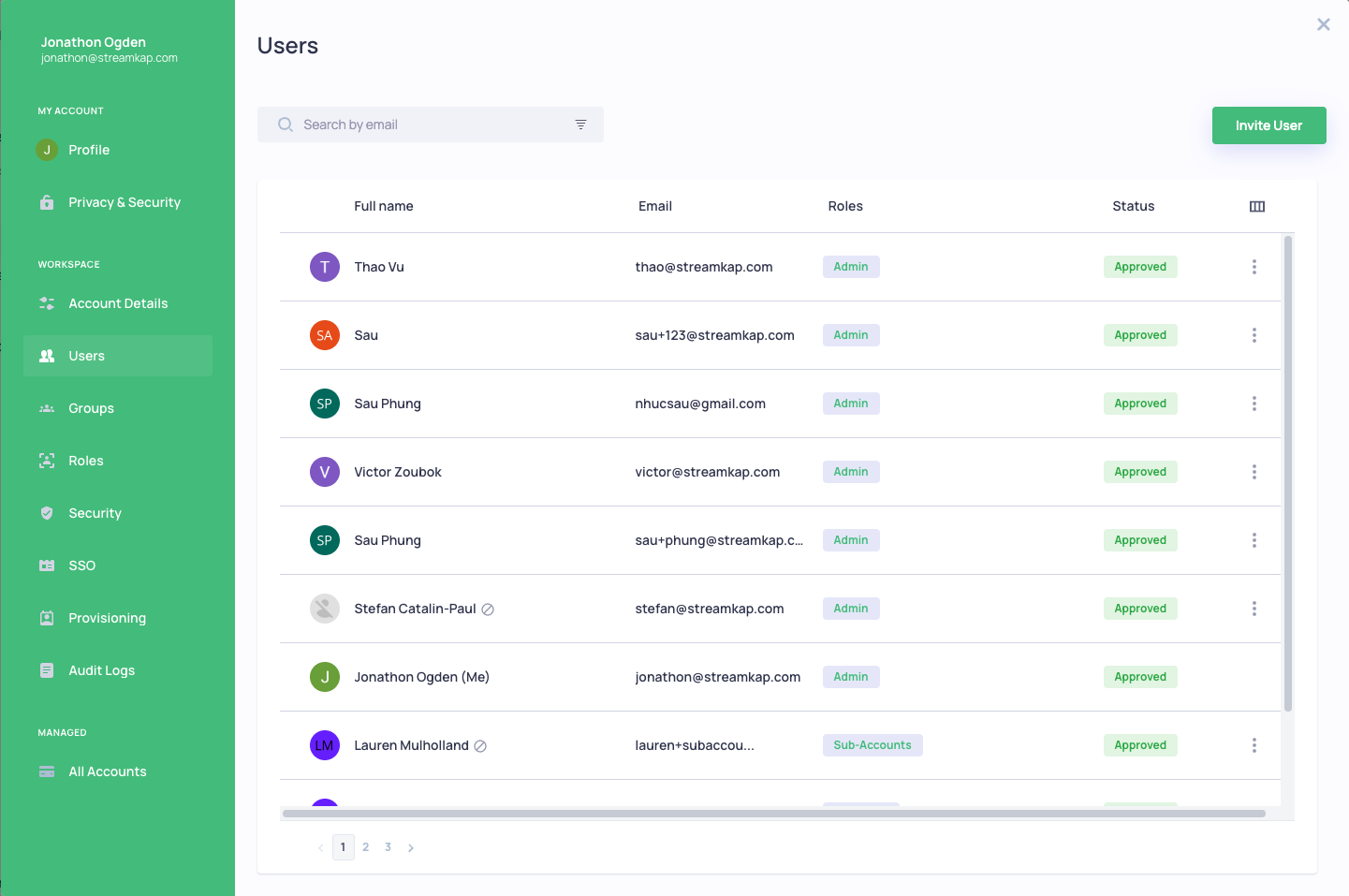
Users
Invite team members and manage their access to your Streamkap organization.
Inviting Users
- Click Invite User to add new team members
- Enter their email address
- Assign appropriate roles
- The user will receive an email invitation
Roles
The following roles are currently supported:
- Admin - Full access to everything
- Data Admin - Can create/edit sources/destinations/pipelines but does not have admin access
- Read Only - Read only access to everything
- Sub-Accounts - Can create/edit sub accounts
- Team Management - Can add/edit users
- Billing - Access to subscription page only
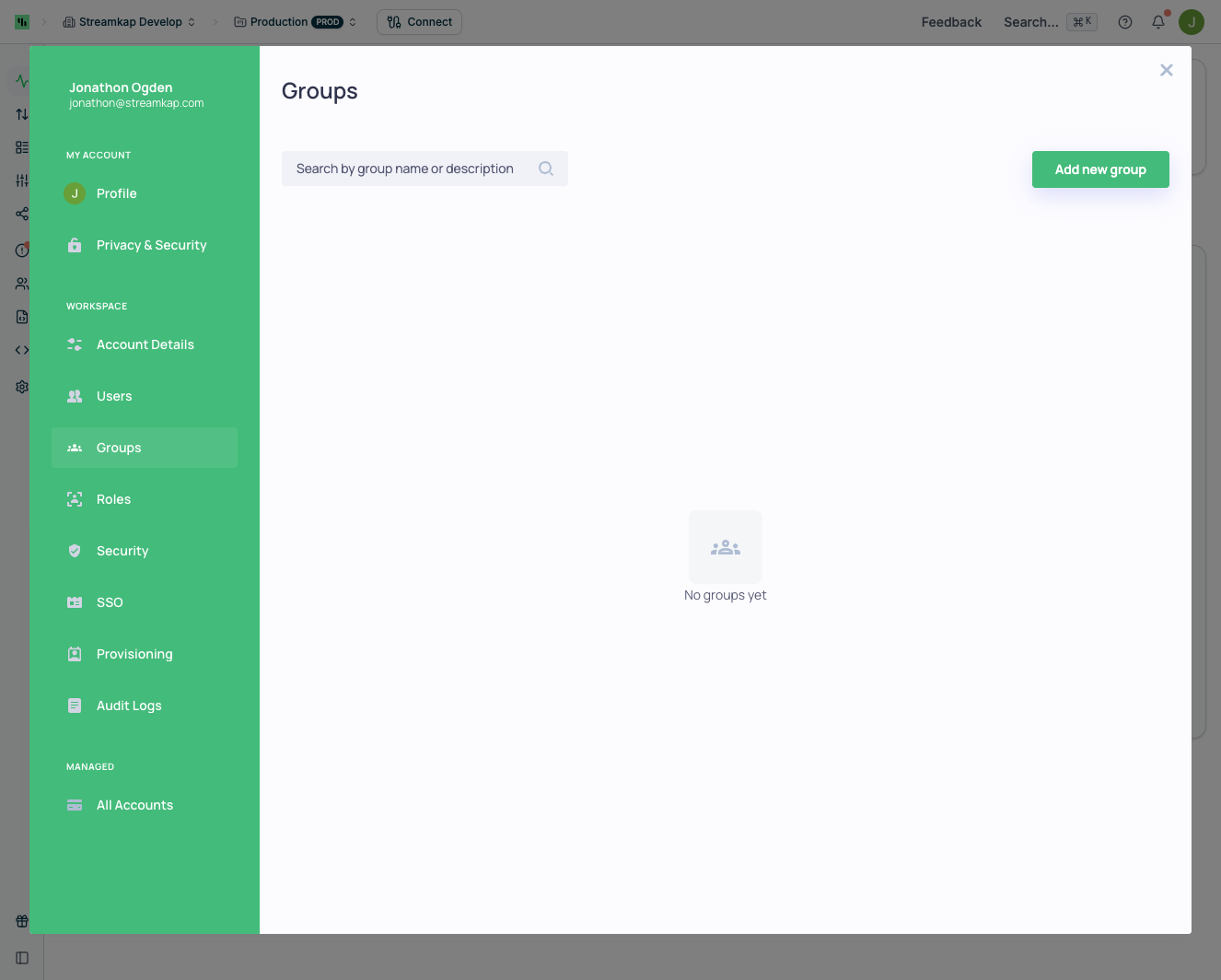
Groups
Groups can be used for organizing collections of users, such as Admins, Read Only, or external collaborators.
To create a new group, click Add new group and configure the group name and members.
Deleting Users
Standard Users
Users that were manually invited through the Streamkap UI can be deleted directly from the Users page by an Admin.
SCIM-Provisioned Users
If your organization uses SSO with SCIM provisioning, some users may show as Managed externally in the Managed by column. These users were provisioned via SCIM (System for Cross-domain Identity Management), which means your Identity Provider (IdP) is the source of truth for their lifecycle.
SCIM-provisioned users cannot be deleted through the standard admin flow in Streamkap. The delete option will not appear for these users.
- Deprovision or delete the users in your IdP — the change will sync through SCIM and remove the user from Streamkap automatically
- Contact your Streamkap administrator to manually remove the user via the Backoffice portal
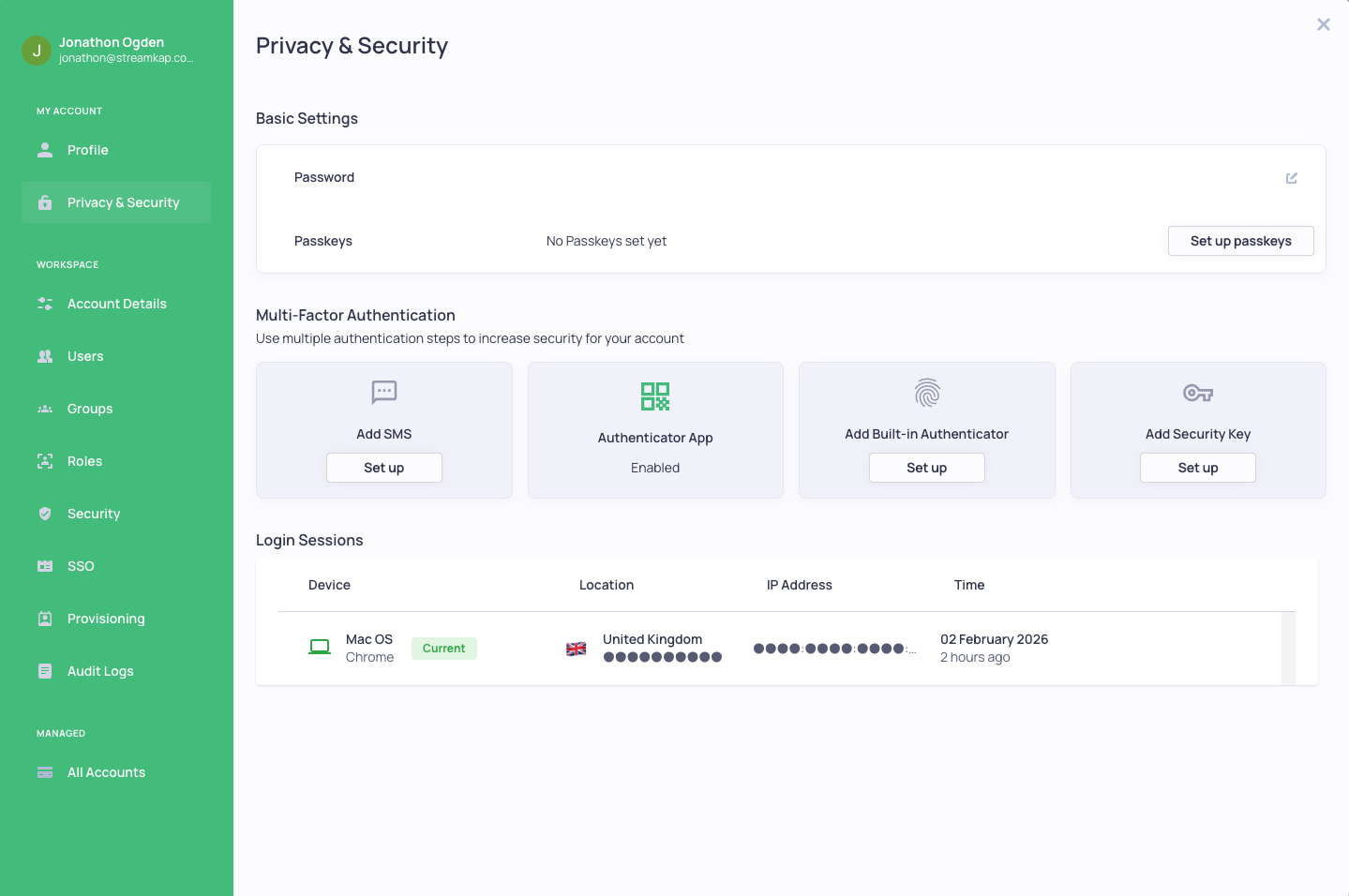
Log Out Sessions
It’s possible to force logout a user from their sessions. Learn more at Personal Privacy & Security and Organisation Security.