

Salesforce
Stream Salesforce standard and custom objects into Streamkap, signing in through an External Client App with client credentials or a JWT bearer certificate.
The Salesforce source reads any object your org can query, standard or custom, and writes each to its own topic named after the object’s case-sensitive API name, for example source_<id>.salesforce.Account.
Prerequisites
- A Salesforce org whose edition includes API access.
- A Salesforce user for Streamkap to read as, with API Enabled and Read on every object you want to sync. Streamkap sees exactly what this user sees.
- Permission to create an External Client App in Setup.
Salesforce Setup
The Authentication field on the Auth tab offers two ways to sign in. Both read and sync the same way, and both take your My Domain URL directly.
- Client credentials (External Client App), the default: Streamkap uses your External Client App’s Consumer Key and Consumer Secret and reads as the app’s run-as user. Choose it when the connection should belong to a service identity rather than a person.
- JWT bearer (External Client App certificate): Streamkap signs a short-lived assertion with your certificate’s private key and reads as a pre-authorized integration user. Only the certificate’s public half is uploaded to Salesforce.
1. Grant the User Read Access
In a permission set assigned to the user Streamkap reads as (the run-as user or the integration user), or in its profile, grant:
- API Enabled. Without it Salesforce refuses every API call from the user.
- Read on each object you select, and field-level Read on the fields you want. A field the user cannot read is left out of the records;
Idmust be readable. - View All Data, if you want every record rather than the ones your sharing settings give the user. Feeds (
AccountFeed),TopicAssignmentandAttachmentneed it to be read at all. History and setup objects may need View All Data or View Setup and Configuration.
Streamkap only reads. It never creates, updates or deletes records in your org.
2. Create the External Client App (Client Credentials)
- In Setup, open External Client Apps Manager and create an app, for example
Streamkap. - In its OAuth settings, enable OAuth with the
apiscope and turn on Enable Client Credentials Flow. The client-credentials flow never redirects a browser, so the callback URL is not used. - In the app’s client-credentials policy, set the run-as user to the user from step 1. The access token Salesforce issues carries only that user’s permissions.
- Copy the Consumer Key and Consumer Secret from the app’s Settings → OAuth Settings → Consumer Key and Secret.
3. Create the Certificate and App (JWT Bearer)
- Create a certificate and its private key, for example
openssl req -x509 -newkey rsa:2048 -nodes -keyout streamkap.key -out streamkap.crt -days 730. Keepstreamkap.keyprivate. - In External Client Apps Manager, create an app, enable OAuth with the
apiscope, enable the JWT bearer flow and uploadstreamkap.crt. Copy the Consumer Key as in step 2. - In the app’s OAuth Policies, set Admin approved users are pre-authorized and add the integration user’s profile or a permission set assigned to it.
4. Find Your My Domain URL (Client Credentials and JWT Bearer)
In Setup, open My Domain and copy the URL, for example https://acme.my.salesforce.com. A sandbox has its own, such as https://acme--dev.sandbox.my.salesforce.com.
Streamkap accepts an https host ending in .my.salesforce.com, which covers the sandbox, developer and scratch variants, with no port, path, query or credentials. The lightning.force.com address in your browser’s address bar is the Salesforce UI and is rejected.
Streamkap Setup
1. Create the Source
- Navigate to Add Connectors.
- Choose Salesforce.
2. Connection Settings (Auth Tab)
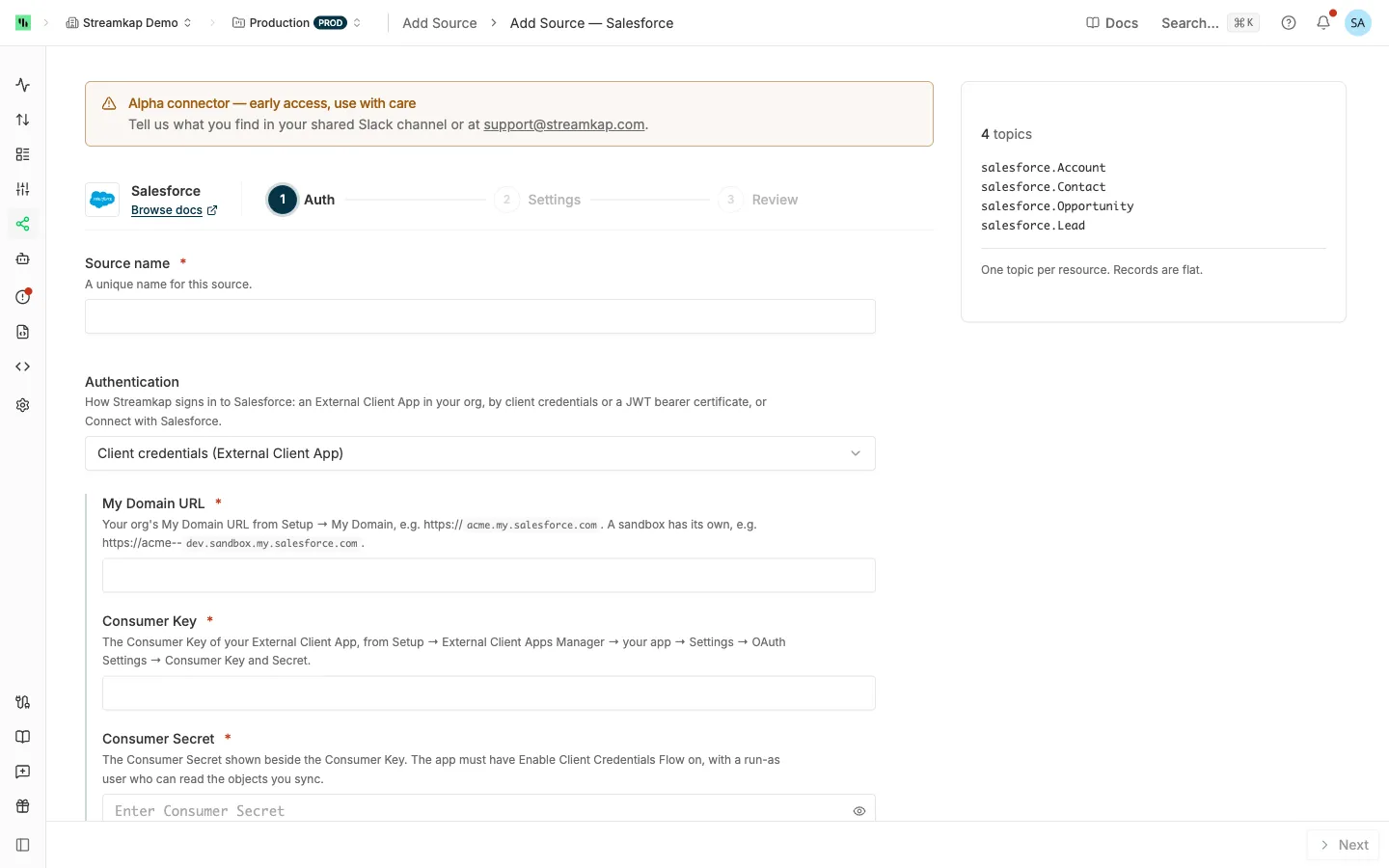
- Source name: A unique name for this source, for example
salesforce-prod. - Authentication: Client credentials (External Client App) (default) or JWT bearer (External Client App certificate). The fields below follow your choice.
For Client credentials (External Client App):
For JWT bearer (External Client App certificate):
- My Domain URL: from step 4. A sandbox or scratch host is handled automatically.
- Consumer Key: of the app you uploaded the certificate to.
- Integration username: the user Streamkap signs in as, for example
integration@acme.com. - Private key: the unencrypted RSA private key in PEM format, with its
BEGINandENDlines.
Click Test connection to check the credentials and see which org they belong to. See Test connection and Test access.
3. Settings Tab
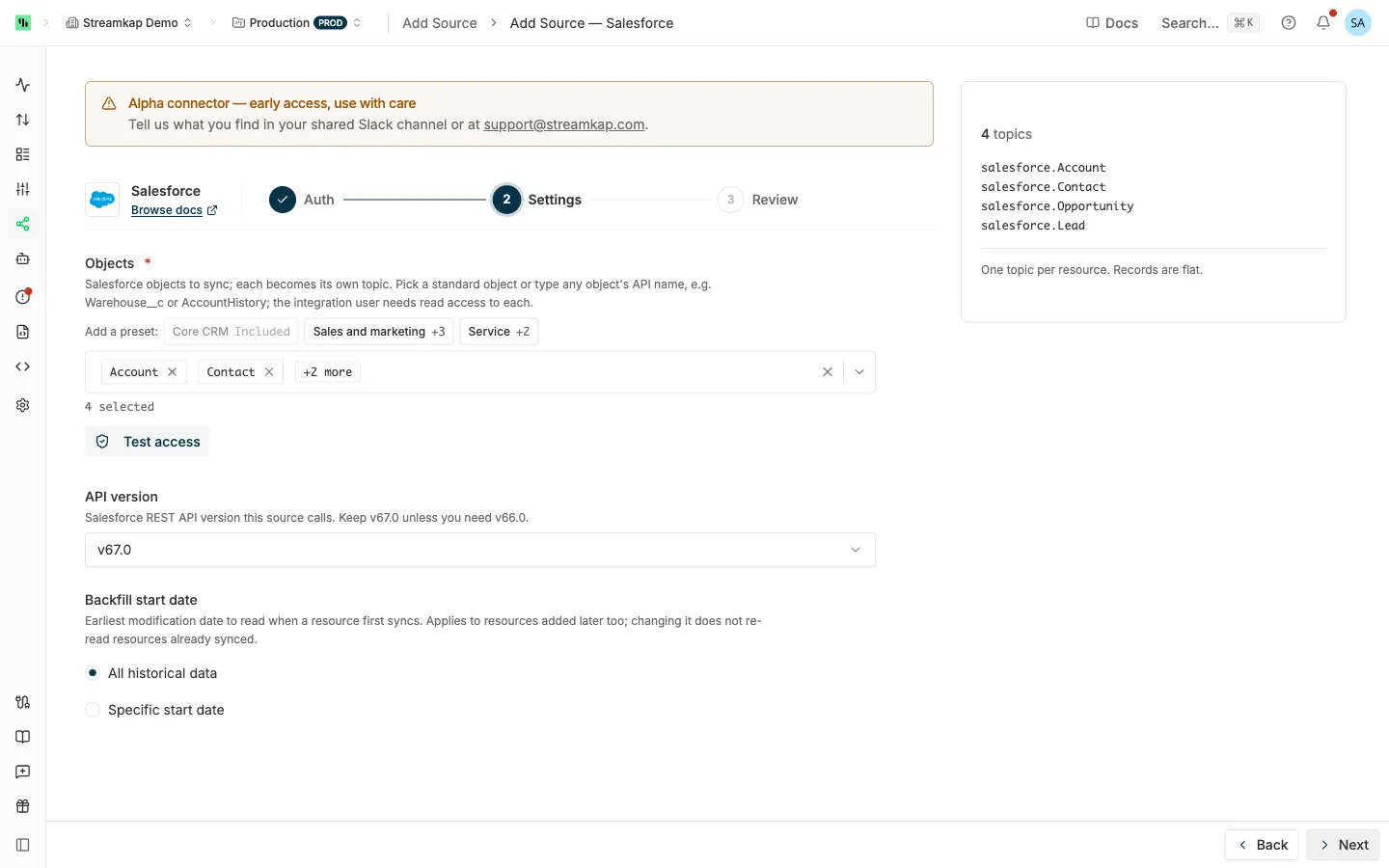
- Objects: The objects to sync, each to its own topic. Pick a standard object or type any object’s API name, for example
Warehouse__corAccountHistory. The form starts withAccount,Contact,OpportunityandLead. Add a preset adds:- Core CRM:
Account,Contact,OpportunityandLead. - Sales and marketing: Core CRM plus
Task,EventandCampaign. - Service:
Account,Contact,CaseandTask.
- Core CRM:
- API version: v67.0 (default) or v66.0.
- Backfill start date: All historical data, or Specific start date to skip records whose last modification is older. See Backfill start date.
Test access under Objects reads each selected object with the query a poll sends. An object that does not exist or that the user cannot read is listed as blocked.
4. Review and Create
Click Create. Streamkap checks the credentials and the selected objects again before it saves. A Salesforce org backs one source per workspace; see One source per vendor account. Then send the topics to a destination: see Send topics to a destination.
Editing the Source
- Rotating the Consumer Secret or private key: click Replace, enter the new value and save. Saving clears an authentication failure at once. Left untouched, the stored value is kept, and Test connection tests it.
- Changing the My Domain URL: enter the new org’s Consumer Key and Consumer Secret (or Private key) in the same save. Streamkap checks the credentials against the new org before it saves.
- Adding objects: on a saved source, the Objects picker also lists the other objects your org can query.
See Editing an API source for what adding or removing objects does to your destinations.
Supported Objects
The picker offers eight standard objects: Account, Contact, Lead, Opportunity, Case, Campaign, Task and Event. Any other object your org can query is synced by its API name, which is not always its label. A custom object’s API name ends in __c. Through the Streamkap API, set resources in the source config, for example "resources": ["Account", "Warehouse__c"].
Each object is read by the first change timestamp it has: SystemModstamp, LastModifiedDate, CreatedDate or LoginTime. An object with none is re-read whole on every poll; only changed rows are sent, and a row gone from the listing becomes a delete.
Some kinds differ:
- Field history (
AccountHistory,Warehouse__History): rows are only added, so they are read byCreatedDate. A history row is deleted with its parent record. - Sharing (
AccountShare,Warehouse__Share): a removed share skips the Recycle Bin, so its delete arrives through the daily reconciliation, up to a day late. - Feeds (
AccountFeed,Warehouse__Feed): need View All Data. - Custom metadata types (
__mdt): have no Recycle Bin or delete log, so deletes arrive only through the daily reconciliation. - Knowledge (
__kav): draft, published and archived article versions are read. - Records deleted outright, such as
OpportunityLineItem,QuoteLineItem,OpportunityContactRoleand team members: deletes arrive through the daily reconciliation.AccountTeamMemberandOpportunityTeamMembercan change without moving their timestamp, so all their fields are re-checked daily, like formula fields.
External objects (__x), big objects (__b), platform events (__e) and change events (ChangeEvent) are refused on save with the reason: none can be read by a change timestamp.
Two more resources describe the objects you sync, refreshed hourly, with a removed field or value arriving as a delete:
object_fields: one row per field of each synced object: label, type, length, precision, whether it is required, custom or a formula (with the formula), and what it references.picklist_values: one row per picklist value: label, and whether it is active or the default.
Behavior & Limits
First Sync
A first sync of a large object reads it through a Bulk API query job, which costs far fewer requests than reading page by page. The job runs in Salesforce first, so its records arrive a few polls after the sync starts. If Salesforce refuses or fails the job, that object is read page by page in the same poll. Later polls always read page by page.
Deletes
Deletes arrive as __deleted = true records. See Deletes.
- Sweep, every 6 hours, for every synced object: it reads deleted records from the Recycle Bin and the org’s delete log, so a delete from a cascade or a merge is caught too. Both keep a delete for 15 days. A record already purged from the Recycle Bin arrives with only its
Id. - Reconciliation, daily: lists each object’s live IDs and deletes any that disappeared. It catches deletes older than 15 days, for example while the source was stopped, and records Salesforce deletes outright. An object of more than about 500,000 records is listed over several runs, so such a delete can take a few days.
Formula and Roll-Up Summary Fields
Salesforce does not move SystemModstamp when a formula or roll-up summary value changes because a referenced record changed, so no poll sees it. Streamkap re-checks these fields daily in blocks of about 2,000 records and re-sends the full current records of any block that changed. The Status of Contract, ContractLineItem and ServiceContract, which moves with the date, is re-checked with them. For an object not yet synced, the first check records the values before its first sync reads, so nothing is missed. When an object gains a formula field (a new one, or one field-level security now exposes), the next check re-sends every record of the object once; removing one, or a Streamkap update, re-sends nothing. Expect formula values up to a day behind, at a cost of about one request per 2,000 records of each such object per day, plus one or two per changed block.
Fields
- The field list is read from your org and cached for an hour, so a new field appears within about an hour, and only on records that change afterwards. Your destination adds the column if it evolves its schema; see Schema Evolution.
- Address and geolocation fields sync as their flat components (
BillingStreet,BillingCity, …), not the nestedBillingAddress. Binary (base64) fields are skipped. - An object with hundreds of fields is read in several requests per batch, because Salesforce limits a request’s length.
API Request Allocation
Salesforce gives the whole org a rolling 24-hour API request allocation, shared with your other integrations. Streamkap reads records in large batches and paces its requests.
- At 90% of the allocation used, the source shows Throttled, leaving the rest to your other integrations, and checks again every hour.
- If the allocation runs out anyway, it shows Throttled until the next UTC day.
Either way it resumes on its own without losing data. If it recurs, select fewer objects or reduce the load from other integrations. See Connector status.
Troubleshooting
Salesforce rejected the client credentials
Salesforce rejected the client credentials. Check the Consumer Key and Consumer Secret, and that the External Client App has Enable Client Credentials Flow on with a run-as user.
Salesforce answers all three problems with the same error, so check each, then click Replace on the source’s Auth tab, enter the values and save. Syncing stops until you do.
If the message instead says Salesforce refused the app’s session even after a fresh sign-in, check that the run-as user is active and that the app’s session and IP policies allow Streamkap, then save the source.
Salesforce rejected the JWT sign-in
Salesforce rejected the JWT sign-in. Check the Consumer Key and username, that the certificate uploaded to the External Client App matches this private key, and that the app’s OAuth Policies set Admin approved users are pre-authorized with the user’s profile or permission set added.
Salesforce rejects an assertion for a user who is not pre-authorized the same way as one signed with the wrong key, so check the app’s OAuth Policies first.
Salesforce cannot see the object
Salesforce cannot see ‘
<name>’: it does not exist in this org, or the run-as user of your External Client App lacks Read on it. …
Salesforce reports a missing object and an object the user cannot read identically, so check both:
- The API name is case-sensitive, and a custom object’s ends in
__c. - The user named in the message has Read on the object: the run-as user or the integration user.
Only that object pauses. It is retried on its own and resumes once access is granted; saving the source retries it at once.
A permission is missing for an object
Salesforce refused ‘
<name>’: the run-as user of your External Client App lacks a permission it needs. Grant that user Read on the object and field-level Read on its fields in a permission set or the profile, plus View All Data or View Setup and Configuration for history, feed and setup objects, or deselect ‘<name>’.
Grant the permission to the named user or deselect the object. Only that object pauses, and it resumes once the permission is granted.
Salesforce refuses API access to the user
Salesforce refuses API access to the run-as user of your External Client App. Turn on API Enabled in that user’s profile or a permission set, then save the source; the org’s edition must include API access.
All syncing stops, and Streamkap does not retry on its own. Turn on API Enabled for the named user, then save the source.
The My Domain URL is rejected
The value must be the API host from Setup → My Domain, such as https://acme.my.salesforce.com, not the lightning.force.com address. See Find your My Domain URL.
A changed value has not arrived
A change to a formula or roll-up summary value does not move SystemModstamp, so it arrives with the daily formula check. A new field takes up to an hour to appear and is filled only on records that change afterwards; check also that the user has field-level Read on it and that it is not a compound or binary field.
A deleted record still shows in my destination
The delete sweep runs every 6 hours. A delete older than the Recycle Bin’s 15 days, or a record Salesforce deletes outright, arrives through the daily reconciliation, which can take a few days on an object of more than about 500,000 records. See Deletes.
Related Documentation
- API sources - how API sources work, Test access, delivery to a destination and connector status
- Salesforce CDC - Salesforce’s own Change Data Capture events
- Schema Evolution - how destinations add columns for new fields