

NetSuite
Stream NetSuite records, standard and custom, into Kafka topics over SuiteQL, signing in with a certificate or an existing token-based integration.
The NetSuite source reads your NetSuite tables with SuiteQL and streams each selected record type to its own Kafka topic, source_<id>.netsuite.<record>.
Prerequisites
- A NetSuite account and an administrator who can enable features, create integration records and edit roles.
- A role for the integration (see step 6).
- For the certificate method, OpenSSL or another tool that generates a key pair.
Choose an authentication method:
- Certificate (OAuth 2.0 client credentials), the default: Streamkap signs each token request with your private key. Use it for any new integration.
- Token-based authentication (OAuth 1.0a): use it only to point an existing TBA integration at Streamkap.
NetSuite Setup
1. Enable the Required Features
In Setup → Company → Enable Features, enable:
- REST Web Services and SuiteAnalytics Workbook: Streamkap reads with SuiteQL over REST.
- On the SuiteCloud subtab, OAuth 2.0 for the certificate method, or Token-Based Authentication for TBA.
2. Find Your Account ID
In Setup → Company → Company Information, copy the Account ID, for example 1234567, TSTDRV1234567, or 1234567_SB1 for a sandbox. Enter it in Streamkap exactly as shown, underscore included; Streamkap derives the API host from it.
3. Generate a Key Pair (Certificate Only)
openssl req -new -x509 -newkey rsa:2048 -sha256 -days 730 -nodes \
  -keyout netsuite-private.pem -out netsuite-public.pem -subj "/CN=streamkap"
An EC P-256 key also works.
4. Create the Integration Record
In Setup → Integration → Manage Integrations → New, name it (for example Streamkap), then:
- Certificate: under OAuth 2.0, tick Client Credentials (Machine to Machine) Grant and the REST Web Services scope. Streamkap uses neither Token-Based Authentication nor Authorization Code Grant in this mode. Save and copy the Client ID; NetSuite shows it only once.
- TBA: tick Token-Based Authentication, save, and copy the Consumer Key and Consumer Secret, which NetSuite shows only once.
5. Map the Certificate (Certificate Only)
In Setup → Integration → Manage Authentication → OAuth 2.0 Client Credentials (M2M) Setup → Create New, pick the integration record from step 4, the role from step 6 and that role’s entity, upload netsuite-public.pem, save, and copy the Certificate ID.
6. Grant the Role Its Permissions
In Setup → Users/Roles → Manage Roles, give the integration’s role:
- Setup → REST Web Services (Full).
- Setup → Log in using OAuth 2.0 Access Tokens for the certificate method, or Setup → Log in using Access Tokens for TBA.
- Reports → SuiteAnalytics Workbook.
- Setup → Deleted Records, for every record whose deletes are read from NetSuite’s deletion log. Without it, Test access fails those records.
- At least View on each record type you stream:
| Records (SuiteQL table) | Permission |
|---|---|
customer |
Lists → Customers |
vendor |
Lists → Vendors |
contact |
Lists → Contacts |
employee |
Lists → Employees |
partner |
Lists → Partners |
job |
Lists → Jobs (Projects feature) |
item, inventoryitemlocations, itemvendor |
Lists → Items |
transaction, transactionline, transactionaccountingline, nexttransactionlinelink, previoustransactionlinelink |
Transactions → Find Transaction, plus each transaction type you want, such as Invoice or Sales Order |
account |
Lists → Accounts |
subsidiary |
Lists → Subsidiaries |
department |
Lists → Departments |
location |
Lists → Locations |
classification |
Lists → Classes |
currency |
Lists → Currency |
accountingperiod |
Setup → Manage Accounting Periods |
accountingbook |
Setup → Accounting Book |
subscription, subscriptionline |
Lists → Subscriptions |
subscriptionplan |
Lists → Subscription Plan |
subscriptionchangeorder |
Lists → Subscription Change Orders |
priceplan |
Lists → Price Plans |
pricebook |
Lists → Price Books |
billingschedule |
Lists → Billing Schedules |
revenueelement |
Lists → Revenue Element |
systemnote |
Lists → System Notes for Analytics and REST |
deletedrecord |
Setup → Deleted Records |
customfield |
Setup → Custom Entity Fields, Custom Item Fields, Custom Body Fields, Custom Column Fields and Other Custom Fields, for the kinds you want listed |
customsegment |
Setup → Custom Segments |
customrecord… |
Lists → Custom Record Entries, or the role’s entry on the record type’s Permissions subtab, depending on its Access Type |
A permission appears only when the feature behind it is enabled. For the remaining setup lists (entitygroup, customercategory, vendorcategory, entitystatus, pricelevel, term, consolidatedexchangerate, taxtype, subscriptionterm), select them and run Test access: it names each one the role cannot read.
7. Create an Access Token (TBA Only)
In Setup → Users/Roles → Access Tokens → New, pick the integration and role, and copy the Token ID and Token Secret. NetSuite shows them only once.
Streamkap Setup
1. Create the Source
- Navigate to Add Connectors.
- Choose NetSuite.
2. Connection Settings (Auth Tab)
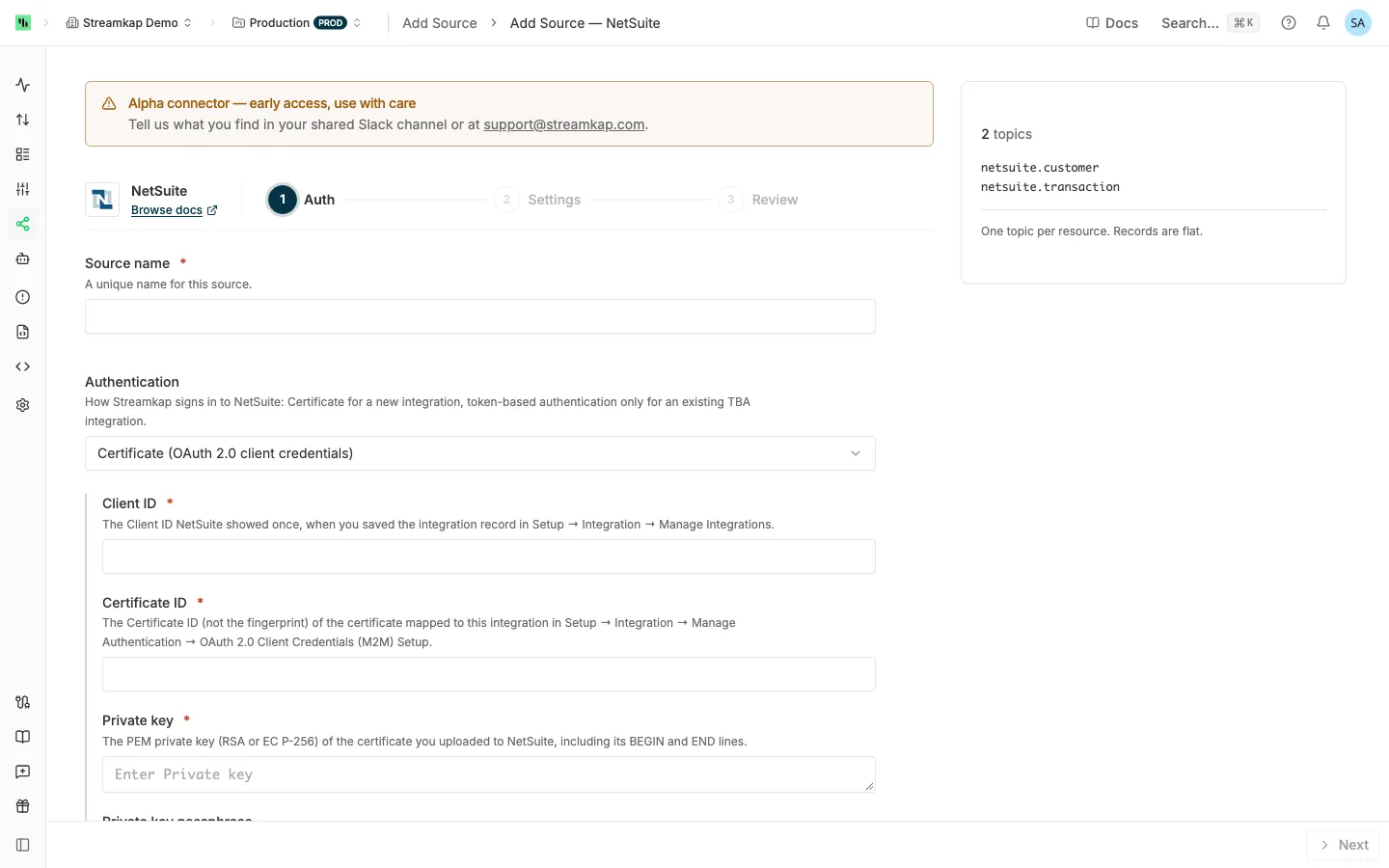
- Source name: A unique name for this source, for example
netsuite-prod. - Authentication: Certificate (OAuth 2.0 client credentials) (default) or Token-based authentication (OAuth 1.0a). The fields below follow your choice.
- Account ID: The Account ID from step 2. A pasted account URL also works.
Certificate:
- Client ID: From step 4.
- Certificate ID: From step 5.
- Private key: The contents of
netsuite-private.pem, RSA or EC P-256 in PEM format, with itsBEGINandENDlines. - Private key passphrase (optional): Only if the key is encrypted.
Token-based authentication:
- Consumer Key and Consumer Secret: From the integration record, step 4.
- Token ID and Token Secret: From the access token, step 7.
Click Next.
3. Settings Tab
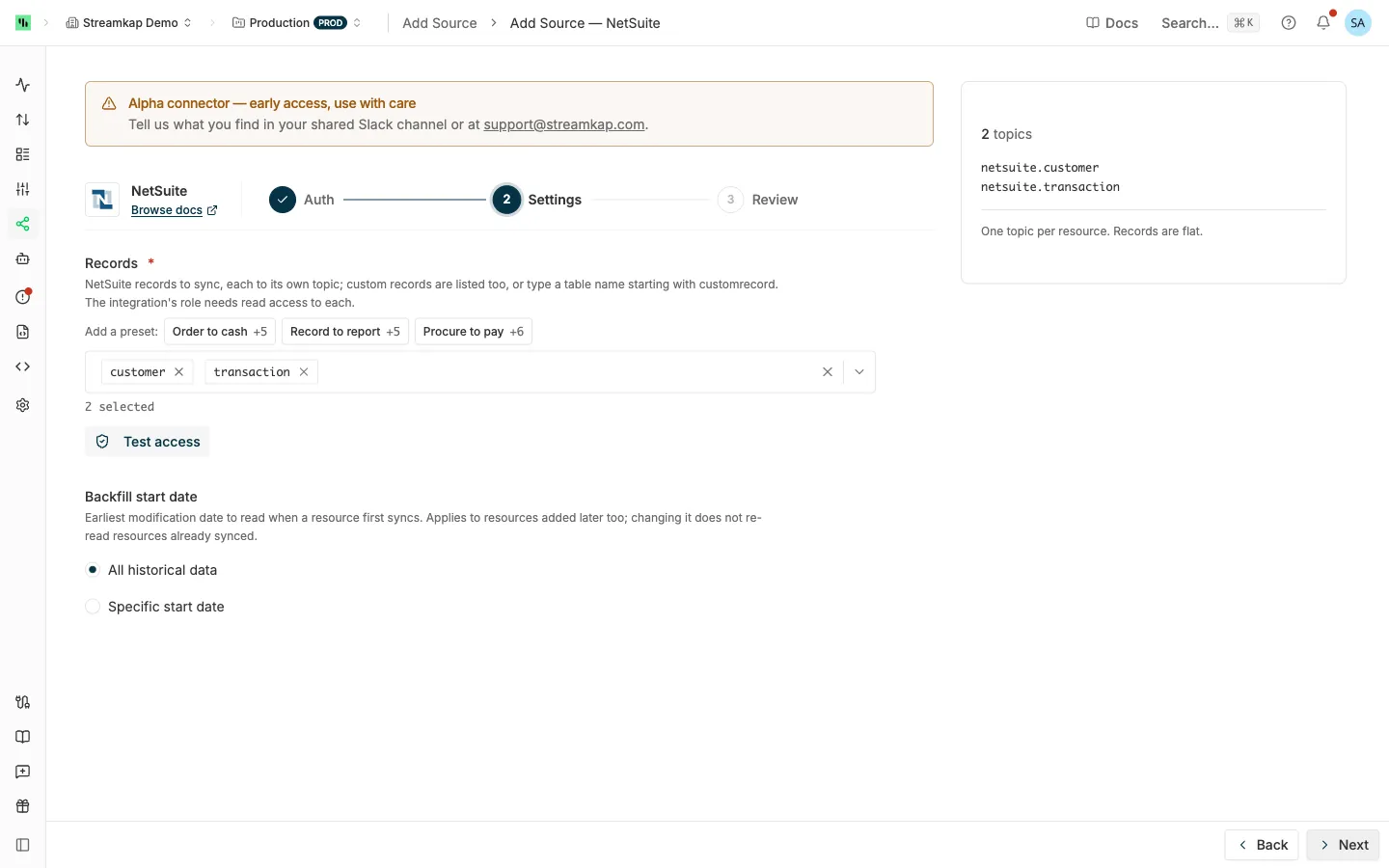
- Records: The SuiteQL tables to sync. The form starts with
customerandtransaction. Custom records found in your account are listed too, or type a table name starting withcustomrecord. Add a preset adds:- Order to cash:
customer,contact,item,transaction,transactionline,term,currency. - Record to report:
account,accountingperiod,transaction,transactionline,transactionaccountingline,currency. Adddepartment,locationandclassificationif your account uses them. - Procure to pay:
vendor,vendorcategory,item,transaction,transactionline,term,currency.
- Order to cash:
- Backfill start date: The earliest last-modified time a record’s first sync reads. See Backfill start date.
Run Test access to check each selected record with the statements its first poll sends, including the deletion-log read. See Test connection and Test access.
4. Review and Create
Check the summary and click Create. A NetSuite account backs one source per workspace, keyed on Account ID; see One source per vendor account. Then send the topics to a destination: see Send topics to a destination.
Editing the Source
- Rotating the certificate: map a new certificate in NetSuite (step 5), then paste the new Private key and Certificate ID and save. Streaming continues from where it stopped.
- Changing the Account ID: enter the new account’s credentials in the same save. Streamkap checks them against the new account before it saves.
For adding and removing records, see Editing an API source.
Supported Records
| Entities | Items and transactions | Accounting and setup |
|---|---|---|
customer |
item |
account |
vendor |
transaction |
subsidiary |
contact |
transactionline |
department |
employee |
transactionaccountingline |
location |
partner |
nexttransactionlinelink, previoustransactionlinelink |
classification |
job |
inventoryitemlocations |
currency |
entitygroup |
itemvendor |
accountingperiod, accountingbook |
customercategory, vendorcategory |
pricelevel |
consolidatedexchangerate, term, taxtype |
entitystatus |
Also:
- SuiteBilling (needs the feature):
subscription,subscriptionline,subscriptionplan,subscriptionterm,subscriptionchangeorder,priceplan,pricebook,billingschedule,revenueelement. systemnote: NetSuite’s audit trail of field changes. It is large.deletedrecord: NetSuite’s deletion log, one row per deletion.customfield,customsegment: the definitions of your custom fields and segments.- Custom records (
customrecord…), including custom segment values (customrecord_cseg_…). They track changes by theirlastmodifiedfield.
transaction holds every transaction type in one topic; the type column identifies each row.
Transaction lines and links have no unique ID, so their id joins their key columns with |. A line’s id is <transaction>|<line>, for example 301|1, and the line’s own number is kept in netsuite_id.
Behavior & Limits
Incremental Sync
Each poll reads rows modified at or after the last poll’s position, re-reading the last hour and dropping rows already sent. Every row carries an extra streamkap_lastmodified column holding the last-modified time in a sortable format; for a table without a last-modified column it is the time of the poll that last sent the row.
NetSuite renders timestamps in the integration user’s time zone (Home → Set Preferences) or the company’s, not UTC. Streamkap converts the backfill start date into that zone and reads the zone’s offset on every poll, so a time zone or daylight-saving change loses no edits. After such a change, up to an hour of rows is sent again.
Recalculated Payment and Balance Columns
NetSuite recalculates some columns without changing the last-modified time: applying a payment changes an invoice’s amount paid, amount unpaid and status, and a customer’s balances follow its transactions and the calendar. Streamkap re-checks these columns daily and re-sends the rows that changed, so they are up to a day behind:
transaction, for invoices, bills, credit memos, vendor credits, payments, deposits, deposit applications and refunds:foreignamountpaid,foreignamountunpaid,status,foreignpaymentamountusedandforeignpaymentamountunused.customer:balancesearch,overduebalancesearch,unbilledorderssearchanddepositbalancesearch.
When transaction or customer is read in parts, only status is in its rows, so only status is re-checked. A column the role cannot read is left out with a warning. Any other value NetSuite recalculates without an edit is not re-read until the row is edited.
Tables Without a Last-Modified Column
Some tables have no last-modified column, and the small setup lists (customfield, customsegment, customercategory, vendorcategory, entitystatus, accountingbook, consolidatedexchangerate, taxtype, inventoryitemlocations, itemvendor) are always read this way: the whole table is read every poll, only new and changed rows are sent, and a row that disappears is deleted. The backfill start date does not apply.
Records With More Than 100 Fields
SuiteQL can return no rows for a query that selects more than 100 fields, which transaction, customer and item can reach with custom fields. Streamkap detects this and reads the record in parts, naming the fields from NetSuite’s REST record catalog, so a field missing from that catalog is not included. Test access fails a wide custom record that has no catalog entry.
Values Arrive as Text
SuiteQL returns numbers as strings ("101") and booleans as "T" or "F". Streamkap passes them through, so destination columns created from these rows are strings. Cast them downstream.
Deletes
Deletes are read from NetSuite’s deletion log (deletedrecord), and each candidate is checked against the live table first, so a record deleted and recreated under the same ID is never removed. A daily reconciliation walks each table’s live IDs and deletes any that have disappeared, which catches deletions that aged out of the log, for example while the source was paused. NetSuite does not document how long it keeps deletions, so the source never shows a delete-coverage warning.
transactionline,transactionaccountinglineand the link tables have no deletion log: only the daily reconciliation deletes them.- Custom records are matched in the log by script ID.
systemnoteanddeletedrecordare logs and are never deleted.
See Deletes for how a delete reaches your destination.
Concurrency
NetSuite limits how many requests an account runs at once, by service tier plus 10 per SuiteCloud Plus licence, and every integration on the account shares that limit. A source paces its requests to leave room for your other integrations. When NetSuite answers that the account is at its limit, Streamkap backs off and retries, and failing that tries again at the next poll without pausing any record. A large first sync arrives over several polls.
Troubleshooting
"NetSuite rejected the client assertion"
The Client ID, Certificate ID or private key does not match what NetSuite has. Check the Certificate ID on the OAuth 2.0 Client Credentials (M2M) Setup screen, and that the certificate has not expired or been replaced.
"The private key could not be read"
Paste the whole key, including the BEGIN and END lines, and its passphrase if it is encrypted.
Test access fails a record
The message names the reason: the role has no permission for the record, or for the deletion log it reads deletes from; the record does not exist; or it has more than 100 fields and no REST record catalog entry. Grant the permission in step 6, or deselect the record.
One record is paused while the others stream
NetSuite refused to read it, usually because the role lost access to it. Grant the permission again; Streamkap retries the record on its own.
A record deleted in NetSuite is still in my destination
A delete missed by the deletion-log read surfaces at the daily reconciliation, within about a day. Transaction lines are deleted only by reconciliation. One reconciliation pass names up to about 1,600 deletions per table. Past that it names only some, and the next pass starts a fresh comparison, so the rest are deleted downstream only if the deletion log has them. Transaction lines have no log, so some lines of a bulk deletion can stay in your destination.
Related Documentation
- API sources - how API sources work, Test access, and delivering topics with Send to destination.
- Connector status - what Broken and Throttled mean for an API source.