

HubSpot
Stream HubSpot CRM objects, engagements, associations, property history, marketing assets and lists into Streamkap with a HubSpot service key or a legacy Private App access token.
The HubSpot source reads CRM objects, engagements, commerce objects, their associations and property history, pipelines, owners, users, marketing assets, lists and email activity from your HubSpot portal. Each resource you select becomes a topic named source_<id>.hubspot.<resource>.
Prerequisites
- A service key, which a Super admin or a user with Developer tools access can create, or the access token of an existing legacy Private App.
- The read scope of each resource you select, listed below. Streamkap never writes to your portal.
- For some resources, a HubSpot hub or tier: custom objects, deal splits, leads, goals, feedback submissions, workflows and campaigns exist only on portals that have them. A service key can be granted only scopes its creating user holds.
Required Scopes
| Resources | HubSpot scope |
|---|---|
contacts, companies, deals, line_items, quotes, leads, carts, orders, invoices, subscriptions |
crm.objects.<object>.read, for example crm.objects.contacts.read |
goal_targets |
crm.objects.goals.read |
commerce_payments |
crm.objects.commercepayments.read |
feedback_submissions |
crm.objects.feedback_submission.read |
tickets |
crm.objects.tickets.read (tickets on a legacy Private App) |
products |
crm.objects.products.read (e-commerce on a legacy Private App) |
discounts, fees, taxes |
crm.objects.line_items.read |
deal_split |
crm.dealsplits.read_write |
calls, meetings, notes, tasks, communications, postal_mail |
crm.objects.contacts.read |
emails |
crm.objects.contacts.read and sales-email-read |
owners |
crm.objects.owners.read |
users, teams |
settings.users.read, settings.users.teams.read |
forms, form_submissions |
forms |
marketing_emails, email_events, subscription_changes |
content |
campaigns |
marketing.campaigns.read |
marketing_events |
crm.objects.marketing_events.read |
subscription_definitions |
communication_preferences.read |
workflows |
automation |
lists, list_memberships |
crm.lists.read |
<object>_property_history |
The object’s scope |
pipelines, pipeline_stages (deals), ticket_pipelines, ticket_pipeline_stages and each other <object>_pipelines and <object>_pipeline_stages |
The object’s scope, for example crm.objects.deals.read for pipelines |
associations_<from>_<to> |
The scopes of both objects |
association_labels |
crm.objects.contacts.read and crm.objects.companies.read |
| Custom objects | crm.objects.custom.read, and crm.schemas.custom.read to list them |
Each CRM object, custom objects included, also needs its schema read scope, crm.schemas.<object>.read (for example crm.schemas.contacts.read). Streamkap reads the object’s property list with it to pick up custom and new properties. properties reads the property lists of every object the source syncs.
You don’t have to get the scopes right by inspection: select your resources and click Test access. It names the scope each unreadable resource needs. See Test connection and Test access.
HubSpot Setup
Use either credential below.
1. Create a Service Key
- In HubSpot, go to Development → Keys → Service keys.
- Create a key, for example named
Streamkap, with the read scope of each resource you want to sync. - Copy the key.
2. Or Use an Existing Private App
HubSpot is removing the ability to create new legacy Private Apps. If you already have one for Streamkap, you can use its token:
- In HubSpot, go to Development → Legacy apps and open your app.
- On the Scopes tab, check that it has the read scope of each resource you want to sync.
- On the Auth tab, click Show token and copy it.
Streamkap Setup
1. Create the Source
- Navigate to Add Connectors.
- Choose HubSpot.
2. Connection Settings (Auth Tab)
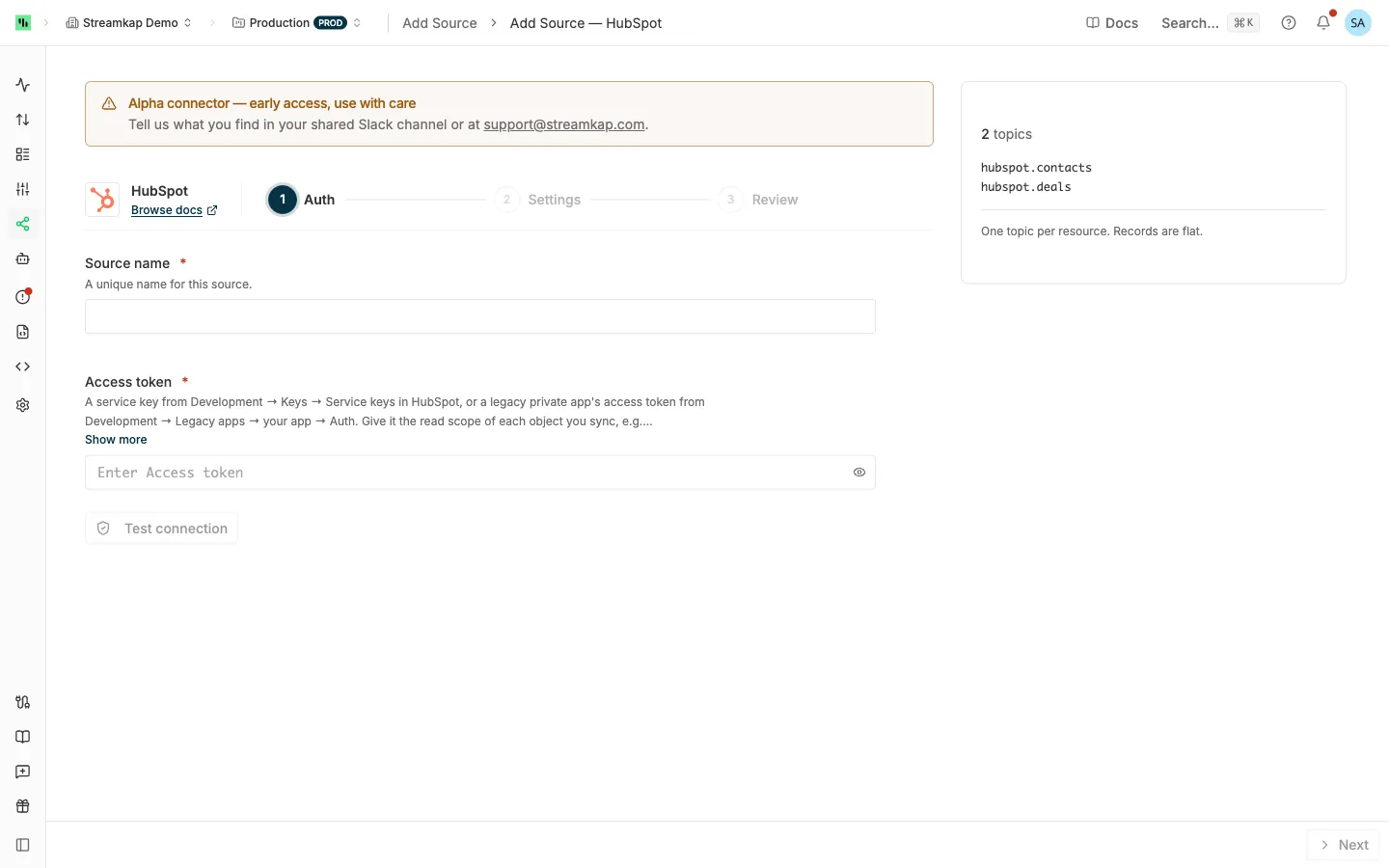
- Source name: A unique name for this source, for example
hubspot-prod. - Access token: The service key or the legacy Private App token.
Optionally click Test connection, then click Next.
3. Settings Tab
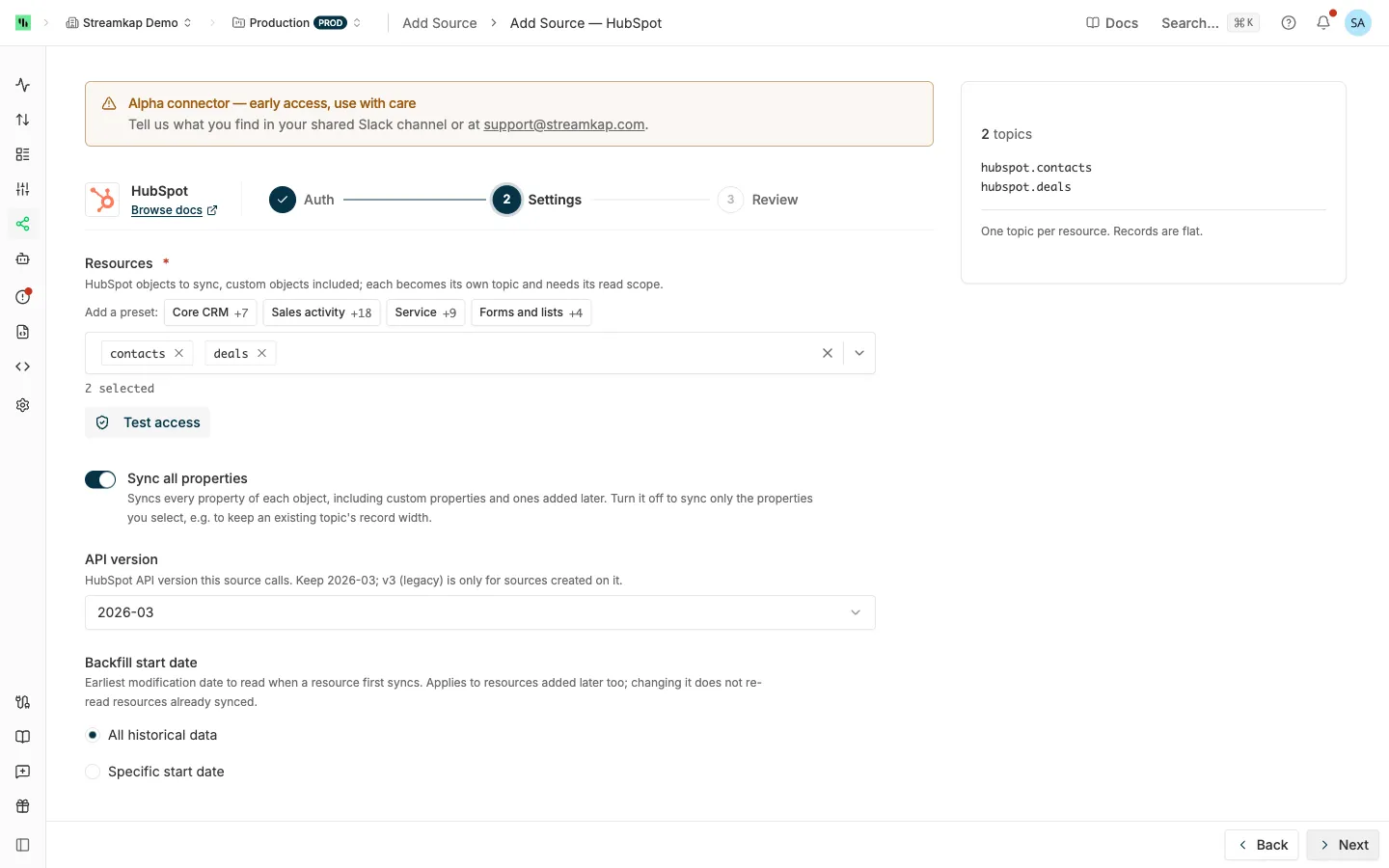
- Resources: The HubSpot objects to sync. The default is
contactsanddeals. Add a preset offers:- Core CRM:
contacts,companies,deals,owners,pipelines,pipeline_stages,associations_contacts_companies,associations_contacts_deals,associations_companies_deals. - Sales activity: Core CRM plus
calls,meetings,notes,tasks,line_items,products,associations_deals_line_items,associations_deals_calls,associations_deals_meetings,associations_deals_notesandassociations_deals_tasks. It leaves outemails, which need thesales-email-readscope. - Service:
contacts,companies,owners,tickets,ticket_pipelines,ticket_pipeline_stages,associations_contacts_tickets,associations_companies_tickets,notesandtasks. - Forms and lists:
contacts,forms,form_submissions,listsandlist_memberships. It leaves out marketing emails and campaigns, which need Marketing Hub.
- Core CRM:
- Sync all properties: On by default. Syncs every property of each object, including custom properties and ones added later. Turn it off to sync only the properties you select, for example to keep an existing topic’s record width.
- Properties (shown when Sync all properties is off, on a saved source): The properties to sync, by internal name rather than label. Each object’s
hs_object_idand last-modified date are always synced. A name must exist on at least one selected object, or the save is rejected. - API version: Keep 2026-03, the default. v3 (legacy) is only for sources created on it.
- Backfill start date: See Backfill start date. It bounds the CRM objects, custom objects, property history,
form_submissions,email_eventsandsubscription_changes. Every other resource is a whole list and always syncs in full.
4. Review and Create
Check the summary and click Create. Streamkap validates the credential against HubSpot before it saves the source. A HubSpot portal backs one source per workspace; see One source per vendor account. Then send the topics to a destination: see Send topics to a destination.
Editing the Source
For the changes every API source shares, see Editing an API source.
Rotating the Access Token
On the Auth tab, click Replace, paste the new token and save. Saving clears an authentication failure and any per-resource scope suspension at once. Test connection on a saved source tests the stored token, so you don’t need to re-enter it to check it.
Custom Objects
Custom objects aren’t offered on the create form: Streamkap lists them with the saved credential. After creating the source, open its Settings tab, where the Resources picker adds your custom objects by their fully qualified name (p<portal-id>_<name> or 2-<object-type-id>). You can also type the name.
If the Settings tab says it couldn’t read your custom-object definitions, the credential lacks crm.schemas.custom.read. Nothing else is affected.
Supported Resources
| Resource | What it syncs |
|---|---|
contacts, companies, deals, tickets, line_items, products |
Core CRM objects |
calls, emails, meetings, notes, tasks, communications, postal_mail |
Engagements, one resource per type |
quotes, leads, goal_targets, feedback_submissions, deal_split |
Quotes, leads, goals, feedback submissions, deal splits |
carts, orders, invoices, commerce_payments, subscriptions, discounts, fees, taxes |
Commerce objects |
| Custom objects | See Custom Objects |
<object>_property_history |
One row per property version of any object above, keyed objectId|property|timestamp|sourceType|sourceId. Rows are only added. |
associations_<from>_<to> |
Links between two object types, one row per link and association type, keyed fromObjectId|toObjectId|associationTypeId. 29 pairs: the core objects among themselves, quotes to deals and line items, and each of calls, emails, meetings, notes and tasks to contacts, companies, deals and tickets. |
association_labels |
The association label definitions of every pair |
pipelines, pipeline_stages |
Deal pipelines, and their stages one row per stage, keyed pipelineId|stageId |
ticket_pipelines, ticket_pipeline_stages |
Ticket pipelines and stages |
lead_pipelines, order_pipelines, listing_pipelines, service_pipelines, course_pipelines, and each one’s *_pipeline_stages |
Pipelines and stages of those objects |
owners |
Owners, deactivated ones with archived = true |
users, teams |
Portal users and teams |
properties |
Property definitions of every object the source syncs, keyed objectType|name |
forms, form_submissions |
Forms of every type, and their submissions keyed formId|conversionId |
marketing_emails, campaigns, marketing_events |
Marketing emails, campaigns, and marketing events keyed objectId |
email_events |
Email sends, deliveries, opens, clicks, bounces and the like |
subscription_definitions, subscription_changes |
Email subscription types, and subscription status changes |
workflows |
Workflows |
lists, list_memberships |
Lists of every object type keyed listId, and their members keyed listId|recordId |
CRM object records keep HubSpot’s shape: properties sit in a nested properties object beside the top-level id, createdAt, updatedAt and archived.
Behavior & Limits
Polling
The core CRM objects, engagements, commerce objects, custom objects, property history, owners, the deal and ticket pipelines and their stages, email_events and subscription_changes are read every poll (five minutes by default). goal_targets, discounts, fees, taxes, associations and the other whole lists are read hourly, form_submissions every 15 minutes and list_memberships every six hours. Each poll re-reads the last 10 minutes of changes, because HubSpot’s search index lags its writes.
HubSpot records some email events late, so each hour of email_events is checked again 25 hours later and sent again whole if events were added to it.
Calculated Properties
A calculated property, such as a rollup or a calculation property, can change without changing the record’s last-modified time. Streamkap re-checks the calculated properties of each object daily in blocks of about 2,000 records and re-sends the full current records of any block that changed, so they are up to a day behind. When a property becomes calculated or is newly selected, the next check re-sends every record once; removing one, or a Streamkap update, re-sends nothing. Time-in-stage properties (hs_time_in_* and the hs_v2_*time_in_* families) and days_to_close change with the clock alone and are not re-checked: they update when the record changes.
Deletes
- Archived records: a sweep every 6 hours reads HubSpot’s archived records and sends each as a delete. HubSpot keeps an archived record readable for 90 days. It covers every CRM object except
invoices,subscriptions,meetings,communicationsanddeal_split, which HubSpot doesn’t list archived records for, plus custom objects. HubSpot keeps archived records listed for about 90 days. - Merges and permanent purges, including GDPR erasures, leave no archived record. A daily reconciliation lists each object’s live IDs and deletes the ones that are gone. On a large object it spreads over several runs. One pass can name about 1,600 vanished records per object; past that, the status says so and the rest stay in your destination. This pass is the only delete signal for
invoices,subscriptions,meetings,communicationsanddeal_split, so their deletes arrive within about a day. - Whole lists (owners, pipelines and stages, associations, list memberships, forms, lists and the other re-read resources): a row missing from a complete read is deleted. A deactivated owner is an update with
archived = true, not a delete. - Property history, form submissions, email events and subscription changes only add rows.
See Deletes for how deletes reach your destination.
Rate Limits and Daily Quota
The connector stays below HubSpot’s 5-a-second search limit, and paces its other requests at no more than 4 a second, slower if the burst limit HubSpot reports is smaller. It also reads the portal’s daily API budget and stops for the day once 90% is used, by Streamkap and your other integrations together. HubSpot doesn’t report the budget on every response, so the connector can pass 90% slightly before it stops. The source shows Throttled with a message such as “HubSpot daily API quota is 92% used” and resumes at the next UTC midnight with no data lost.
Read Cost
Three kinds of resource grow with your data: associations re-read the whole <from> side of their pair hourly, list_memberships re-reads every list’s members every six hours, and property history reads each changed record’s history. None is preselected. As a guide, a Professional portal syncing the core objects, engagements, three association pairs over 100,000 records, a million list memberships and the marketing feeds uses 18% to 32% of its daily budget, mostly on associations.
Missing Scopes
A missing scope pauses only that resource; the rest keep streaming. The source shows Broken, and its status names each resource and the scope to add. A paused resource is retried on its own, so it recovers once you grant the scope; saving the source retries it at once. properties skips an object whose schema scope is missing and keeps syncing the others.
An invalid or revoked token stops all syncing until you replace it or reconnect. See Connector status.
Troubleshooting
Broken: "Vendor rejected the API token"
The access token is invalid or revoked, or its service key or Private App was deleted. Streamkap doesn’t retry a rejected token.
- Click Test connection on the source’s Auth tab to confirm the stored token fails.
- In HubSpot, copy the current service key (Development → Keys → Service keys) or Private App token (Development → Legacy apps → your app → Auth).
- On the Auth tab, click Replace, paste the token and save.
Broken: "Vendor denied access to …"
The credential is missing a scope for the named resources. Add the scope the status names to the service key or Private App, and paste the token again if HubSpot changed it; for a source connected with HubSpot, reconnect. Or remove the resource from Resources. The resource recovers within 15 minutes of the grant.
A property I added in HubSpot isn't in my destination
- Sync all properties is off: add the property under Properties, or turn the setting back on.
- The schema read scope of that object is missing: Test access names it.
- The destination doesn’t evolve its schema: see Schema Evolution.
- No record carrying the property has changed since you added it. HubSpot doesn’t mark untouched records as changed.
Throttled: daily quota
90% of the portal’s daily HubSpot API budget is used. The source resumes at the next UTC midnight. If it recurs, select fewer resources (associations and list memberships cost the most) or reduce other integrations’ load on the portal.
A deleted record still shows in my destination
An archived record arrives as a delete within about 6 hours, a merged or purged one within about a day, longer on a large object. A deleted invoice, subscription, meeting, communication or deal split also arrives within about a day. A delete is lost if more than about 1,600 records of one object vanish without being archived between two reconciliation passes, or if a record is created and merged or purged before a pass sees it.
Related Documentation
- API sources - how API sources work, Test access, editing, delivery and status
- Salesforce - the other CRM API source