> ## Documentation Index
> Fetch the complete documentation index at: https://docs.streamkap.com/llms.txt
> Use this file to discover all available pages before exploring further.
# Users
> Manage team members, roles, and access permissions for your organization
Team Management can be found in **Account preferences** under the **Workspace** section. Click your avatar in the top navigation bar and select **Account preferences** to access these settings.
## Users
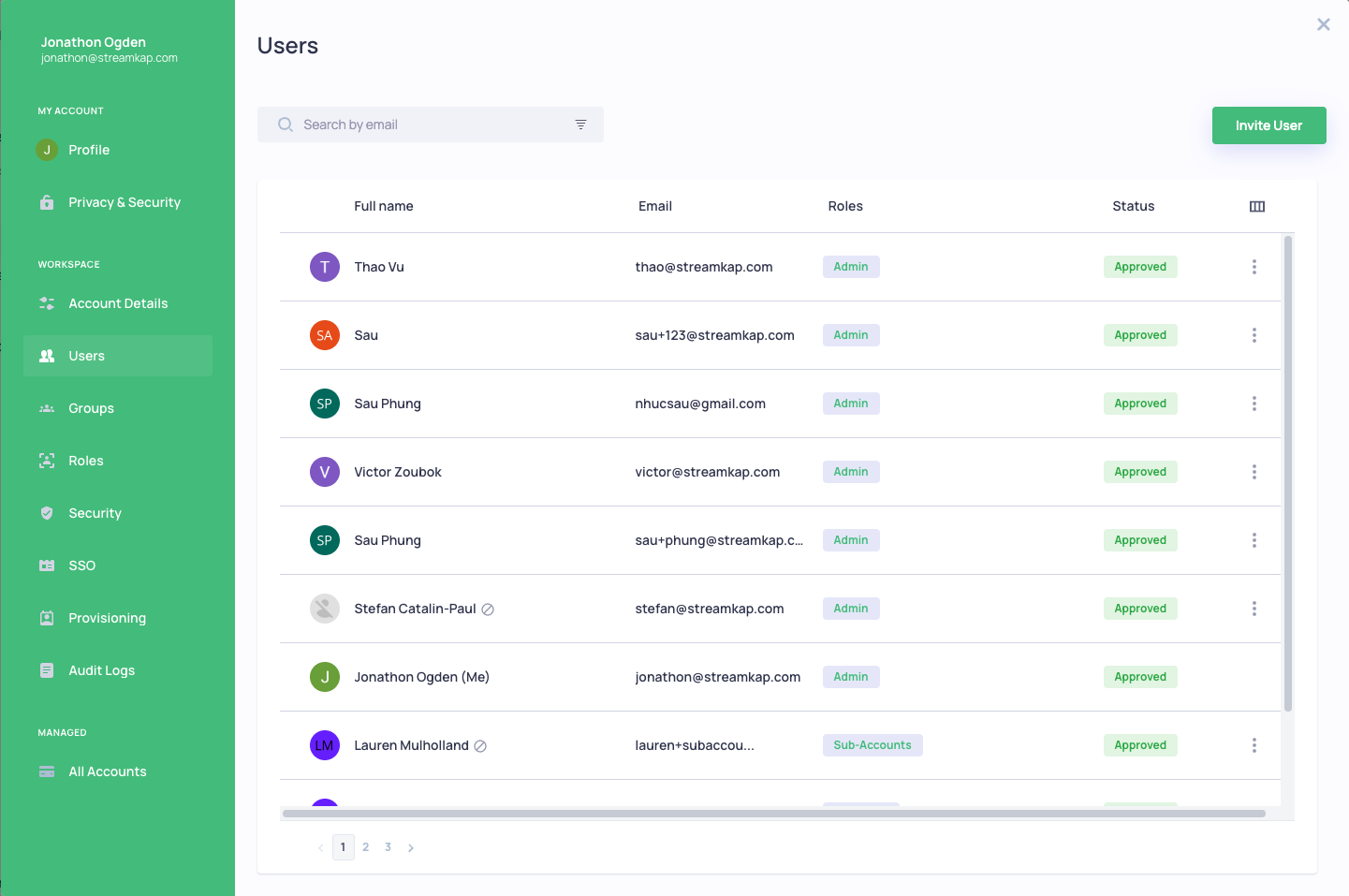
Invite team members and manage their access to your Streamkap organization.
 ### Inviting Users
1. Click **Invite User** to add new team members
2. Enter their email address
3. Assign appropriate roles
4. The user will receive an email invitation
## Roles
The following roles are currently supported:
* **Admin** - Full access to everything
* **Data Admin** - Can create/edit sources/destinations/pipelines but does not have admin access
* **Read Only** - Read only access to everything
* **Sub-Accounts** - Can create/edit sub accounts
* **Team Management** - Can add/edit users
* **Billing** - Access to subscription page only
## Groups
Groups can be used for organizing collections of users, such as Admins, Read Only, or external collaborators.
### Inviting Users
1. Click **Invite User** to add new team members
2. Enter their email address
3. Assign appropriate roles
4. The user will receive an email invitation
## Roles
The following roles are currently supported:
* **Admin** - Full access to everything
* **Data Admin** - Can create/edit sources/destinations/pipelines but does not have admin access
* **Read Only** - Read only access to everything
* **Sub-Accounts** - Can create/edit sub accounts
* **Team Management** - Can add/edit users
* **Billing** - Access to subscription page only
## Groups
Groups can be used for organizing collections of users, such as Admins, Read Only, or external collaborators.
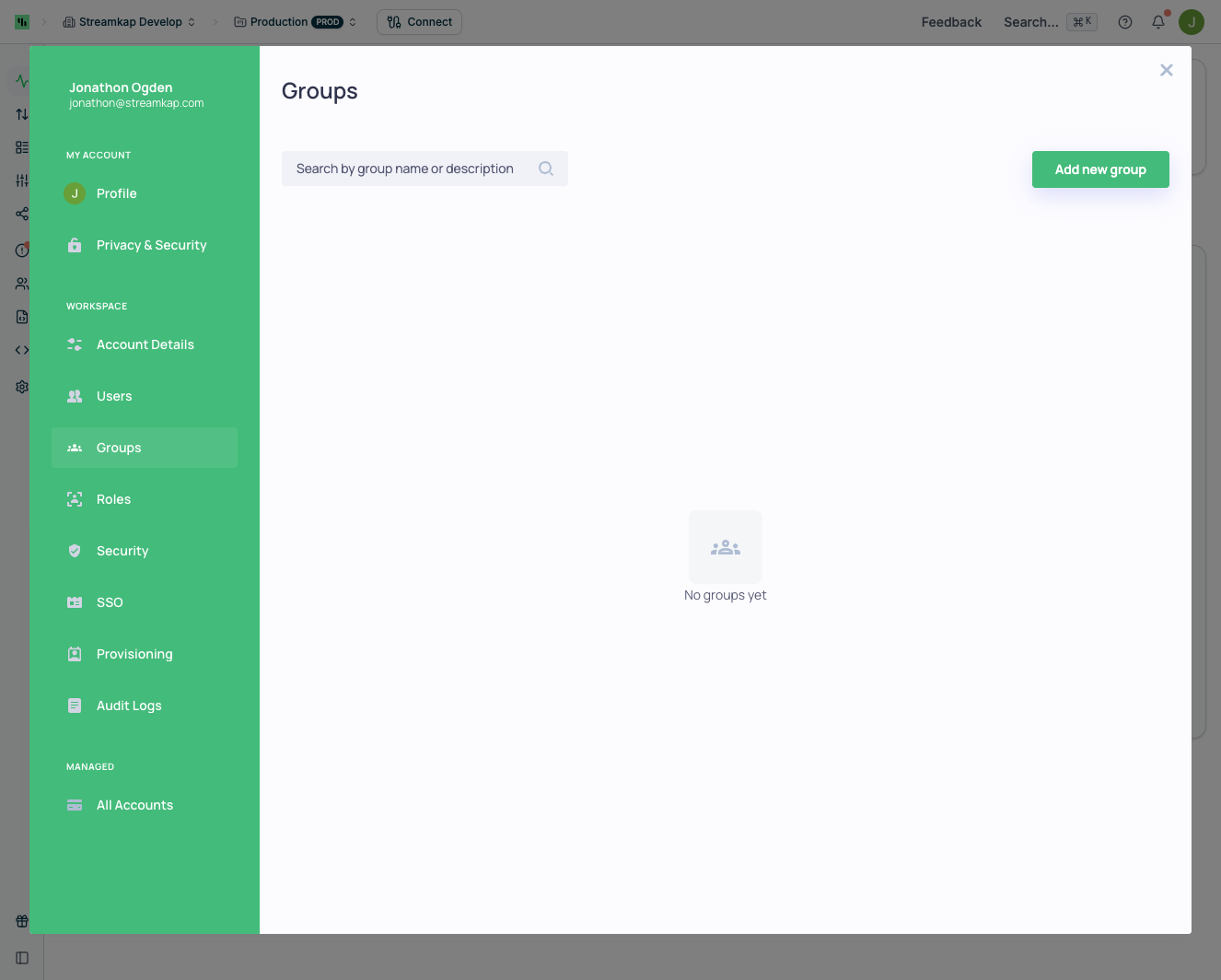 To create a new group, click **Add new group** and configure the group name and members.
## Deleting Users
### Standard Users
Users that were manually invited through the Streamkap UI can be deleted directly from the Users page by an Admin.
### SCIM-Provisioned Users
If your organization uses [SSO](/sso) with SCIM provisioning, some users may show as **Managed externally** in the **Managed by** column. These users were provisioned via SCIM (System for Cross-domain Identity Management), which means your Identity Provider (IdP) is the source of truth for their lifecycle.
SCIM-provisioned users cannot be deleted through the standard admin flow in Streamkap. The delete option will not appear for these users.
To identify which users are SCIM-managed, enable the **Managed by** column in the Users table by clicking the column settings icon. SCIM-provisioned users will show as **Managed externally** in this column.
**To remove SCIM-provisioned users, you have two options:**
1. **Deprovision or delete the users in your IdP** — the change will sync through SCIM and remove the user from Streamkap automatically
2. **Contact your Streamkap administrator** to manually remove the user via the Backoffice portal
## Log Out Sessions
It's possible to force logout a user from their sessions. Learn more at [Personal Privacy & Security](/personal-privacy-security) and [Organisation Security](/organisation-security).
To create a new group, click **Add new group** and configure the group name and members.
## Deleting Users
### Standard Users
Users that were manually invited through the Streamkap UI can be deleted directly from the Users page by an Admin.
### SCIM-Provisioned Users
If your organization uses [SSO](/sso) with SCIM provisioning, some users may show as **Managed externally** in the **Managed by** column. These users were provisioned via SCIM (System for Cross-domain Identity Management), which means your Identity Provider (IdP) is the source of truth for their lifecycle.
SCIM-provisioned users cannot be deleted through the standard admin flow in Streamkap. The delete option will not appear for these users.
To identify which users are SCIM-managed, enable the **Managed by** column in the Users table by clicking the column settings icon. SCIM-provisioned users will show as **Managed externally** in this column.
**To remove SCIM-provisioned users, you have two options:**
1. **Deprovision or delete the users in your IdP** — the change will sync through SCIM and remove the user from Streamkap automatically
2. **Contact your Streamkap administrator** to manually remove the user via the Backoffice portal
## Log Out Sessions
It's possible to force logout a user from their sessions. Learn more at [Personal Privacy & Security](/personal-privacy-security) and [Organisation Security](/organisation-security).