> ## Documentation Index
> Fetch the complete documentation index at: https://docs.streamkap.com/llms.txt
> Use this file to discover all available pages before exploring further.
# Tagging
> Organize and categorize entities easily in Streamkap
Tags help streamline workflows by grouping related items based on custom-defined attributes.
## Tag Management
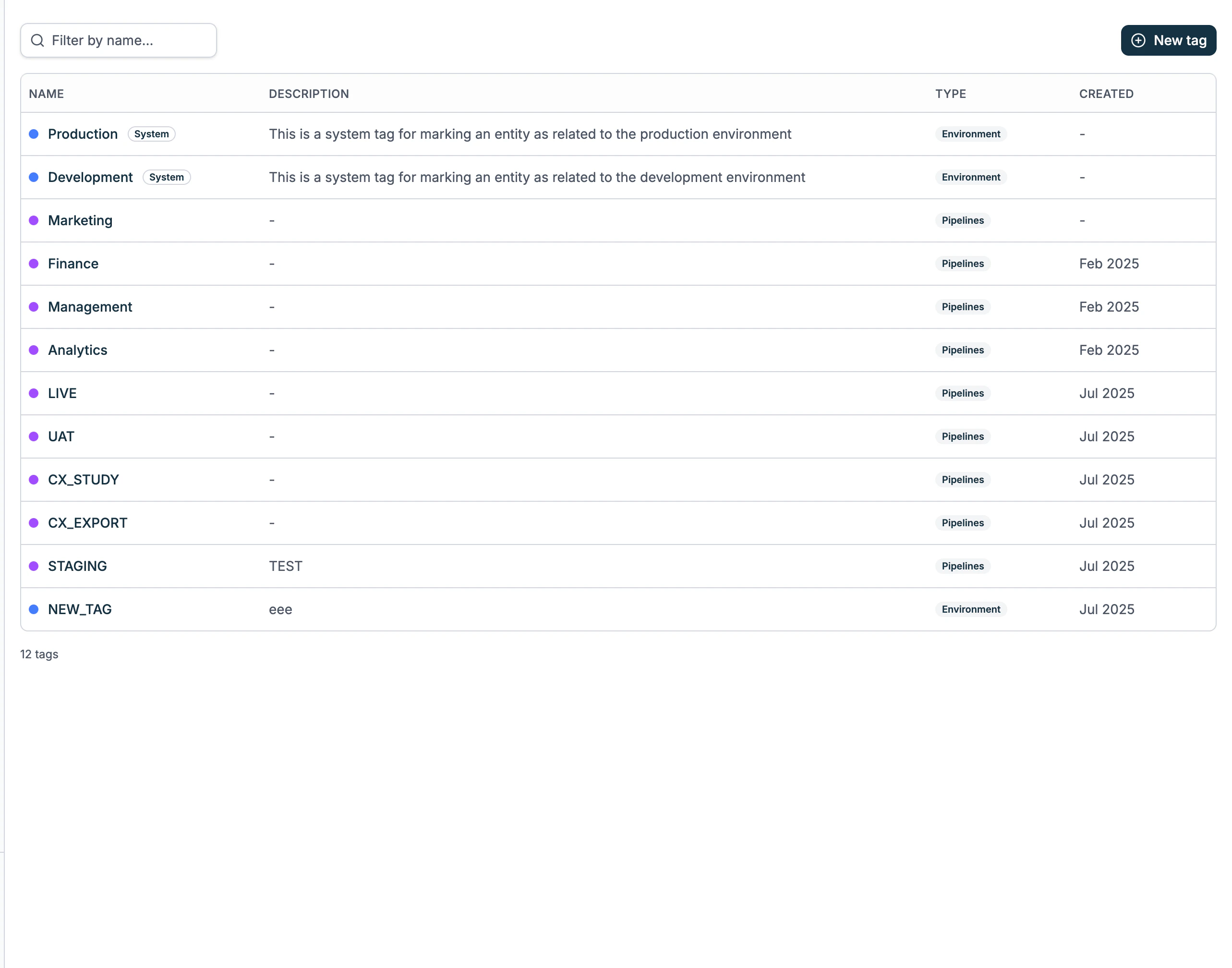
The **Tag Management** feature allows you to create, categorize, and manage tags for organizing entities in the Streamkap app.
Start by navigating to the [Tag Management](https://app.streamkap.com/tags) section.
### Tag Categories and Types
Tags are categorized into different types, which can be used to organize entities effectively.
Currently available **categories** are:
* `System`: Applies to any tags and types predefined by Streamkap.
* `Custom`: Applies (automatically) to any tag you create.
Currently available **types** are:
* `Pipelines`: Specific to your data pipelines.
* `Environment`: Predefined by Streamkap, for indicating different environments (e.g. `Production` and `Development`).
### Browsing Tags
1. Use the **Search Bar** to find existing tags by name, ID, type, or description.
2. Use the **Filter by Tag Type** dropdown to refine your view of tags based on their categories.
 ### Creating a New Tag
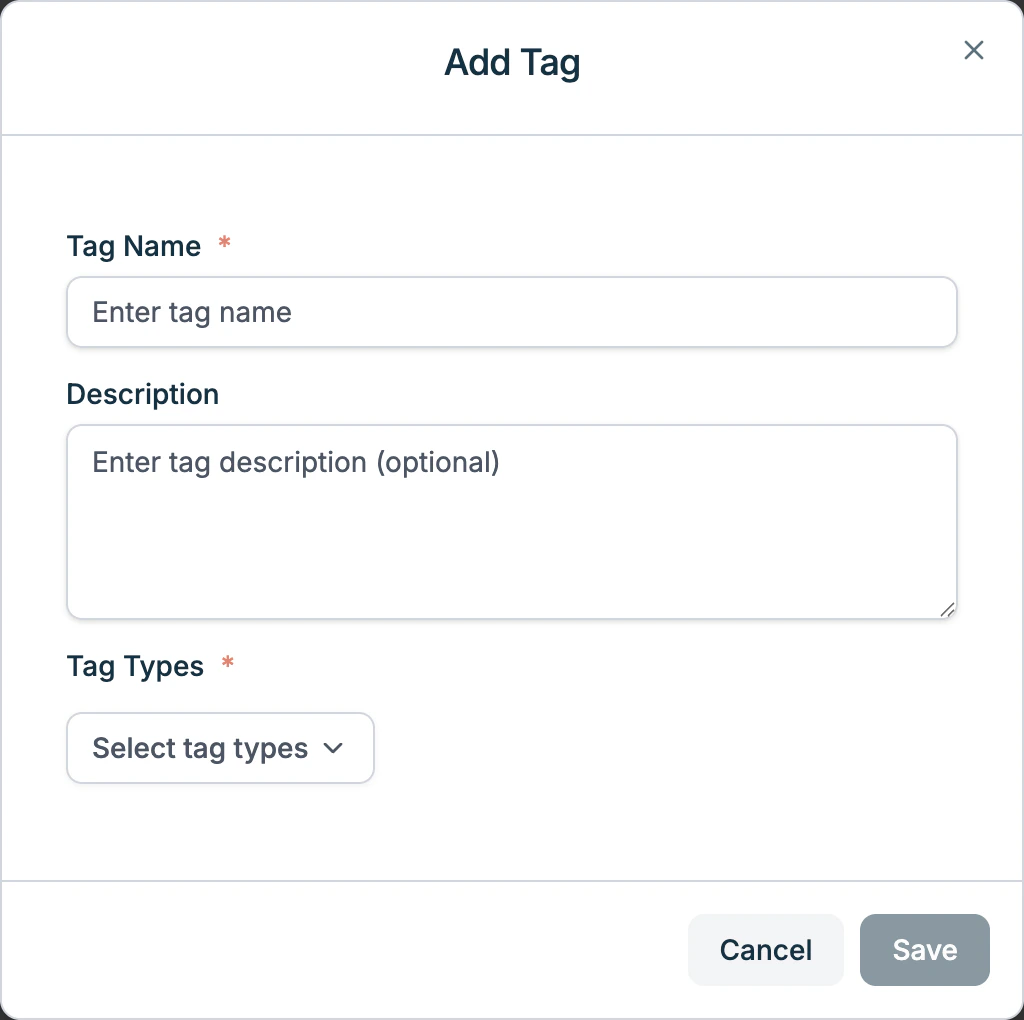
To create a new tag, follow these steps:
1. Click the **Add** button in the top-right corner.
2. A modal titled **Add Tag** will appear.
3. Fill in the required fields:
* **Tag Name (Required)**: Enter a unique name for the tag.
* **Description (*Optional*)**: Provide additional details about the tag.
* **Tag Types (Required)**: Select one or more predefined tag types from the dropdown.
4. Click `Save` to create the tag, or `Cancel` to discard changes.
### Creating a New Tag
To create a new tag, follow these steps:
1. Click the **Add** button in the top-right corner.
2. A modal titled **Add Tag** will appear.
3. Fill in the required fields:
* **Tag Name (Required)**: Enter a unique name for the tag.
* **Description (*Optional*)**: Provide additional details about the tag.
* **Tag Types (Required)**: Select one or more predefined tag types from the dropdown.
4. Click `Save` to create the tag, or `Cancel` to discard changes.
 ### Managing Existing Tags
* Tags are displayed in a list format with their type and description.
* Some system-defined tags may be **Read-Only** and cannot be modified.
* To edit or delete a tag, use the **actions menu (⋮)** next to the tag entry.
## Pipeline Tagging
The **Update Tags** feature allows you to efficiently update tags on multiple pipelines at once. You can also search and filter pipelines by their tags.
Start by navigating to the [Pipelines](https://app.streamkap.com/pipelines) section.
### Searching and Filtering Pipelines by Tags
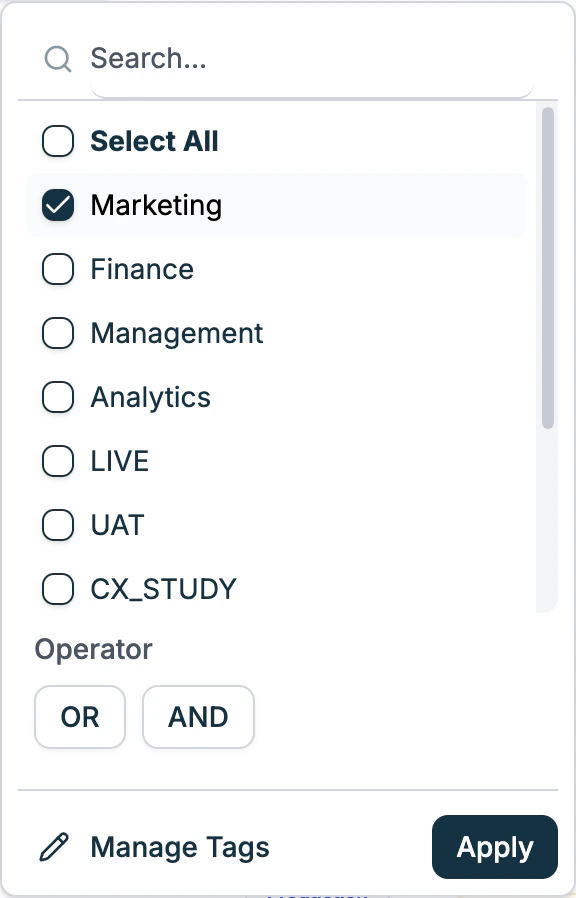
1. Select one or more tags from the **Tags** filter.
2. Reduce or expand the results by changing the **Operator** `AND` or `OR` (e.g. `Production AND Management`, `Development OR Finance OR Analytics`).
3. Click `Apply` to apply the filter.
### Managing Existing Tags
* Tags are displayed in a list format with their type and description.
* Some system-defined tags may be **Read-Only** and cannot be modified.
* To edit or delete a tag, use the **actions menu (⋮)** next to the tag entry.
## Pipeline Tagging
The **Update Tags** feature allows you to efficiently update tags on multiple pipelines at once. You can also search and filter pipelines by their tags.
Start by navigating to the [Pipelines](https://app.streamkap.com/pipelines) section.
### Searching and Filtering Pipelines by Tags
1. Select one or more tags from the **Tags** filter.
2. Reduce or expand the results by changing the **Operator** `AND` or `OR` (e.g. `Production AND Management`, `Development OR Finance OR Analytics`).
3. Click `Apply` to apply the filter.
 ### Updating Tags for Multiple Pipelines
1. Select one or more pipelines by checking the box next to their name.
2. The **Update Tags** button will become active (it is greyed out until at least one pipeline is selected).
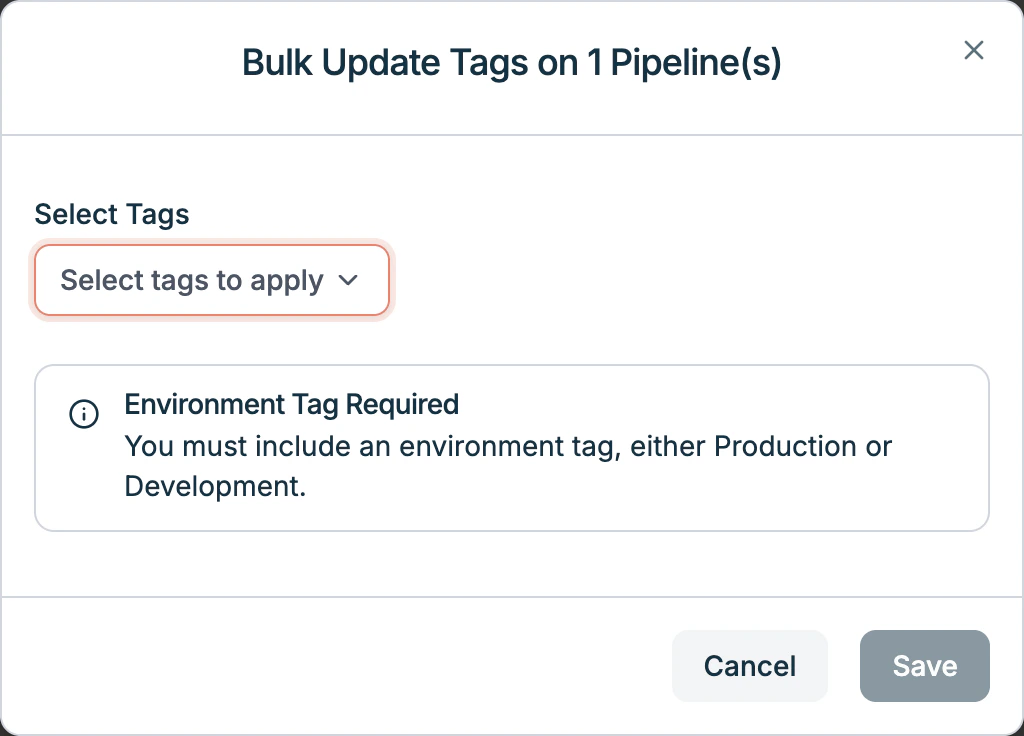
3. Click **Update Tags** to open the bulk update modal.
4. In the modal:
* Use the **Select Tags** dropdown to add new tags.
* Tags already applied will be visible and can be removed if needed.
* A warning indicates that saving will overwrite all existing tags on the selected pipelines with the new selection.
5. Click **Save** to apply the changes, or **Cancel** to discard them.
**Bulk updates overwrite existing tags**, meaning all previous tags will be removed and replaced with the newly selected ones.
### Updating Tags for Multiple Pipelines
1. Select one or more pipelines by checking the box next to their name.
2. The **Update Tags** button will become active (it is greyed out until at least one pipeline is selected).
3. Click **Update Tags** to open the bulk update modal.
4. In the modal:
* Use the **Select Tags** dropdown to add new tags.
* Tags already applied will be visible and can be removed if needed.
* A warning indicates that saving will overwrite all existing tags on the selected pipelines with the new selection.
5. Click **Save** to apply the changes, or **Cancel** to discard them.
**Bulk updates overwrite existing tags**, meaning all previous tags will be removed and replaced with the newly selected ones.
 ### Updating Tags for a Single Pipeline
* Click the **actions menu (⋮)** next to a pipeline.
* Select **Update Tags** from the menu.
* This will open the same tag update modal, but only for the selected pipeline.
## Best Practices
* Use a **consistent naming convention** for tags to ensure clarity.
* Leverage the **description field** to provide context for each tag.
### Updating Tags for a Single Pipeline
* Click the **actions menu (⋮)** next to a pipeline.
* Select **Update Tags** from the menu.
* This will open the same tag update modal, but only for the selected pipeline.
## Best Practices
* Use a **consistent naming convention** for tags to ensure clarity.
* Leverage the **description field** to provide context for each tag.