> ## Documentation Index
> Fetch the complete documentation index at: https://docs.streamkap.com/llms.txt
> Use this file to discover all available pages before exploring further.
# Snapshots & Backfilling
> Trigger ad hoc Filtered, Full, Blocking, and Fast Parallel (Beta) snapshots in Streamkap to backfill historical data from your source databases.
Please ensure you've followed the relevant connector setup guide to enable the snapshots feature
Streamkap Sources use snapshots to backfill historical data from your source tables.
## Snapshot Options
When triggering a snapshot, you can choose from three options:
### Filtered Snapshot
Apply filter conditions to capture specific rows. Streaming continues during snapshot.
* Best for capturing a subset of data based on conditions (e.g., date ranges, specific statuses)
* Uses incremental watermarking to capture data in small chunks
* Requires tables to have **primary keys** (or a [Surrogate Key](#surrogate-key))
* Can continue from where it left off on failure or cancellation
The filter syntax depends on your Source type — see [Filtered Snapshot Configuration](#filtered-snapshot-configuration) below for the exact format and examples per Source.
### Full Snapshot
Capture all rows from selected tables. Streaming continues during snapshot.
* Best for complete data backfills where you need all historical data
* Uses incremental watermarking to capture data in small chunks
* Requires tables to have **primary keys** (or a [Surrogate Key](#surrogate-key))
* Can continue from where it left off on failure or cancellation
### Blocking Snapshot
**Database locks:** Blocking snapshots may hold database locks for the duration of the operation. Use with caution on high-traffic tables.
Capture all rows while pausing streaming. Streaming resumes automatically after snapshot completes.
* **Required for keyless tables**: Tables without primary keys cannot use incremental snapshots (unless a [Surrogate Key](#surrogate-key) is specified)
* **Point-in-time consistency**: Guarantees a consistent view of data at a specific moment
* **Faster for large tables**: Can be more performant since it captures all data in one operation
* **Multiple tables in parallel**: Depending on connector configuration, multiple tables can be snapshotted simultaneously
However, blocking snapshots **cannot** be resumed on failure or cancellation—they must be re-triggered.
Blocking snapshots do not currently support filters. To apply filters, use the Filtered Snapshot option instead (requires primary keys).
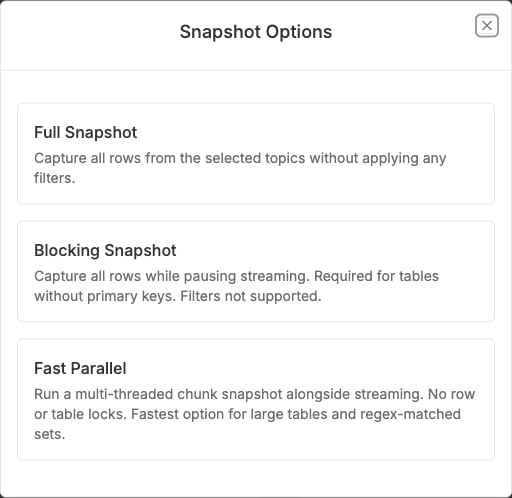
### Fast Parallel Snapshot
**Beta — PostgreSQL only.** Fast Parallel snapshots are currently available for PostgreSQL Sources. Support for other Source types is in progress.
Backfill large tables and large schemas much faster by reading many rows concurrently, while streaming continues.
* **Best for very large tables, keyless tables, and large/regex schemas** where Filtered/Full can run for days
* The only option available for [regex](/regex-support) connectors
* **Reads in parallel** across multiple tables at once — and can split a single very large table into multiple concurrent readers (applied automatically based on table size)
* **No source database locks and no long-running transactions.** Data is read in small chunks (a single short `SELECT` per chunk, sized to \~512 KB), so there is no server-side cursor and no lock held for the duration
* **Streaming continues** throughout, like Filtered/Full snapshots
* **Resumable:** continues from where it left off on failure or cancellation, per table
* **No primary key required** on PostgreSQL — keyless tables are read by physical row location (`ctid`) without a blocking snapshot
* **Supports filters and a [Surrogate Key](#surrogate-key)**, the same as Filtered and Full snapshots
 Deletions are not captured during a Fast Parallel snapshot, the same as all other snapshot types — deletes are only reflected through streaming CDC.
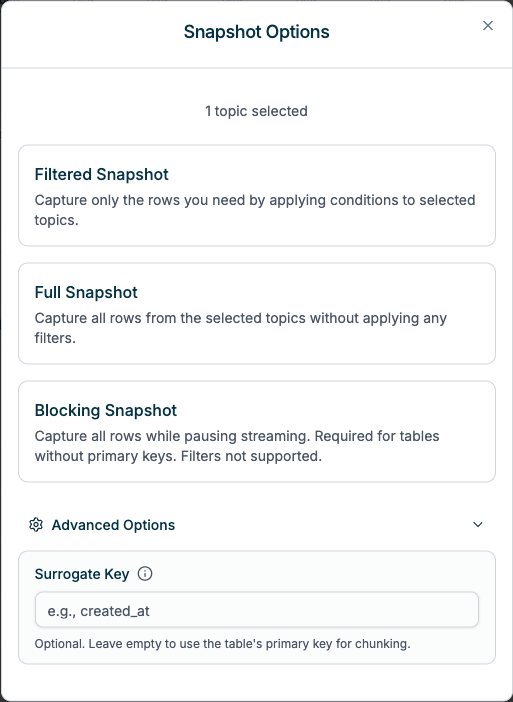
### Surrogate Key
Available under **Advanced Options** when configuring Filtered or Full snapshots.
A surrogate key allows you to specify an alternative column for the connector to use as the primary key during snapshot chunking. This is useful when:
* **Keyless tables:** Tables without primary keys can use a surrogate key (e.g., a timestamp or auto-increment column) for incremental snapshots instead of requiring a blocking snapshot
* **Performance optimization:** A different column may provide better chunking performance (e.g., using `created_at` instead of a UUID primary key for more efficient range queries)
Deletions are not captured during a Fast Parallel snapshot, the same as all other snapshot types — deletes are only reflected through streaming CDC.
### Surrogate Key
Available under **Advanced Options** when configuring Filtered or Full snapshots.
A surrogate key allows you to specify an alternative column for the connector to use as the primary key during snapshot chunking. This is useful when:
* **Keyless tables:** Tables without primary keys can use a surrogate key (e.g., a timestamp or auto-increment column) for incremental snapshots instead of requiring a blocking snapshot
* **Performance optimization:** A different column may provide better chunking performance (e.g., using `created_at` instead of a UUID primary key for more efficient range queries)
 **Limitations:**
* Only **single-column** surrogate keys are supported (composite keys are not available)
* The surrogate key column must exist in the table and contain sortable values
Leave the field empty to use the table's primary key for chunking (default behavior).
## Log Retention Prerequisites
Before triggering a snapshot, ensure your source database retains enough transaction log history to cover the snapshot duration plus a safety buffer. We recommend a minimum of 3 days retention. See the setup guide for your specific source for log retention configuration.
If the log is truncated mid-snapshot, the connector may lose its position and require a full re-snapshot.
If log retention is insufficient, a snapshot may still report success while CDC events from within the snapshot window are silently lost. Configure retention to cover the full snapshot duration plus a buffer to prevent this.
## Choosing a Snapshot Type
Each snapshot type has different trade-offs for speed, streaming impact, and resumability:
| Snapshot Type | Streaming During Snapshot | Resumable on Failure | Requires Primary Key | Best For |
| ----------------------------------------- | ------------------------- | -------------------- | ---------------------------------------- | ----------------------------------------------------------------------------- |
| **Filtered** | Yes (continues) | Yes | Yes (or [Surrogate Key](#surrogate-key)) | Backfilling a subset of data based on conditions |
| **Full** | Yes (continues) | Yes | Yes (or [Surrogate Key](#surrogate-key)) | Complete backfills where all historical data is needed |
| **Blocking** | No (paused) | No | No | Keyless tables, point-in-time consistency, or faster large-table snapshots |
| **Fast Parallel** (Beta, PostgreSQL only) | Yes (continues) | Yes | No | Fastest option for very large tables and large/regex schemas; no source locks |
* **Filtered and Full snapshots** use incremental watermarking, which is slower but allows streaming to continue simultaneously. If a table lacks a primary key, you can specify a [Surrogate Key](#surrogate-key) to enable incremental snapshots.
* **Blocking snapshots** are faster for large tables because they capture all data in one operation, but streaming is paused for the duration.
For very large tables with primary keys, consider using **Filtered snapshots** to backfill data in manageable time-bounded ranges. This reduces load on your source database and gives you more control over the process.
### Factors Affecting Duration
| Factor | Impact | Guidance |
| ------------------------------------- | ---------------------------------------------------------------------------------- | --------------------------------------------------------------------------------------------------- |
| **Snapshot type** | Blocking is typically faster than incremental (Filtered/Full) for large tables | Use Blocking for speed when streaming can be paused; use Filtered/Full when streaming must continue |
| **Table size (row count)** | Larger tables take proportionally longer | For tables with hundreds of millions of rows, expect snapshots to run for hours |
| **Row width (columns and data size)** | Wide rows with large text/blob columns increase processing time | Tables with many columns or large payloads will snapshot more slowly |
| **Source database load** | High concurrent query load can slow snapshot reads | Schedule snapshots during off-peak hours when possible |
| **Network latency** | Higher latency increases round-trip time per chunk | Cross-region sources will experience slower snapshots |
| **Number of tables** | Incremental snapshots process tables sequentially | Blocking snapshots may process multiple tables in parallel depending on connector configuration |
| **Index availability** | Snapshots read data in primary key order; missing or fragmented indexes slow reads | Ensure primary keys are well-indexed on your source tables |
### Estimating Snapshot Time
There is no exact formula, but as a general guideline:
* **Small tables** (under 1 million rows): Typically complete within minutes
* **Medium tables** (1-100 million rows): May take 30 minutes to several hours
* **Large tables** (100+ million rows): Can take many hours depending on row width and source performance
* **Very large tables** (1 TB+): Can take 24 hours to days depending on row width, source database performance, and network latency
For incremental snapshots (Filtered/Full), snapshot speed is also influenced by the chunk size used during watermarked reads. Streamkap optimizes this automatically, but throughput depends on your source database's ability to serve read queries alongside its normal workload.
## Snapshot Lifecycle
| When | Behavior |
| -------------------------- | ------------------------------------------------------------------------------------------------------------------------------------------------------------------- |
| At connector creation | The connector starts in streaming mode, reading any change data seen from this point onwards. No snapshots are triggered automatically. |
| After connector creation | You can trigger ad-hoc snapshots for any or all of the tables the connector is configured to capture. A confirmation prompt is required before the snapshot begins. |
| Pipeline creation and edit | You can choose to trigger snapshots for the topics the pipeline will stream to your destination. A confirmation prompt is required before the snapshot begins. |
## Behavior
**Deletions are not captured during snapshots.** Snapshots read existing rows at a point in time—deletion events can only be processed during streaming, or, replayed if Streamkap data retention policies allow.
### Filtered & Full Snapshots
These snapshots use incremental watermarking, capturing data in small chunks to minimize database impact. **Streaming continues** while historical data is being backfilled.
When snapshotting multiple tables, tables are processed sequentially—one at a time. Each table must complete before the next begins.
**PostgreSQL generated columns.** An incremental (Filtered or Full) snapshot of a PostgreSQL table that contains a [generated column](https://www.postgresql.org/docs/current/ddl-generated-columns.html) will fail unless that column is excluded from capture. Blocking and Parallel snapshots are not affected. See the [PostgreSQL setup guide](/postgresql-self-hosted#6-schema-and-table-capture).
**On failure:** The snapshot resumes from where it left off. If it cannot resume automatically, you can re-trigger it at the Connector or Table level once the issue is resolved.
**On cancellation:** The snapshot stops at its current progress. Streaming continues uninterrupted. You can resume the snapshot later from where it left off.
When rows are modified while an incremental snapshot is running, event ordering may vary, because the Connector's streaming and snapshotting in parallel:
* **Updates:** You may receive events in different orders (`read` → `update`, `update` → `read`, or just `update`)
* **Deletes:** You may receive `read` → `delete`, or just `delete`
This is normal behavior—The Connector resolves these out-of-sequence events when the same row appears in both the snapshot and the streaming log ensuring they are processed in the correct order and deduplicated.
The snapshot process uses watermark signals to coordinate between the streaming and snapshot tracks:
1. A **low watermark** signal is written before each chunk is read
2. The chunk of rows is read from the source table (ordered by primary key)
3. A **high watermark** signal is written after the chunk is read
4. Any streaming events that arrived between the low and high watermarks are de-duplicated against the snapshot chunk
This ensures that rows captured by both the snapshot and the streaming track are not duplicated in your destination. No data loss occurs during snapshots when log retention is configured appropriately — streaming change events that arrive while a snapshot is in progress are buffered and continue to be delivered.
### Blocking Snapshots
**Database locks:** Blocking snapshots may hold database locks for the duration of the operation. Use with caution on high-traffic tables.
These snapshots capture all data in a single transaction. **Streaming pauses** until the snapshot completes, then resumes automatically. Multiple tables may be processed in parallel depending on connector configuration.
**On failure:** Streaming resumes immediately. Re-trigger the snapshot once the issue is resolved—it will start from the beginning since blocking snapshots capture all rows in one operation.
**On cancellation:** Since streaming is paused during blocking snapshots, when you cancel a blocking snapshot, Streamkap restarts the connector to terminate the snapshot immediately. Streaming resumes after the restart.
A brief delay exists between signaling a blocking snapshot and when streaming actually pauses. This may result in some duplicate events being emitted after the snapshot completes. Ensure your destination can handle idempotent writes or has deduplication enabled.
**Snapshot Limitations: Streaming Transforms**
Streaming transforms configured in your pipeline process all records flowing through the Kafka topic, including snapshot records. However, snapshot records have operation type `r` (read) rather than `c` (create) or `u` (update). If your transform logic filters or branches based on the operation type, verify that snapshot data is handled as expected after the snapshot completes.
A high-performance [Fast Parallel Snapshot](#fast-parallel-snapshot) option is now available in Beta for PostgreSQL Sources.
## Triggering a Snapshot
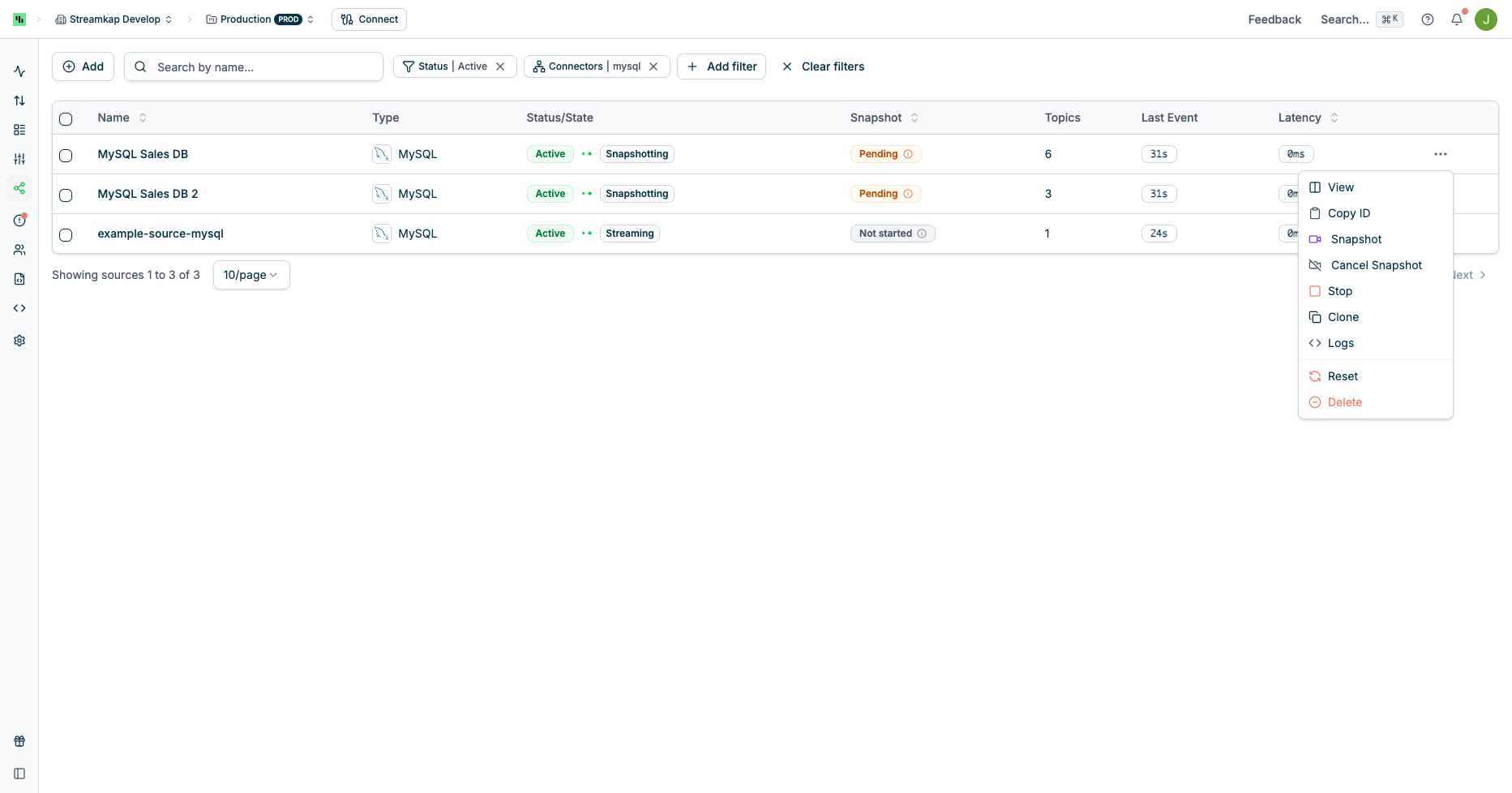
You can trigger an ad-hoc snapshot at the *Source* level or per *Table* from the Connector's page.
### Source Level Snapshot
This will trigger an **incremental** snapshot for *all* tables/topics captured by the Source:
**Limitations:**
* Only **single-column** surrogate keys are supported (composite keys are not available)
* The surrogate key column must exist in the table and contain sortable values
Leave the field empty to use the table's primary key for chunking (default behavior).
## Log Retention Prerequisites
Before triggering a snapshot, ensure your source database retains enough transaction log history to cover the snapshot duration plus a safety buffer. We recommend a minimum of 3 days retention. See the setup guide for your specific source for log retention configuration.
If the log is truncated mid-snapshot, the connector may lose its position and require a full re-snapshot.
If log retention is insufficient, a snapshot may still report success while CDC events from within the snapshot window are silently lost. Configure retention to cover the full snapshot duration plus a buffer to prevent this.
## Choosing a Snapshot Type
Each snapshot type has different trade-offs for speed, streaming impact, and resumability:
| Snapshot Type | Streaming During Snapshot | Resumable on Failure | Requires Primary Key | Best For |
| ----------------------------------------- | ------------------------- | -------------------- | ---------------------------------------- | ----------------------------------------------------------------------------- |
| **Filtered** | Yes (continues) | Yes | Yes (or [Surrogate Key](#surrogate-key)) | Backfilling a subset of data based on conditions |
| **Full** | Yes (continues) | Yes | Yes (or [Surrogate Key](#surrogate-key)) | Complete backfills where all historical data is needed |
| **Blocking** | No (paused) | No | No | Keyless tables, point-in-time consistency, or faster large-table snapshots |
| **Fast Parallel** (Beta, PostgreSQL only) | Yes (continues) | Yes | No | Fastest option for very large tables and large/regex schemas; no source locks |
* **Filtered and Full snapshots** use incremental watermarking, which is slower but allows streaming to continue simultaneously. If a table lacks a primary key, you can specify a [Surrogate Key](#surrogate-key) to enable incremental snapshots.
* **Blocking snapshots** are faster for large tables because they capture all data in one operation, but streaming is paused for the duration.
For very large tables with primary keys, consider using **Filtered snapshots** to backfill data in manageable time-bounded ranges. This reduces load on your source database and gives you more control over the process.
### Factors Affecting Duration
| Factor | Impact | Guidance |
| ------------------------------------- | ---------------------------------------------------------------------------------- | --------------------------------------------------------------------------------------------------- |
| **Snapshot type** | Blocking is typically faster than incremental (Filtered/Full) for large tables | Use Blocking for speed when streaming can be paused; use Filtered/Full when streaming must continue |
| **Table size (row count)** | Larger tables take proportionally longer | For tables with hundreds of millions of rows, expect snapshots to run for hours |
| **Row width (columns and data size)** | Wide rows with large text/blob columns increase processing time | Tables with many columns or large payloads will snapshot more slowly |
| **Source database load** | High concurrent query load can slow snapshot reads | Schedule snapshots during off-peak hours when possible |
| **Network latency** | Higher latency increases round-trip time per chunk | Cross-region sources will experience slower snapshots |
| **Number of tables** | Incremental snapshots process tables sequentially | Blocking snapshots may process multiple tables in parallel depending on connector configuration |
| **Index availability** | Snapshots read data in primary key order; missing or fragmented indexes slow reads | Ensure primary keys are well-indexed on your source tables |
### Estimating Snapshot Time
There is no exact formula, but as a general guideline:
* **Small tables** (under 1 million rows): Typically complete within minutes
* **Medium tables** (1-100 million rows): May take 30 minutes to several hours
* **Large tables** (100+ million rows): Can take many hours depending on row width and source performance
* **Very large tables** (1 TB+): Can take 24 hours to days depending on row width, source database performance, and network latency
For incremental snapshots (Filtered/Full), snapshot speed is also influenced by the chunk size used during watermarked reads. Streamkap optimizes this automatically, but throughput depends on your source database's ability to serve read queries alongside its normal workload.
## Snapshot Lifecycle
| When | Behavior |
| -------------------------- | ------------------------------------------------------------------------------------------------------------------------------------------------------------------- |
| At connector creation | The connector starts in streaming mode, reading any change data seen from this point onwards. No snapshots are triggered automatically. |
| After connector creation | You can trigger ad-hoc snapshots for any or all of the tables the connector is configured to capture. A confirmation prompt is required before the snapshot begins. |
| Pipeline creation and edit | You can choose to trigger snapshots for the topics the pipeline will stream to your destination. A confirmation prompt is required before the snapshot begins. |
## Behavior
**Deletions are not captured during snapshots.** Snapshots read existing rows at a point in time—deletion events can only be processed during streaming, or, replayed if Streamkap data retention policies allow.
### Filtered & Full Snapshots
These snapshots use incremental watermarking, capturing data in small chunks to minimize database impact. **Streaming continues** while historical data is being backfilled.
When snapshotting multiple tables, tables are processed sequentially—one at a time. Each table must complete before the next begins.
**PostgreSQL generated columns.** An incremental (Filtered or Full) snapshot of a PostgreSQL table that contains a [generated column](https://www.postgresql.org/docs/current/ddl-generated-columns.html) will fail unless that column is excluded from capture. Blocking and Parallel snapshots are not affected. See the [PostgreSQL setup guide](/postgresql-self-hosted#6-schema-and-table-capture).
**On failure:** The snapshot resumes from where it left off. If it cannot resume automatically, you can re-trigger it at the Connector or Table level once the issue is resolved.
**On cancellation:** The snapshot stops at its current progress. Streaming continues uninterrupted. You can resume the snapshot later from where it left off.
When rows are modified while an incremental snapshot is running, event ordering may vary, because the Connector's streaming and snapshotting in parallel:
* **Updates:** You may receive events in different orders (`read` → `update`, `update` → `read`, or just `update`)
* **Deletes:** You may receive `read` → `delete`, or just `delete`
This is normal behavior—The Connector resolves these out-of-sequence events when the same row appears in both the snapshot and the streaming log ensuring they are processed in the correct order and deduplicated.
The snapshot process uses watermark signals to coordinate between the streaming and snapshot tracks:
1. A **low watermark** signal is written before each chunk is read
2. The chunk of rows is read from the source table (ordered by primary key)
3. A **high watermark** signal is written after the chunk is read
4. Any streaming events that arrived between the low and high watermarks are de-duplicated against the snapshot chunk
This ensures that rows captured by both the snapshot and the streaming track are not duplicated in your destination. No data loss occurs during snapshots when log retention is configured appropriately — streaming change events that arrive while a snapshot is in progress are buffered and continue to be delivered.
### Blocking Snapshots
**Database locks:** Blocking snapshots may hold database locks for the duration of the operation. Use with caution on high-traffic tables.
These snapshots capture all data in a single transaction. **Streaming pauses** until the snapshot completes, then resumes automatically. Multiple tables may be processed in parallel depending on connector configuration.
**On failure:** Streaming resumes immediately. Re-trigger the snapshot once the issue is resolved—it will start from the beginning since blocking snapshots capture all rows in one operation.
**On cancellation:** Since streaming is paused during blocking snapshots, when you cancel a blocking snapshot, Streamkap restarts the connector to terminate the snapshot immediately. Streaming resumes after the restart.
A brief delay exists between signaling a blocking snapshot and when streaming actually pauses. This may result in some duplicate events being emitted after the snapshot completes. Ensure your destination can handle idempotent writes or has deduplication enabled.
**Snapshot Limitations: Streaming Transforms**
Streaming transforms configured in your pipeline process all records flowing through the Kafka topic, including snapshot records. However, snapshot records have operation type `r` (read) rather than `c` (create) or `u` (update). If your transform logic filters or branches based on the operation type, verify that snapshot data is handled as expected after the snapshot completes.
A high-performance [Fast Parallel Snapshot](#fast-parallel-snapshot) option is now available in Beta for PostgreSQL Sources.
## Triggering a Snapshot
You can trigger an ad-hoc snapshot at the *Source* level or per *Table* from the Connector's page.
### Source Level Snapshot
This will trigger an **incremental** snapshot for *all* tables/topics captured by the Source:
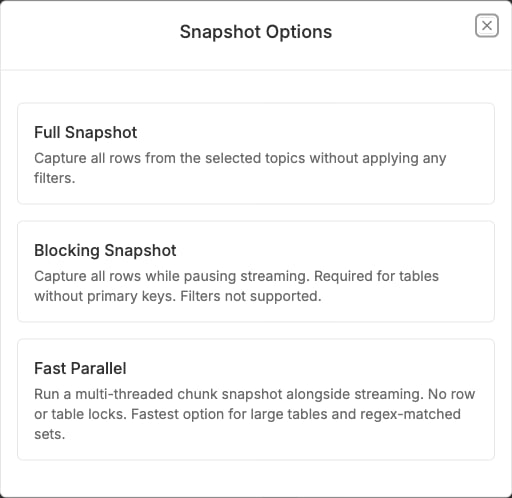
 #### Snapshot Options Dialog
When triggering a source-level snapshot, you can choose between Full Snapshot, Blocking Snapshot, or (for PostgreSQL Sources, in Beta) [Fast Parallel](#fast-parallel-snapshot):
#### Snapshot Options Dialog
When triggering a source-level snapshot, you can choose between Full Snapshot, Blocking Snapshot, or (for PostgreSQL Sources, in Beta) [Fast Parallel](#fast-parallel-snapshot):
 ### Table/Topic Level Snapshot
This will trigger a snapshot for the *selected* tables/topics only:
### Table/Topic Level Snapshot
This will trigger a snapshot for the *selected* tables/topics only:
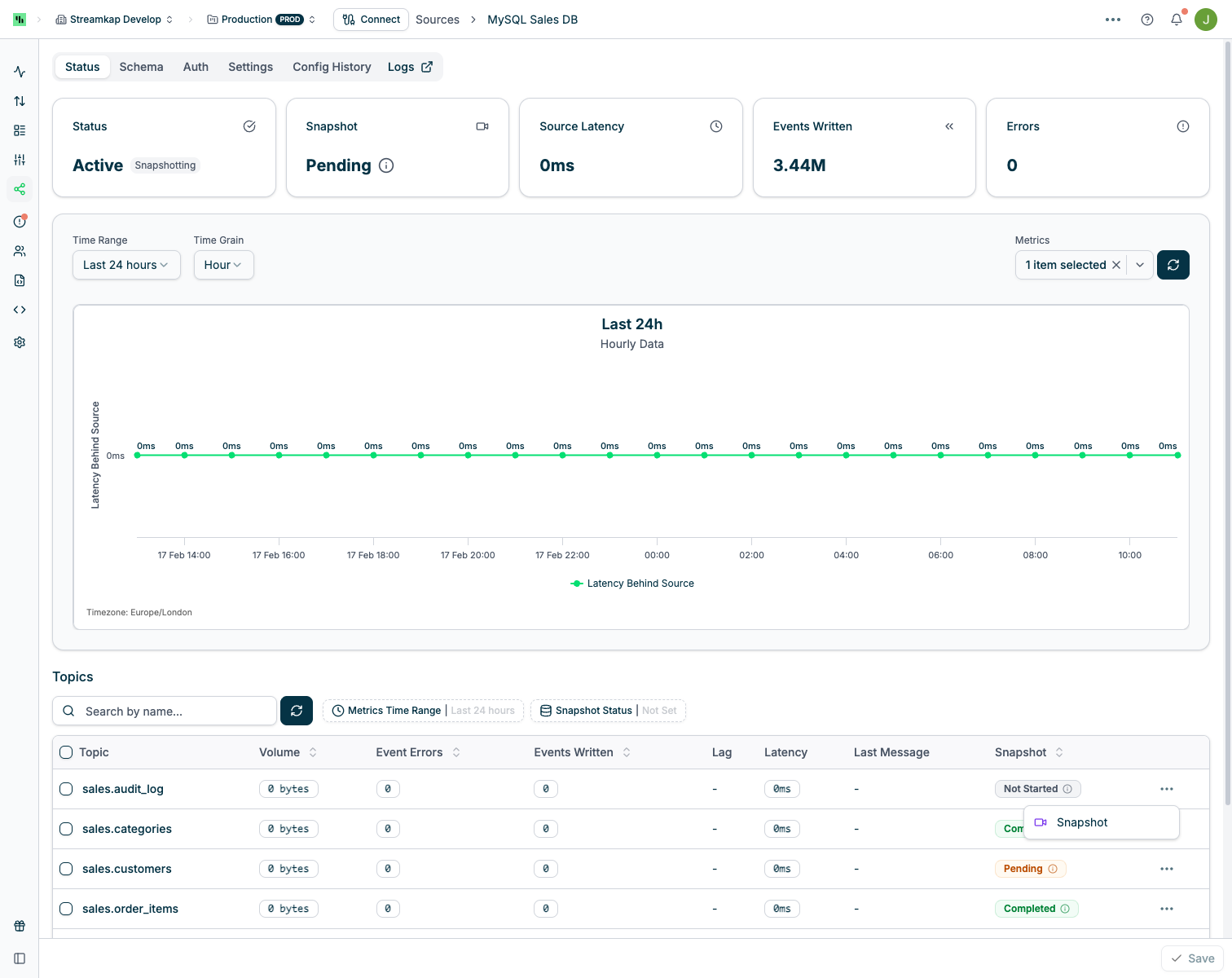 #### Snapshot Options Dialog
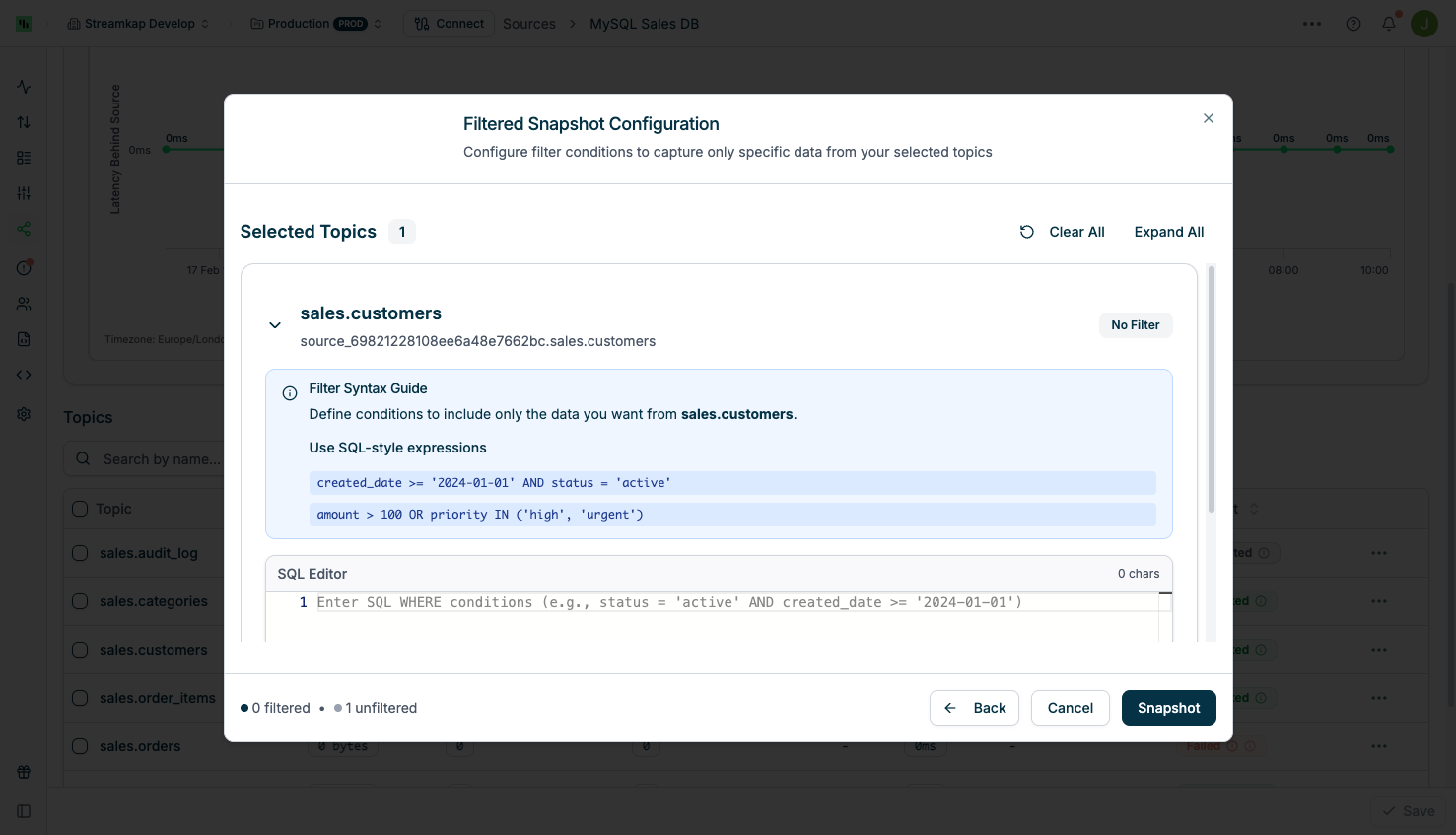
When triggering a table/topic snapshot, you can choose the snapshot type and configure advanced options:
### Filtered Snapshot Configuration
Select **Filtered Snapshot** to apply filter conditions. The filter format depends on your Source type:
| Source type | Sources | Filter format | Example |
| ----------------------------- | ----------------------------------------------------------------------------------------------------- | ----------------------------------------------------------------------------------------------------------------- | ---------------------------------------------------------- |
| **SQL-based** | PostgreSQL, MySQL, MariaDB, SQL Server, Oracle, DB2, Vitess, PlanetScale, Informix, AlloyDB, Supabase | SQL `WHERE` clause fragment | `created_at >= '2025-01-01' AND created_at < '2025-02-01'` |
| **Document (MongoDB-family)** | MongoDB, MongoDB Atlas / Hosted, Amazon DocumentDB | BSON document in [MongoDB Extended JSON v2](https://www.mongodb.com/docs/manual/reference/mongodb-extended-json/) | `{"status": "active"}` |
Before triggering a filtered snapshot on a large table or collection, make sure the right index exists. Without one, the snapshot can run for hours and may get stuck — recovery currently requires an offset reset. See [Best Practices](#best-practices-for-filtered-snapshots) below for what to check.
#### Snapshot Options Dialog
When triggering a table/topic snapshot, you can choose the snapshot type and configure advanced options:
### Filtered Snapshot Configuration
Select **Filtered Snapshot** to apply filter conditions. The filter format depends on your Source type:
| Source type | Sources | Filter format | Example |
| ----------------------------- | ----------------------------------------------------------------------------------------------------- | ----------------------------------------------------------------------------------------------------------------- | ---------------------------------------------------------- |
| **SQL-based** | PostgreSQL, MySQL, MariaDB, SQL Server, Oracle, DB2, Vitess, PlanetScale, Informix, AlloyDB, Supabase | SQL `WHERE` clause fragment | `created_at >= '2025-01-01' AND created_at < '2025-02-01'` |
| **Document (MongoDB-family)** | MongoDB, MongoDB Atlas / Hosted, Amazon DocumentDB | BSON document in [MongoDB Extended JSON v2](https://www.mongodb.com/docs/manual/reference/mongodb-extended-json/) | `{"status": "active"}` |
Before triggering a filtered snapshot on a large table or collection, make sure the right index exists. Without one, the snapshot can run for hours and may get stuck — recovery currently requires an offset reset. See [Best Practices](#best-practices-for-filtered-snapshots) below for what to check.
 #### MongoDB-family filter examples
MongoDB, MongoDB Hosted, and Amazon DocumentDB filters are parsed as BSON
documents — type-specific values like ObjectIds and dates need their MongoDB
Extended JSON form, not the literal driver syntax you might write in the shell.
| Goal | Filter |
| ------------------------------------ | ------------------------------------------------------------- |
| Match a single document by `_id` | `{"_id": {"$oid": "65a1f2b3c4d5e6f7a8b9c0d1"}}` |
| Match documents updated after a date | `{"updated_at": {"$gte": {"$date": "2025-01-01T00:00:00Z"}}}` |
| Match a status field | `{"status": "active"}` |
| Combine conditions | `{"status": "active", "amount": {"$gt": 100}}` |
**SQL syntax against a Mongo Source is rejected.** Filters such as
`_id = '65a1f2b3c4d5e6f7a8b9c0d1'` are not valid for MongoDB-family Sources
and the API will reject the snapshot with HTTP 400 before sending it to the
connector. Always use the BSON document form above.
Extended JSON is also how the Streamkap connector emits Mongo data downstream,
so filters and emitted records share the same value representation.
**Translating from `mongosh` / MongoDB Compass.** If you're copying a filter
from `mongosh`, MongoDB Compass, or a driver-side example, it likely uses
**shell-style constructors** (`ObjectId(...)`, `ISODate(...)`,
`NumberLong(...)`, etc.). The Streamkap API requires the **MongoDB Extended
JSON** equivalent — translate before submitting:
| Shell-style (mongosh / Compass) | Extended JSON (Streamkap filter) |
| ------------------------------------------------------------------------- | ---------------------------------------------------------------------- |
| `ObjectId("65a1f2b3c4d5e6f7a8b9c0d1")` | `{"$oid": "65a1f2b3c4d5e6f7a8b9c0d1"}` |
| `ISODate("2025-01-01T00:00:00Z")`
#### MongoDB-family filter examples
MongoDB, MongoDB Hosted, and Amazon DocumentDB filters are parsed as BSON
documents — type-specific values like ObjectIds and dates need their MongoDB
Extended JSON form, not the literal driver syntax you might write in the shell.
| Goal | Filter |
| ------------------------------------ | ------------------------------------------------------------- |
| Match a single document by `_id` | `{"_id": {"$oid": "65a1f2b3c4d5e6f7a8b9c0d1"}}` |
| Match documents updated after a date | `{"updated_at": {"$gte": {"$date": "2025-01-01T00:00:00Z"}}}` |
| Match a status field | `{"status": "active"}` |
| Combine conditions | `{"status": "active", "amount": {"$gt": 100}}` |
**SQL syntax against a Mongo Source is rejected.** Filters such as
`_id = '65a1f2b3c4d5e6f7a8b9c0d1'` are not valid for MongoDB-family Sources
and the API will reject the snapshot with HTTP 400 before sending it to the
connector. Always use the BSON document form above.
Extended JSON is also how the Streamkap connector emits Mongo data downstream,
so filters and emitted records share the same value representation.
**Translating from `mongosh` / MongoDB Compass.** If you're copying a filter
from `mongosh`, MongoDB Compass, or a driver-side example, it likely uses
**shell-style constructors** (`ObjectId(...)`, `ISODate(...)`,
`NumberLong(...)`, etc.). The Streamkap API requires the **MongoDB Extended
JSON** equivalent — translate before submitting:
| Shell-style (mongosh / Compass) | Extended JSON (Streamkap filter) |
| ------------------------------------------------------------------------- | ---------------------------------------------------------------------- |
| `ObjectId("65a1f2b3c4d5e6f7a8b9c0d1")` | `{"$oid": "65a1f2b3c4d5e6f7a8b9c0d1"}` |
| `ISODate("2025-01-01T00:00:00Z")`
`new Date("2025-01-01T00:00:00Z")` | `{"$date": "2025-01-01T00:00:00Z"}` |
| `NumberLong("9000000000")` | `{"$numberLong": "9000000000"}` |
| `NumberDecimal("19.99")` | `{"$numberDecimal": "19.99"}` |
| `UUID("3b241101-e2bb-4255-8caf-4136c566a962")` | `{"$binary": {"base64": "OyQRAeK7QlWMr0E2xWapYg==", "subType": "04"}}` |
| `/^A.*/i` (regex literal) | `{"$regularExpression": {"pattern": "^A.*", "options": "i"}}` |
So a `mongosh` query like:
```javascript theme={null}
db.orders.find({ _id: ObjectId("65a1f2b3c4d5e6f7a8b9c0d1") })
```
becomes the following Streamkap filter:
```json theme={null}
{"_id": {"$oid": "65a1f2b3c4d5e6f7a8b9c0d1"}}
```
#### Best Practices for Filtered Snapshots
When using Filtered snapshots, we **strongly recommend**:
* **Use closed range filters** when applying comparative operators on timestamp or date fields. Closed ranges (lower bound *inclusive*, upper bound *exclusive*) ensure you capture all intended data without gaps or overlaps.
* **SQL Source:** `created_at >= '2025-01-01' AND created_at < '2025-02-01'`
* **MongoDB-family Source:** `{"created_at": {"$gte": {"$date": "2025-01-01T00:00:00Z"}, "$lt": {"$date": "2025-02-01T00:00:00Z"}}}`
* **Filter on indexed or primary key fields** for optimal performance. Filtering on columns that are part of your table's indices or primary key allows the database to efficiently locate matching rows, significantly reducing the load on your source database.
* **Make sure your index covers both the filter column AND the ordering column.** When a filtered snapshot starts, it needs to find the highest ordering-column value that matches your filter (MongoDB uses `_id`; SQL uses the primary key). An index on just the filter column — or just the ordering column — isn't enough, and the database may end up scanning a large chunk of the table. Check this with your query planner before triggering on a large table.
* **MongoDB-family Source:** if you're filtering on `lastupdated`, the index you need is `{ lastupdated: 1, _id: -1 }`. Verify with: `db..find().sort({_id: -1}).limit(1).explain("queryPlanner")`. The winning plan should show `IXSCAN` and no `SORT` stage.
* **SQL Source:** if you're filtering on `updated_at` with a `BIGINT id` primary key, the index you need is `(updated_at, id)`. Run `EXPLAIN` on the filter query and confirm an index scan — not a sequential scan followed by a sort.
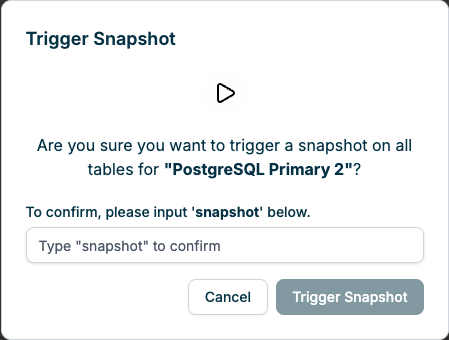
### Confirmation Prompt
After initiating a snapshot, you must confirm your action by typing "snapshot" in the confirmation dialog:
 ## Snapshot Progress
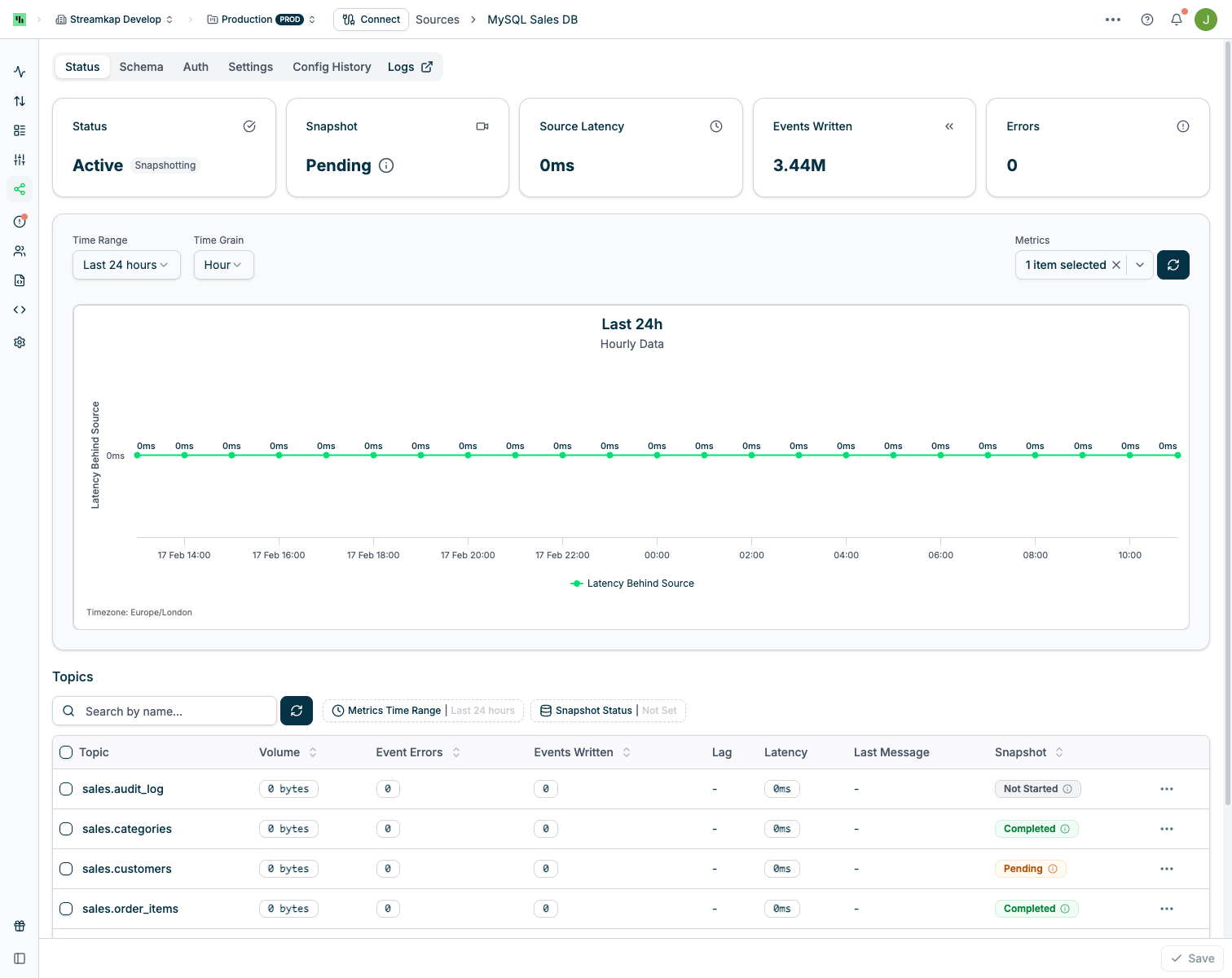
Upon triggering a snapshot, the Connector status will update to reflect the snapshot operation:
## Snapshot Progress
Upon triggering a snapshot, the Connector status will update to reflect the snapshot operation:
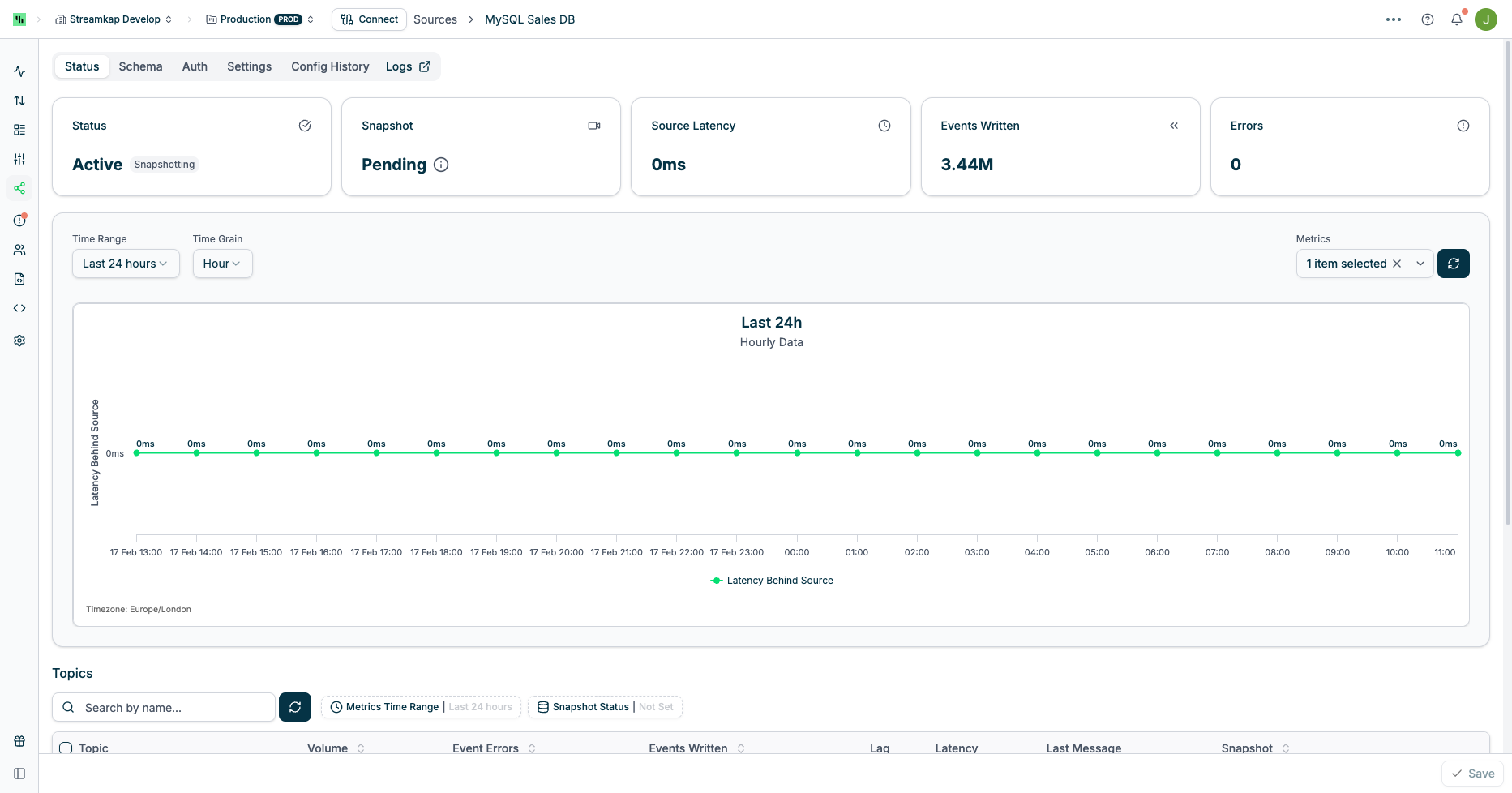 Also, the Topics list will show the snapshot status per table/topic:
 ## Cancelling a Snapshot
You can cancel an in-progress snapshot from the Connector's quick actions menu:
## Snapshotting After Schema Changes
When your source table schema changes (columns added, removed, or modified), you may need to trigger a new snapshot to ensure your destination reflects the updated structure.
### When to Snapshot
Not all schema changes require a snapshot. Use the following guidance:
| Schema Change | Snapshot Needed? | Reason |
| ----------------------- | -------------------- | ------------------------------------------------------------------------------------------------------------------------------------------------------------- |
| **New column added** | Recommended | Existing rows in your destination will have `null` for the new column unless snapshotted. Streaming CDC will populate the new column for future changes only. |
| **Column removed** | Usually not required | The removed column will stop appearing in new CDC events. Existing destination data retains the old column values. |
| **Column type changed** | Recommended | Type mismatches between historical and new data can cause issues in your destination. A snapshot ensures consistency. |
| **Table renamed** | Yes | A renamed table appears as a new topic. You must configure the connector to capture the new table name and trigger a snapshot. |
| **Primary key changed** | Yes | Primary key changes affect how data is keyed and de-duplicated. A snapshot is required to ensure correct upsert behavior. |
Streamkap supports [schema evolution](/schema-evolution-support) for most sources. Column additions and compatible type changes are automatically propagated to destinations that support schema evolution. However, a snapshot may still be needed to backfill the new column values for historical rows.
### How to Trigger a Snapshot
You can trigger a snapshot using the same methods as any other snapshot:
1. **Via the UI**: Navigate to the Source detail page and trigger a snapshot at the Source level (for all tables) or at the individual Table/Topic level. See [Triggering a Snapshot](#triggering-a-snapshot) above.
2. **Via the API**: Use the Streamkap API to trigger a snapshot programmatically. This is useful for automating snapshots as part of a schema migration workflow. See the [REST API](/api) documentation for details.
### Best Practices for Schema Change Snapshots
* **Wait for the schema change to propagate** before triggering a snapshot. Ensure the DDL change has been committed and is visible in the source database's change log.
* **Avoid schema changes during active snapshots.** If a snapshot is already running for a table, wait for it to complete (or cancel it) before applying DDL changes. Schema changes during an active snapshot are not supported and may cause failures.
* **Use Filtered (Partial) snapshots** if you only need to backfill the new column for a specific time range rather than snapshotting the entire table.
* **Coordinate with downstream consumers.** If your destination enforces strict schemas, ensure the destination table has been updated to accept the new schema before triggering the snapshot.
## Troubleshooting
### Failed Snapshot Recovery
If a Filtered or Full snapshot fails, it can resume from where it left off once the underlying issue is resolved. If the snapshot cannot automatically resume, re-trigger it — it will continue from the last completed chunk rather than restarting from the beginning.
Blocking snapshots cannot be resumed and must be re-triggered from scratch.
Common causes of snapshot failure include network timeouts, source database overload, insufficient permissions, disk space exhaustion, and schema changes during the snapshot. Check the connector's [Logs](/logs) for specific error messages, and see the [Error Reference](/error-reference) for detailed resolution steps.
If a snapshot fails repeatedly for the same table, contact [Streamkap support](mailto:support@streamkap.com) with the connector logs and error details.
### Verifying Snapshot Completion
After triggering a snapshot, you can verify that it completed successfully and that your destination contains the expected data.
#### Check Snapshot Status in the UI
The most direct way to confirm completion is through the Streamkap UI. Navigate to your [Source's](/sources) detail page and check the **Status** tab:
* **Per-topic status:** Each table/topic shows its snapshot state (e.g., "Running", "Completed"). When all topics show "Completed", the snapshot is finished.
* **Connector status:** The connector status returns to its normal streaming state after all snapshots complete.
#### Compare Row Counts
To verify data completeness, compare the row count at the source with the row count at the destination:
1. **Source row count:** Run a `SELECT COUNT(*)` (or equivalent) on the source table. For very large tables, an approximate count may be sufficient (e.g., `pg_class.reltuples` in PostgreSQL or `TABLE_ROWS` from `information_schema.tables` in MySQL).
2. **Destination row count:** Run a `SELECT COUNT(*)` on the corresponding destination table.
Row counts may not match exactly during or immediately after a snapshot because streaming CDC events (inserts, updates, deletes) continue to arrive concurrently. A small difference is normal. If the counts diverge significantly, investigate further.
#### Check Pipeline Lag
Pipeline lag indicates how far behind the destination is from the source. After a snapshot completes:
* **Lag drops to near-zero:** The pipeline has caught up and is processing events in near real-time. This confirms the snapshot is complete and streaming has resumed normally.
* **Lag remains elevated:** The pipeline may still be processing buffered events that accumulated during the snapshot. Wait for lag to stabilize before concluding.
You can monitor pipeline lag on the [Pipelines](/pipelines) page or via the [API](/api).
#### Distinguishing "Stuck" from "Still Running"
If a snapshot appears to be taking longer than expected:
* **Check throughput metrics.** If records per second is greater than zero, the snapshot is still actively processing data. Large tables simply take longer. You can view throughput on the [Pipelines](/pipelines) page.
* **Check for errors.** If throughput has dropped to zero and the status does not show "Completed", the snapshot may have encountered an error. Check the connector [Logs](/logs) and the [Failed Snapshot Recovery](#failed-snapshot-recovery) section.
* **Check source database load.** High load on the source can slow snapshot reads significantly. Monitor the source database's CPU, I/O, and active connections during the snapshot.
For very large snapshots, monitor throughput trends rather than absolute progress. A steady throughput rate (even if slow) indicates the snapshot is progressing normally. A sudden drop to zero throughput is the signal to investigate.
## Cancelling a Snapshot
You can cancel an in-progress snapshot from the Connector's quick actions menu:
## Snapshotting After Schema Changes
When your source table schema changes (columns added, removed, or modified), you may need to trigger a new snapshot to ensure your destination reflects the updated structure.
### When to Snapshot
Not all schema changes require a snapshot. Use the following guidance:
| Schema Change | Snapshot Needed? | Reason |
| ----------------------- | -------------------- | ------------------------------------------------------------------------------------------------------------------------------------------------------------- |
| **New column added** | Recommended | Existing rows in your destination will have `null` for the new column unless snapshotted. Streaming CDC will populate the new column for future changes only. |
| **Column removed** | Usually not required | The removed column will stop appearing in new CDC events. Existing destination data retains the old column values. |
| **Column type changed** | Recommended | Type mismatches between historical and new data can cause issues in your destination. A snapshot ensures consistency. |
| **Table renamed** | Yes | A renamed table appears as a new topic. You must configure the connector to capture the new table name and trigger a snapshot. |
| **Primary key changed** | Yes | Primary key changes affect how data is keyed and de-duplicated. A snapshot is required to ensure correct upsert behavior. |
Streamkap supports [schema evolution](/schema-evolution-support) for most sources. Column additions and compatible type changes are automatically propagated to destinations that support schema evolution. However, a snapshot may still be needed to backfill the new column values for historical rows.
### How to Trigger a Snapshot
You can trigger a snapshot using the same methods as any other snapshot:
1. **Via the UI**: Navigate to the Source detail page and trigger a snapshot at the Source level (for all tables) or at the individual Table/Topic level. See [Triggering a Snapshot](#triggering-a-snapshot) above.
2. **Via the API**: Use the Streamkap API to trigger a snapshot programmatically. This is useful for automating snapshots as part of a schema migration workflow. See the [REST API](/api) documentation for details.
### Best Practices for Schema Change Snapshots
* **Wait for the schema change to propagate** before triggering a snapshot. Ensure the DDL change has been committed and is visible in the source database's change log.
* **Avoid schema changes during active snapshots.** If a snapshot is already running for a table, wait for it to complete (or cancel it) before applying DDL changes. Schema changes during an active snapshot are not supported and may cause failures.
* **Use Filtered (Partial) snapshots** if you only need to backfill the new column for a specific time range rather than snapshotting the entire table.
* **Coordinate with downstream consumers.** If your destination enforces strict schemas, ensure the destination table has been updated to accept the new schema before triggering the snapshot.
## Troubleshooting
### Failed Snapshot Recovery
If a Filtered or Full snapshot fails, it can resume from where it left off once the underlying issue is resolved. If the snapshot cannot automatically resume, re-trigger it — it will continue from the last completed chunk rather than restarting from the beginning.
Blocking snapshots cannot be resumed and must be re-triggered from scratch.
Common causes of snapshot failure include network timeouts, source database overload, insufficient permissions, disk space exhaustion, and schema changes during the snapshot. Check the connector's [Logs](/logs) for specific error messages, and see the [Error Reference](/error-reference) for detailed resolution steps.
If a snapshot fails repeatedly for the same table, contact [Streamkap support](mailto:support@streamkap.com) with the connector logs and error details.
### Verifying Snapshot Completion
After triggering a snapshot, you can verify that it completed successfully and that your destination contains the expected data.
#### Check Snapshot Status in the UI
The most direct way to confirm completion is through the Streamkap UI. Navigate to your [Source's](/sources) detail page and check the **Status** tab:
* **Per-topic status:** Each table/topic shows its snapshot state (e.g., "Running", "Completed"). When all topics show "Completed", the snapshot is finished.
* **Connector status:** The connector status returns to its normal streaming state after all snapshots complete.
#### Compare Row Counts
To verify data completeness, compare the row count at the source with the row count at the destination:
1. **Source row count:** Run a `SELECT COUNT(*)` (or equivalent) on the source table. For very large tables, an approximate count may be sufficient (e.g., `pg_class.reltuples` in PostgreSQL or `TABLE_ROWS` from `information_schema.tables` in MySQL).
2. **Destination row count:** Run a `SELECT COUNT(*)` on the corresponding destination table.
Row counts may not match exactly during or immediately after a snapshot because streaming CDC events (inserts, updates, deletes) continue to arrive concurrently. A small difference is normal. If the counts diverge significantly, investigate further.
#### Check Pipeline Lag
Pipeline lag indicates how far behind the destination is from the source. After a snapshot completes:
* **Lag drops to near-zero:** The pipeline has caught up and is processing events in near real-time. This confirms the snapshot is complete and streaming has resumed normally.
* **Lag remains elevated:** The pipeline may still be processing buffered events that accumulated during the snapshot. Wait for lag to stabilize before concluding.
You can monitor pipeline lag on the [Pipelines](/pipelines) page or via the [API](/api).
#### Distinguishing "Stuck" from "Still Running"
If a snapshot appears to be taking longer than expected:
* **Check throughput metrics.** If records per second is greater than zero, the snapshot is still actively processing data. Large tables simply take longer. You can view throughput on the [Pipelines](/pipelines) page.
* **Check for errors.** If throughput has dropped to zero and the status does not show "Completed", the snapshot may have encountered an error. Check the connector [Logs](/logs) and the [Failed Snapshot Recovery](#failed-snapshot-recovery) section.
* **Check source database load.** High load on the source can slow snapshot reads significantly. Monitor the source database's CPU, I/O, and active connections during the snapshot.
For very large snapshots, monitor throughput trends rather than absolute progress. A steady throughput rate (even if slow) indicates the snapshot is progressing normally. A sudden drop to zero throughput is the signal to investigate.