> ## Documentation Index
> Fetch the complete documentation index at: https://docs.streamkap.com/llms.txt
> Use this file to discover all available pages before exploring further.
# Pipelines
> Create and manage data pipelines connecting sources to destinations
Pipelines in Streamkap represent the data flow from a source connector (database) to a destination connector (data warehouse or lake). Each pipeline can include transforms and topic configurations to shape and route your data.
## Overview
The Pipelines page provides a centralized interface to:
* View all pipelines with their status, performance metrics, and configurations
* Create new pipelines connecting sources to destinations
* Monitor pipeline health, latency, and lag
* Filter pipelines by connector, status, or tags
* Configure pipeline settings including schema selection and transforms
* Access source and destination connector details
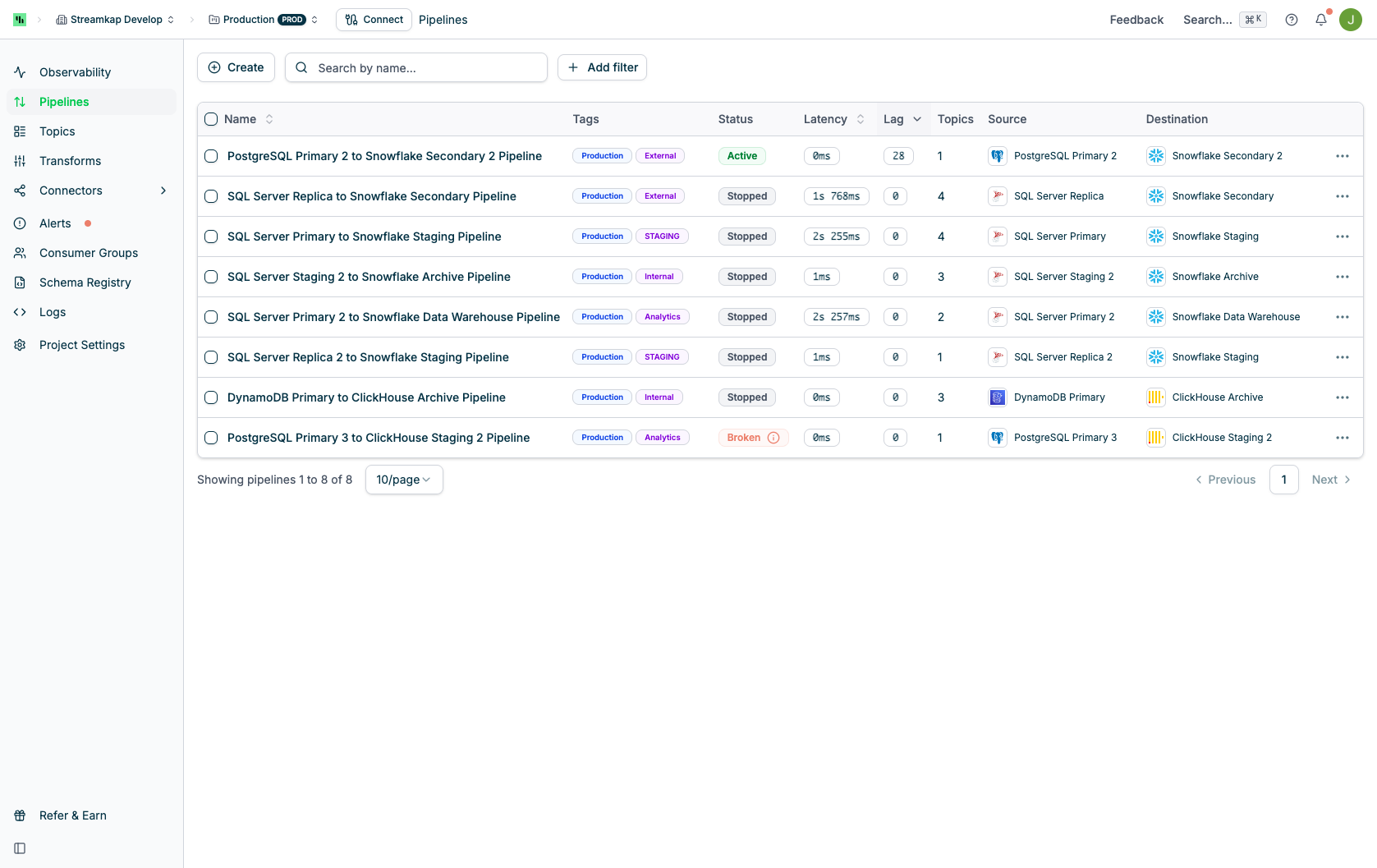 ## Table Columns
The Pipelines table displays the following information:
* **Name**: The pipeline name with checkbox for bulk selection
* **Tags**: Custom tags for organizing pipelines (e.g., Production, Development)
* **Status**: Current pipeline state with visual indicators:
* **Active** (green): Pipeline is running normally
* **Stopped** (gray): Pipeline is paused
* **Broken** (red with info icon): Pipeline has errors
* **Latency**: Time delay for data to flow through the pipeline
* **Lag**: Number of records behind the source
* **Topics**: Number of Kafka topics associated with the pipeline
* **Source**: Source connector type and name (clickable to view details)
* **Destination**: Destination connector type and name (clickable to view details)
* **Actions**: Actions menu (⋮) for quick actions
## Pipeline Statuses
Pipelines can be in one of the following states:
### Active
The pipeline is running and actively replicating data from source to destination. Indicated by green status badge.
### Stopped
The pipeline has been manually paused or stopped. No data is flowing. Indicated by gray status badge.
### Broken
The pipeline has encountered an error and is not functioning. Click the info icon next to the status to see error details. Indicated by red status badge with an information icon.
When a pipeline shows a Broken status, check the Alerts and Logs pages for detailed error information to troubleshoot the issue.
## Filtering and Search
Use the filtering options at the top of the page to quickly find specific pipelines:
### Search
Type in the search box to filter pipelines by name. The search filters in real-time as you type.
### Filter by Connectors
Click the **Connectors** dropdown to filter pipelines by:
* Source connector type (MySQL, PostgreSQL, MongoDB, etc.)
* Destination connector type (Snowflake, BigQuery, Databricks, etc.)
### Filter by Status
Click the **Status** dropdown to show only pipelines with specific statuses:
* Active
* Stopped
* Broken
### Filter by Tags
Click the **Tags** dropdown to filter pipelines by assigned tags (Production, Development, custom tags).
## Row Actions Menu
Click the actions menu (⋮) on any pipeline row to access the following options:
* **View**: Open the pipeline detail page
* **Edit**: Open the pipeline settings for editing
* **Copy ID**: Copy the pipeline UUID to clipboard (useful for API calls and support tickets)
* **Snapshot**: Trigger a new data snapshot for the pipeline's source
* **Cancel Snapshot**: Stop an in-progress snapshot operation
* **Resume source**: Resume the source connector if it was stopped
* **Stop source**: Stop the source connector from streaming data
* **Resume destination**: Resume the destination connector if it was stopped
* **Stop destination**: Stop the destination connector from consuming data
* **Logs**: View logs for this pipeline
* **Update Tags**: Add or modify tags assigned to this pipeline
* **Delete**: Remove the pipeline (requires confirmation)
## Table Columns
The Pipelines table displays the following information:
* **Name**: The pipeline name with checkbox for bulk selection
* **Tags**: Custom tags for organizing pipelines (e.g., Production, Development)
* **Status**: Current pipeline state with visual indicators:
* **Active** (green): Pipeline is running normally
* **Stopped** (gray): Pipeline is paused
* **Broken** (red with info icon): Pipeline has errors
* **Latency**: Time delay for data to flow through the pipeline
* **Lag**: Number of records behind the source
* **Topics**: Number of Kafka topics associated with the pipeline
* **Source**: Source connector type and name (clickable to view details)
* **Destination**: Destination connector type and name (clickable to view details)
* **Actions**: Actions menu (⋮) for quick actions
## Pipeline Statuses
Pipelines can be in one of the following states:
### Active
The pipeline is running and actively replicating data from source to destination. Indicated by green status badge.
### Stopped
The pipeline has been manually paused or stopped. No data is flowing. Indicated by gray status badge.
### Broken
The pipeline has encountered an error and is not functioning. Click the info icon next to the status to see error details. Indicated by red status badge with an information icon.
When a pipeline shows a Broken status, check the Alerts and Logs pages for detailed error information to troubleshoot the issue.
## Filtering and Search
Use the filtering options at the top of the page to quickly find specific pipelines:
### Search
Type in the search box to filter pipelines by name. The search filters in real-time as you type.
### Filter by Connectors
Click the **Connectors** dropdown to filter pipelines by:
* Source connector type (MySQL, PostgreSQL, MongoDB, etc.)
* Destination connector type (Snowflake, BigQuery, Databricks, etc.)
### Filter by Status
Click the **Status** dropdown to show only pipelines with specific statuses:
* Active
* Stopped
* Broken
### Filter by Tags
Click the **Tags** dropdown to filter pipelines by assigned tags (Production, Development, custom tags).
## Row Actions Menu
Click the actions menu (⋮) on any pipeline row to access the following options:
* **View**: Open the pipeline detail page
* **Edit**: Open the pipeline settings for editing
* **Copy ID**: Copy the pipeline UUID to clipboard (useful for API calls and support tickets)
* **Snapshot**: Trigger a new data snapshot for the pipeline's source
* **Cancel Snapshot**: Stop an in-progress snapshot operation
* **Resume source**: Resume the source connector if it was stopped
* **Stop source**: Stop the source connector from streaming data
* **Resume destination**: Resume the destination connector if it was stopped
* **Stop destination**: Stop the destination connector from consuming data
* **Logs**: View logs for this pipeline
* **Update Tags**: Add or modify tags assigned to this pipeline
* **Delete**: Remove the pipeline (requires confirmation)
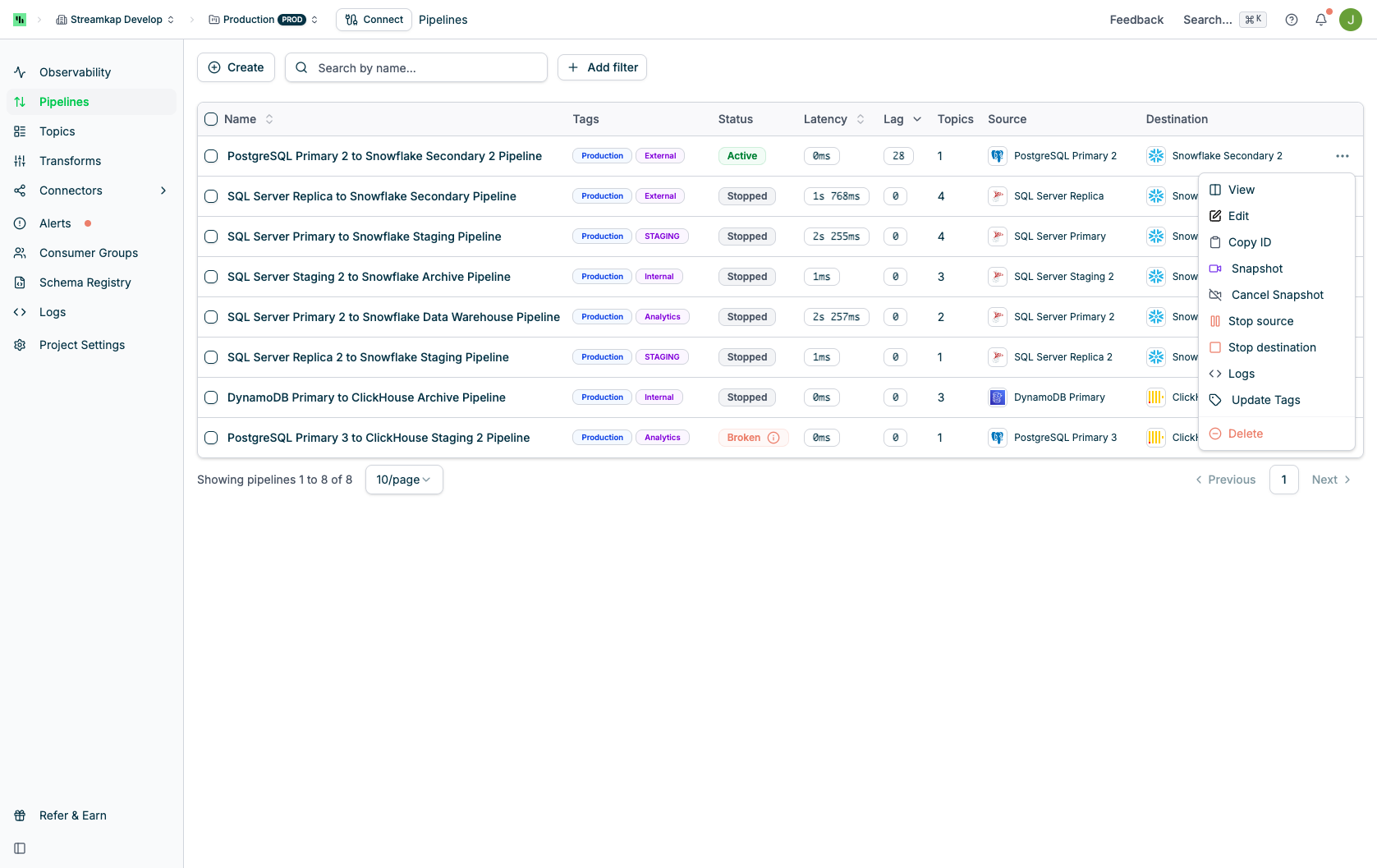 Deleting a pipeline is permanent and will stop all data replication. The underlying source and destination connectors will remain unchanged.
## Creating a Pipeline
To create a new pipeline:
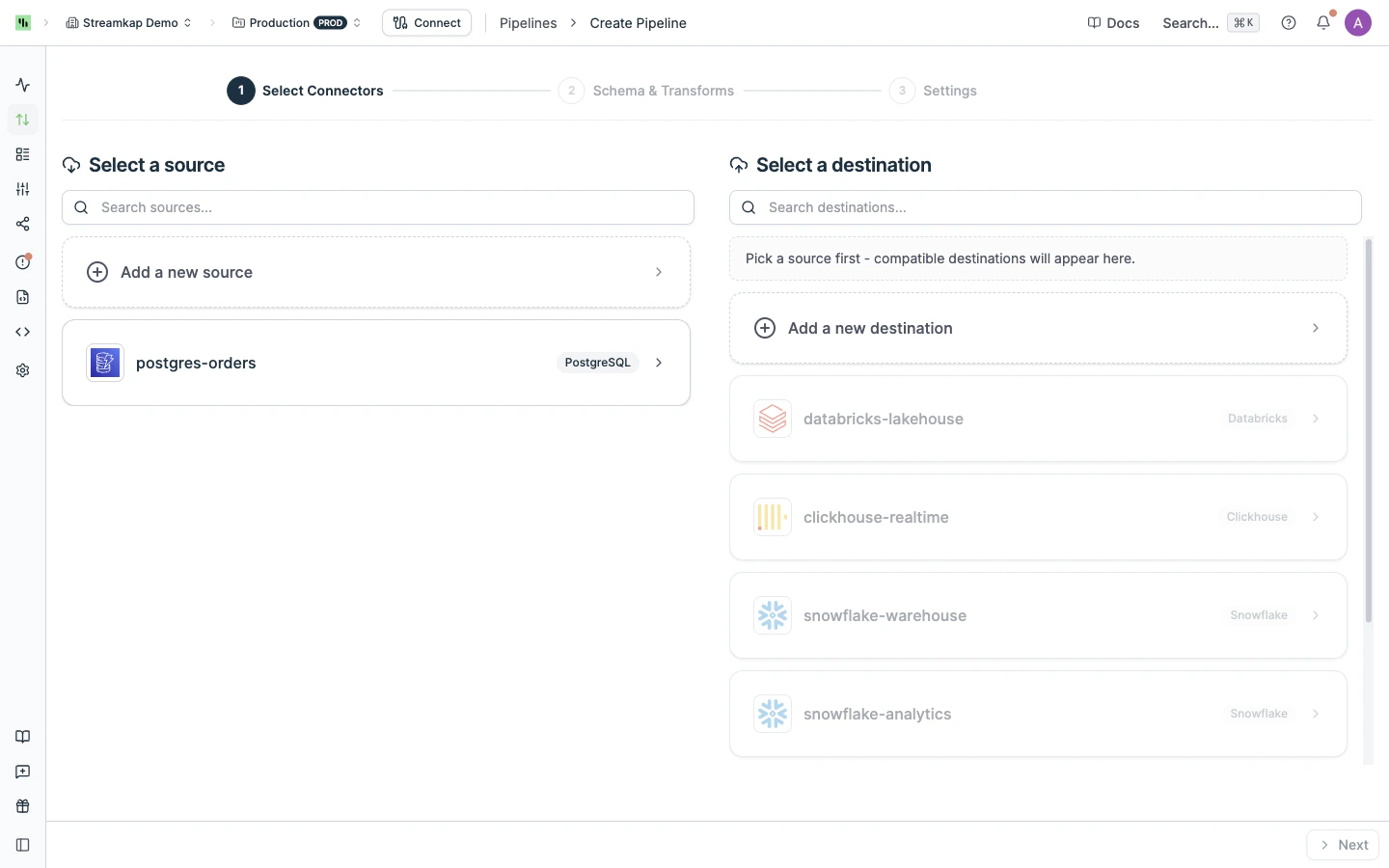
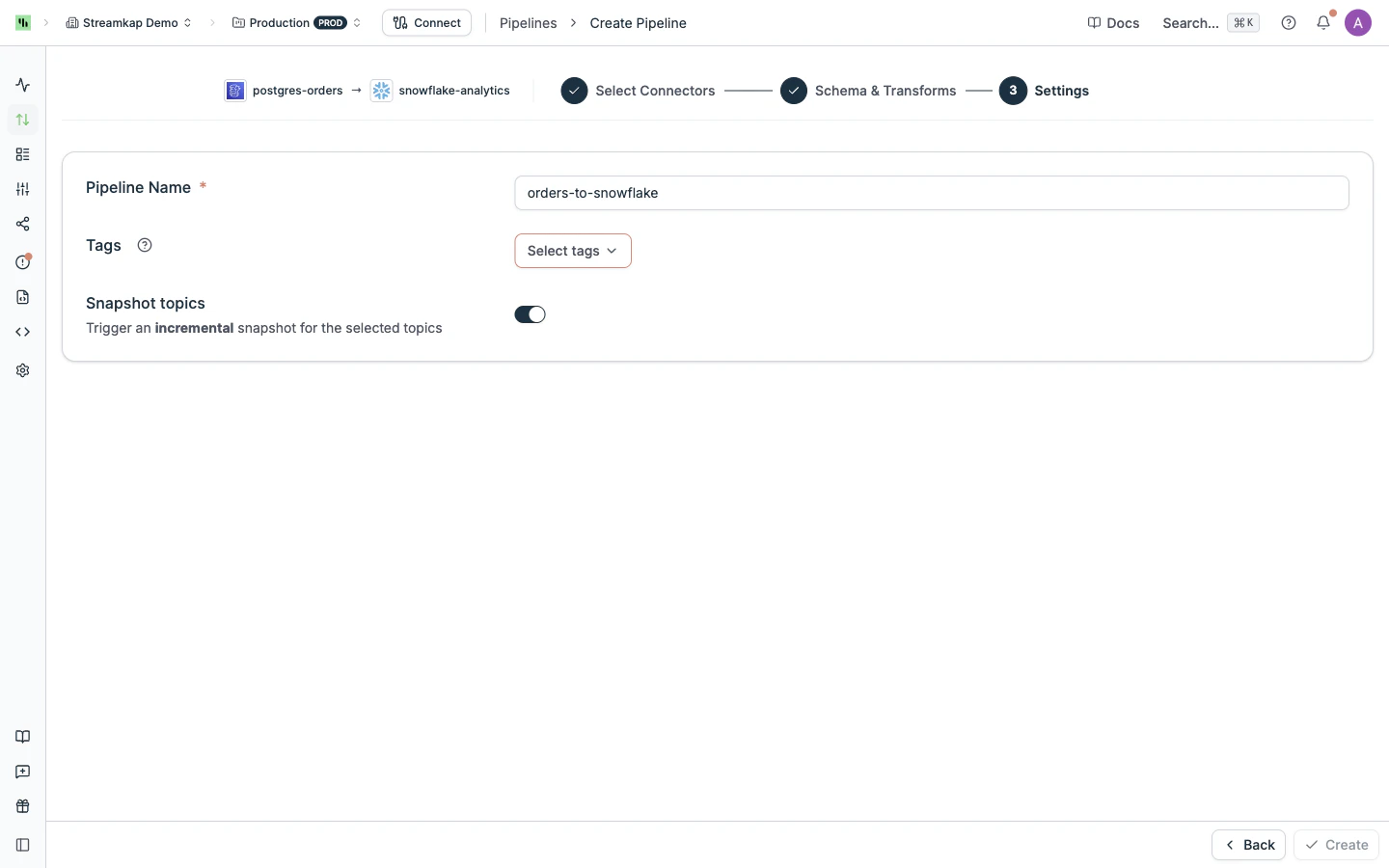
Click the **Create** button at the top left of the Pipelines page. This launches the three-step create wizard.
Pick an existing source on the left and a compatible destination on the right (or use **Add a new source** / **Add a new destination** to create one inline). Only destinations compatible with the chosen source are enabled.
Deleting a pipeline is permanent and will stop all data replication. The underlying source and destination connectors will remain unchanged.
## Creating a Pipeline
To create a new pipeline:
Click the **Create** button at the top left of the Pipelines page. This launches the three-step create wizard.
Pick an existing source on the left and a compatible destination on the right (or use **Add a new source** / **Add a new destination** to create one inline). Only destinations compatible with the chosen source are enabled.
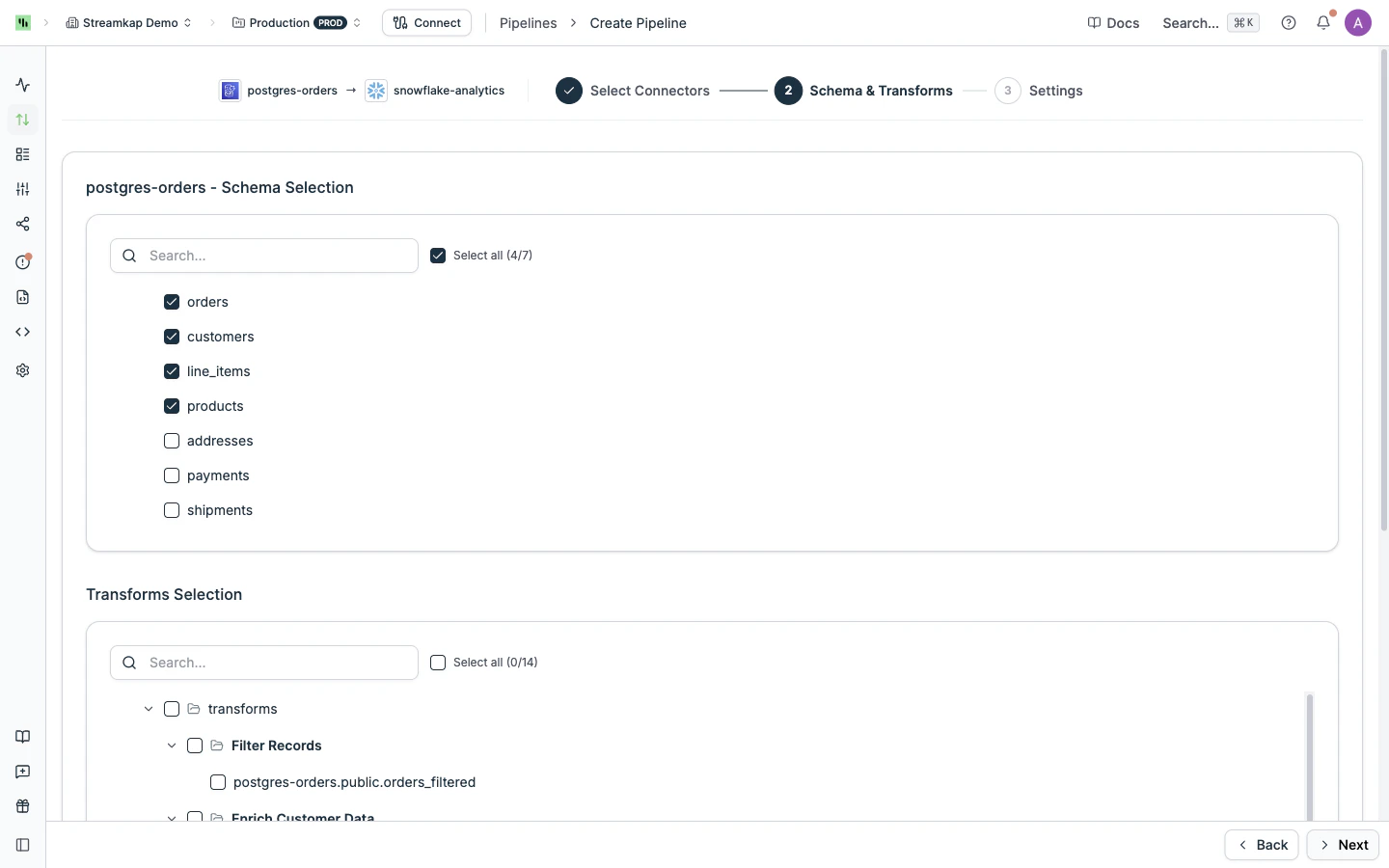
 Choose which databases and tables from the source to replicate, and optionally select transform topics to include in the pipeline.
 Set the pipeline name, tags, and decide whether to trigger an incremental snapshot of the selected topics on creation. Click **Create** to save and start the pipeline.
 ## Pipeline Detail View
Click on any pipeline name to view its detail page with comprehensive information and configuration options.
### Status Tab
The Status tab provides an overview of the pipeline's current state and performance:
## Pipeline Detail View
Click on any pipeline name to view its detail page with comprehensive information and configuration options.
### Status Tab
The Status tab provides an overview of the pipeline's current state and performance:
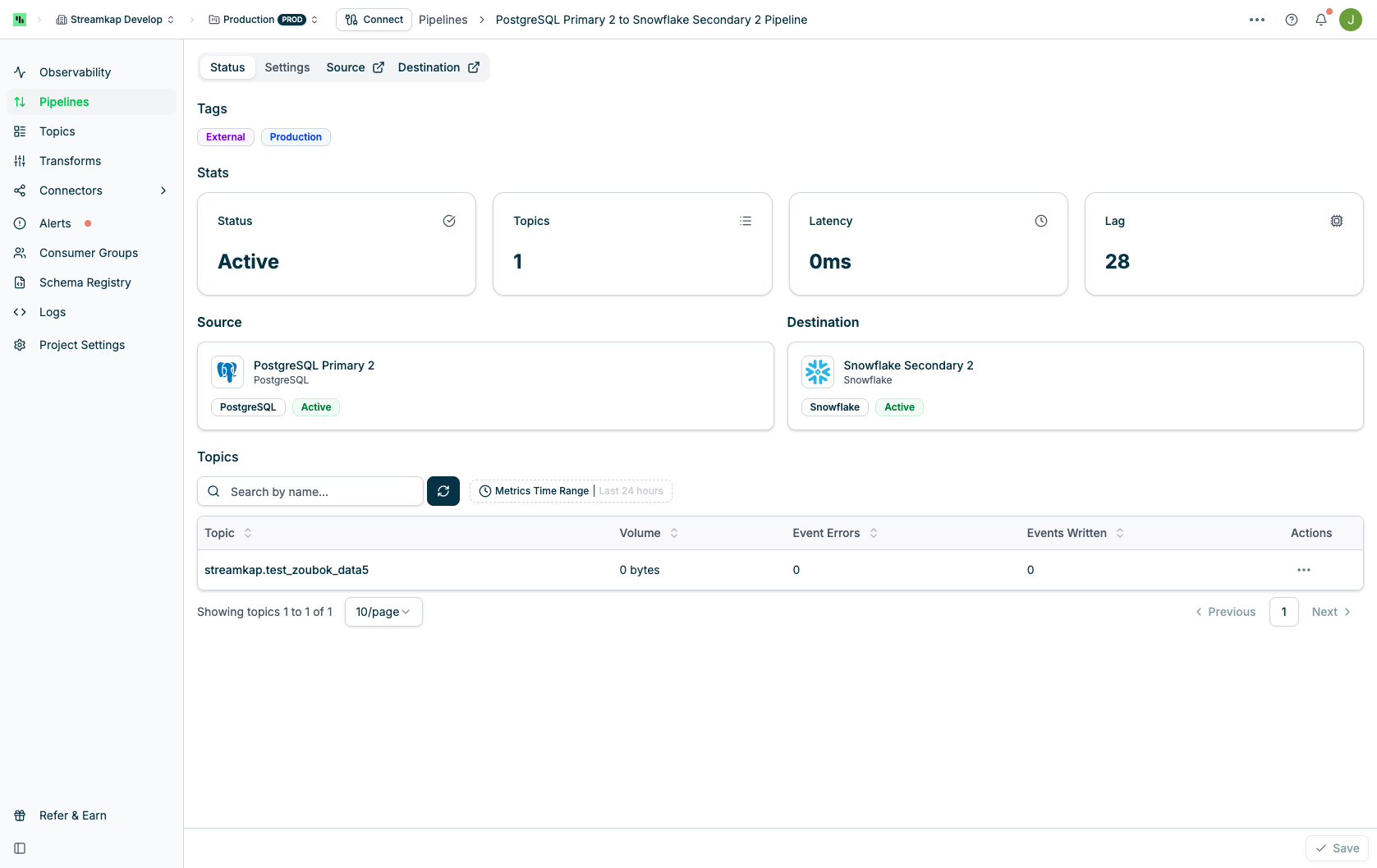 **Tags Section**
* Displays all tags assigned to the pipeline
* Tags help organize and categorize pipelines
**Stats Section**
* **Status**: Current pipeline state (Active, Stopped, or Broken)
* **Topics**: Number of Kafka topics in the pipeline
* **Latency**: Current latency measurement
* **Lag**: Current lag count
**Source and Destination Section**
* Shows connected source connector with type, name, and status
* Shows connected destination connector with type, name, and status
* Click on connector cards to navigate to their detail pages
**Topics Table**
Lists all topics flowing through the pipeline:
* **Name**: Topic name (clickable to view topic details)
* **Type**:
* **Topic**: Standard Kafka topic from source tables
* **Transform**: Topic created by a transform operation
* **Actions**: Actions menu (⋮) for each topic
### Settings Tab
The Settings tab allows you to configure pipeline behavior and data selection:
**Tags Section**
* Displays all tags assigned to the pipeline
* Tags help organize and categorize pipelines
**Stats Section**
* **Status**: Current pipeline state (Active, Stopped, or Broken)
* **Topics**: Number of Kafka topics in the pipeline
* **Latency**: Current latency measurement
* **Lag**: Current lag count
**Source and Destination Section**
* Shows connected source connector with type, name, and status
* Shows connected destination connector with type, name, and status
* Click on connector cards to navigate to their detail pages
**Topics Table**
Lists all topics flowing through the pipeline:
* **Name**: Topic name (clickable to view topic details)
* **Type**:
* **Topic**: Standard Kafka topic from source tables
* **Transform**: Topic created by a transform operation
* **Actions**: Actions menu (⋮) for each topic
### Settings Tab
The Settings tab allows you to configure pipeline behavior and data selection:
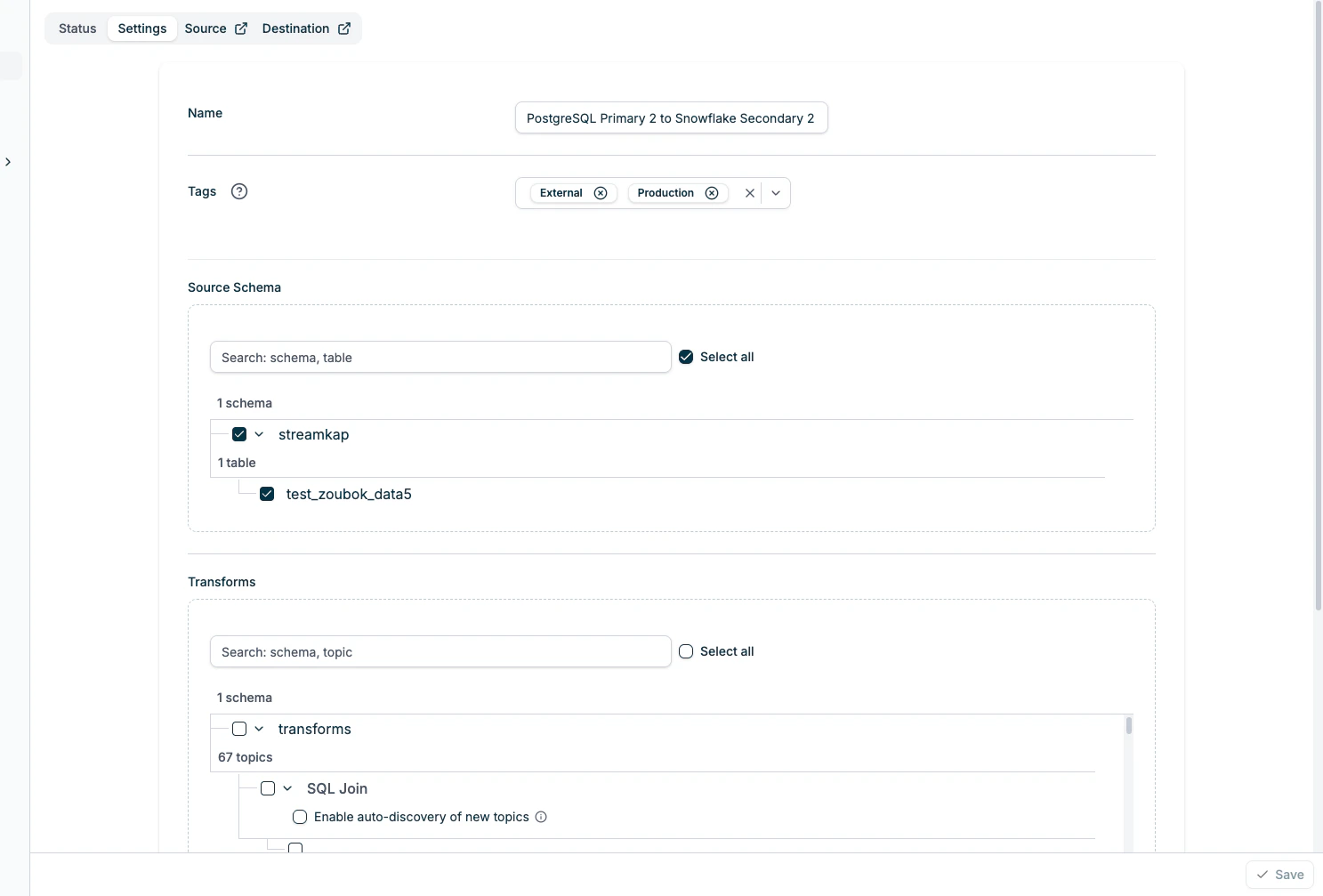 **Name**
* Edit the pipeline name
**Tags**
* Add or remove tags
* Create new tags or select from existing ones
* Tags support filtering and organization
**Audit Config**
* Toggle to enable periodic auditing of data consistency
* Select the table that will be used for auditing
* Set the interval for how often the audit runs (e.g., 30 minutes)
* Select the timestamp column to track changes
When the periodic auditing is enabled, it will helps keep your destination in sync with the source by automatically correcting mismatches:
* Records only in destination → audit removes them
* Records only in source → audit adds them
* Records that differ → audit updates them
Now the audit config only support the pipelines with source and destination connectors as below:
* MySQL → Snowflake
* PostgreSQL → ClickHouse
**Source Schema**
* Select which databases and tables to replicate
* Search functionality to filter databases and tables
* Expandable tree view showing:
* Database level with checkbox to select all tables
* Individual tables with individual checkboxes
* "Select all" option to include all databases and tables
**Transforms**
* Select specific transformed topics to include in the pipeline
* Search functionality to filter transform topics
* “Select all” option to include all transform topics
* Check "Enable auto-discovery of new topics" and input the regex pattern to automatically include new transform topics created in the future that match the pattern
"Enable auto-discovery of new topics" option:
* When checked, the user can input a regex pattern
* Any new transform topics created that match the regex will be automatically added to the pipeline
* This is useful for dynamic environments where new transforms may be added frequently.
Changes in the Settings tab require saving before they take effect. Click the **Save** button at the bottom right to apply your changes.
### Source and Destination Links
The pipeline detail page includes direct links to:
* **Source** tab/link: Opens the source connector detail page in a new context
* **Destination** tab/link: Opens the destination connector detail page in a new context
These links appear as tabs with external link icons, indicating they navigate away from the pipeline view.
## Pagination
At the bottom of the pipelines table:
* View the range of pipelines currently displayed (e.g., "Showing pipelines 1 to 10 of 20")
* Change the number of pipelines per page (10, 25, 50, 100)
* Navigate between pages using Previous/Next buttons or page numbers
## Performance Metrics
### Latency
Latency measures how long it takes for data to flow from the source through the pipeline to the destination. Lower latency means near real-time replication.
* **0ms - 100ms**: Excellent, near real-time
* **100ms - 1s**: Good, minimal delay
* **>1s**: May indicate performance issues or heavy load
### Lag
Lag represents the number of records or events that are waiting to be processed. Zero lag means the pipeline is fully caught up with the source.
* **0**: Fully caught up
* **>0**: Pipeline is behind, processing backlog
Monitor latency and lag regularly. Increasing values may indicate:
* Source database load is too high
* Destination connector is slow to write
* Network issues between components
* Need for performance optimization
Increased latency and/or lag may be expected when snapshots are running. Backfilling usually produces a much bigger load than normal CDC streaming, but the load is temporary while backfills are running.
## Bulk Actions
Select multiple pipelines using the checkboxes in the Name column to perform actions on multiple pipelines at once. When pipelines are selected, the bulk actions bar appears at the top of the table.
**Name**
* Edit the pipeline name
**Tags**
* Add or remove tags
* Create new tags or select from existing ones
* Tags support filtering and organization
**Audit Config**
* Toggle to enable periodic auditing of data consistency
* Select the table that will be used for auditing
* Set the interval for how often the audit runs (e.g., 30 minutes)
* Select the timestamp column to track changes
When the periodic auditing is enabled, it will helps keep your destination in sync with the source by automatically correcting mismatches:
* Records only in destination → audit removes them
* Records only in source → audit adds them
* Records that differ → audit updates them
Now the audit config only support the pipelines with source and destination connectors as below:
* MySQL → Snowflake
* PostgreSQL → ClickHouse
**Source Schema**
* Select which databases and tables to replicate
* Search functionality to filter databases and tables
* Expandable tree view showing:
* Database level with checkbox to select all tables
* Individual tables with individual checkboxes
* "Select all" option to include all databases and tables
**Transforms**
* Select specific transformed topics to include in the pipeline
* Search functionality to filter transform topics
* “Select all” option to include all transform topics
* Check "Enable auto-discovery of new topics" and input the regex pattern to automatically include new transform topics created in the future that match the pattern
"Enable auto-discovery of new topics" option:
* When checked, the user can input a regex pattern
* Any new transform topics created that match the regex will be automatically added to the pipeline
* This is useful for dynamic environments where new transforms may be added frequently.
Changes in the Settings tab require saving before they take effect. Click the **Save** button at the bottom right to apply your changes.
### Source and Destination Links
The pipeline detail page includes direct links to:
* **Source** tab/link: Opens the source connector detail page in a new context
* **Destination** tab/link: Opens the destination connector detail page in a new context
These links appear as tabs with external link icons, indicating they navigate away from the pipeline view.
## Pagination
At the bottom of the pipelines table:
* View the range of pipelines currently displayed (e.g., "Showing pipelines 1 to 10 of 20")
* Change the number of pipelines per page (10, 25, 50, 100)
* Navigate between pages using Previous/Next buttons or page numbers
## Performance Metrics
### Latency
Latency measures how long it takes for data to flow from the source through the pipeline to the destination. Lower latency means near real-time replication.
* **0ms - 100ms**: Excellent, near real-time
* **100ms - 1s**: Good, minimal delay
* **>1s**: May indicate performance issues or heavy load
### Lag
Lag represents the number of records or events that are waiting to be processed. Zero lag means the pipeline is fully caught up with the source.
* **0**: Fully caught up
* **>0**: Pipeline is behind, processing backlog
Monitor latency and lag regularly. Increasing values may indicate:
* Source database load is too high
* Destination connector is slow to write
* Network issues between components
* Need for performance optimization
Increased latency and/or lag may be expected when snapshots are running. Backfilling usually produces a much bigger load than normal CDC streaming, but the load is temporary while backfills are running.
## Bulk Actions
Select multiple pipelines using the checkboxes in the Name column to perform actions on multiple pipelines at once. When pipelines are selected, the bulk actions bar appears at the top of the table.
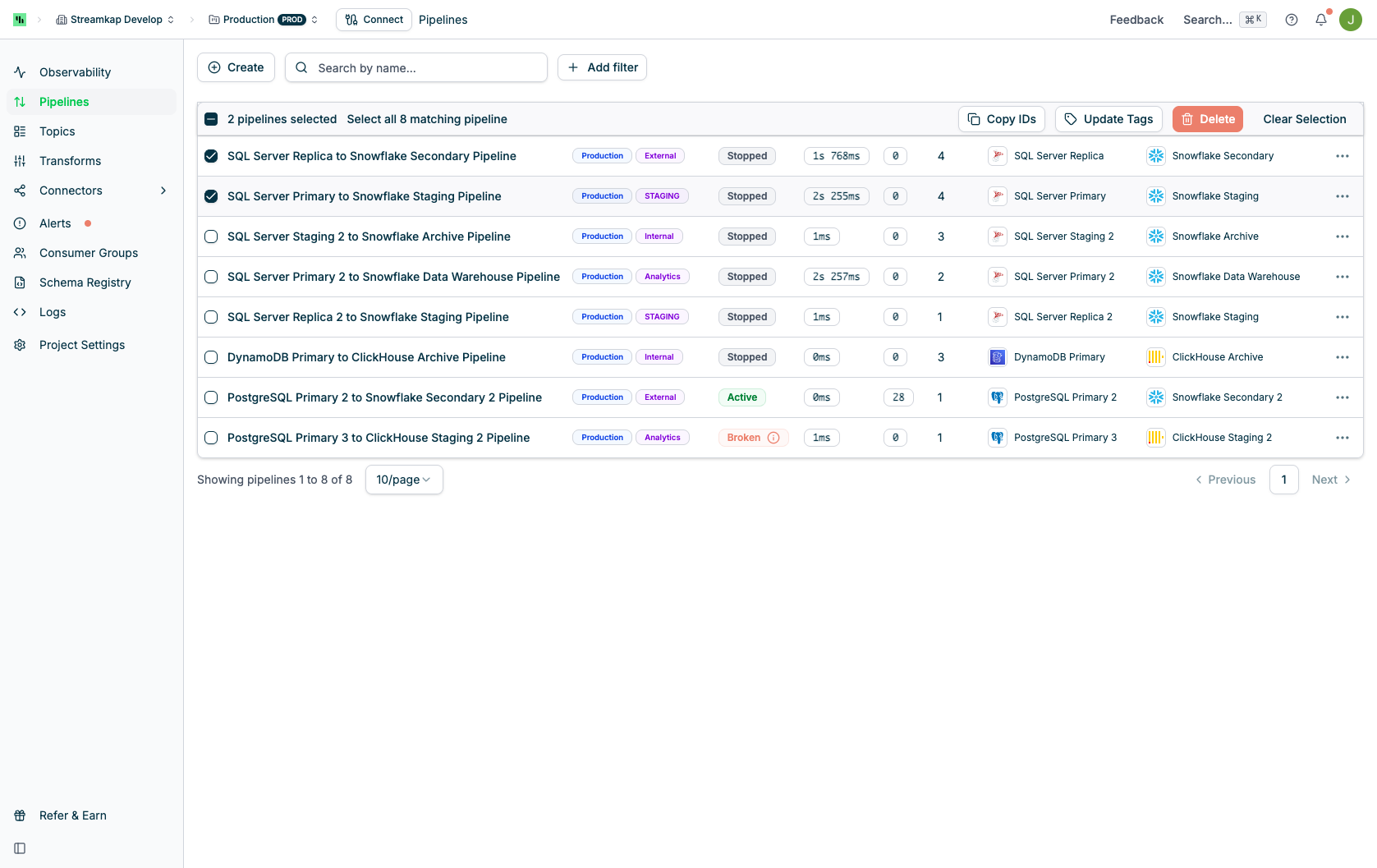 Available bulk action:
* **Update Tags**: Add or remove tags for all selected pipelines simultaneously
You can select individual pipelines or use "Select all X matching pipeline" to select all pipelines in the current filtered view.
Use tags to organize pipelines by environment (Production, Development), team, project, or any custom categorization that helps you manage your data infrastructure.
Available bulk action:
* **Update Tags**: Add or remove tags for all selected pipelines simultaneously
You can select individual pipelines or use "Select all X matching pipeline" to select all pipelines in the current filtered view.
Use tags to organize pipelines by environment (Production, Development), team, project, or any custom categorization that helps you manage your data infrastructure.