> ## Documentation Index
> Fetch the complete documentation index at: https://docs.streamkap.com/llms.txt
> Use this file to discover all available pages before exploring further.
# Personal Privacy & Security
> Manage your personal security settings including password, MFA, passkeys, and sessions
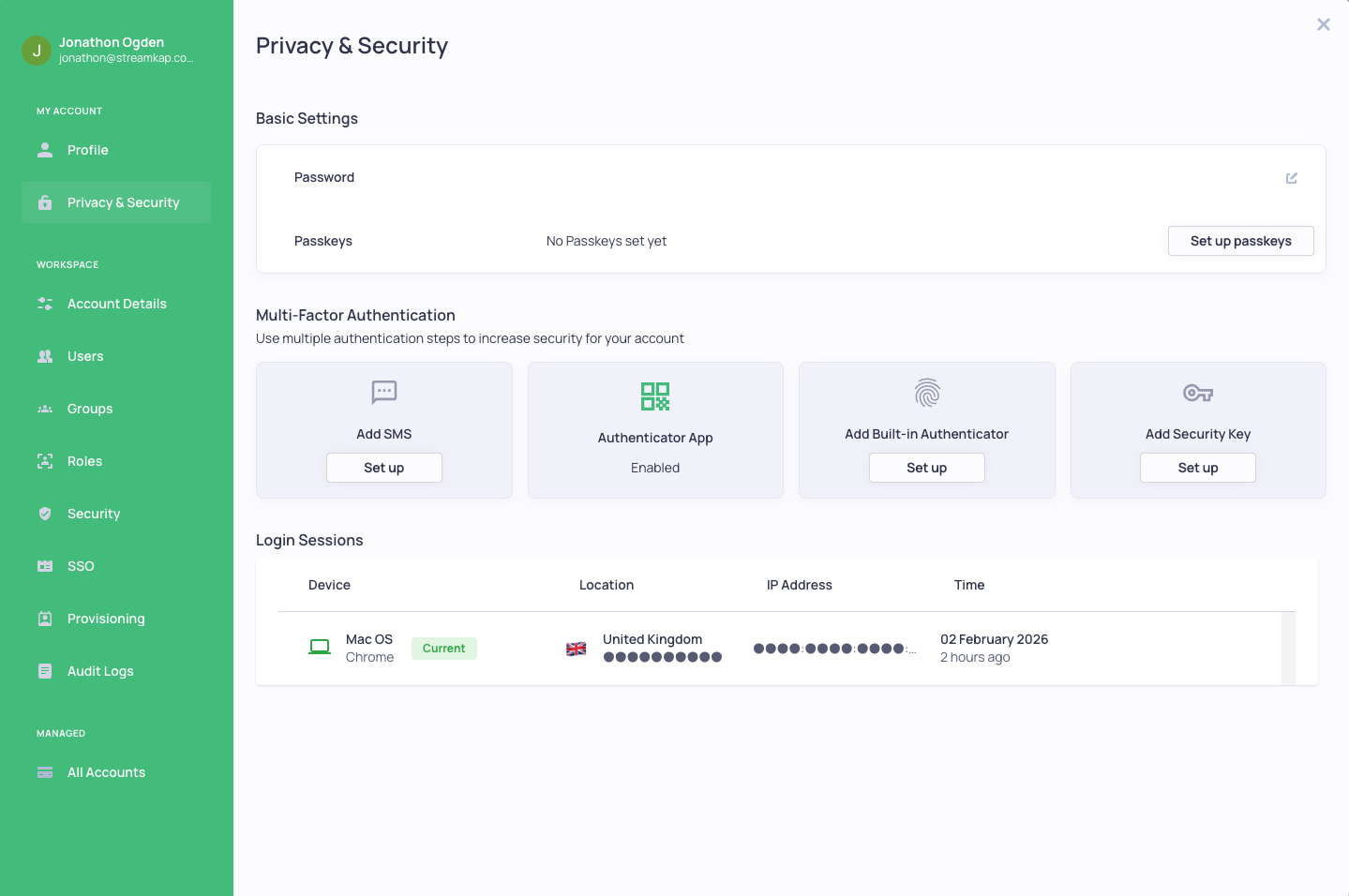
Personal Privacy & Security settings can be found in **Account preferences** under the **My Account** section. Click your avatar in the top navigation bar and select **Account preferences**, then click **Privacy & Security**.
 ## Features
* **Change your password** - Update your account password
* **Enrol/Set MFA/2FA** - Configure multi-factor authentication
* **Setup Passkeys** - Add passwordless authentication
* **View sessions** - See all active login sessions and log out of any or all of them
* **Remember 2FA devices** - Option to remember trusted devices for 30 days
## Multi-Factor Authentication (MFA/2FA)
2FA or Multi-Factor Authentication adds an essential layer of security to protect your use of Streamkap.
2FA at Streamkap is mandatory for anyone not logging in via enterprise SSO.
### Supported MFA Methods
* **Authenticator apps** - Google Authenticator, Authy, 1Password, etc.
* **SMS** - Receive codes via text message
* **Built-in authenticators** - Touch ID, Face ID, Windows Hello
* **Security Keys** - Hardware keys like YubiKey
### Setting Up MFA
1. Navigate to **Account preferences** → **Privacy & Security**
2. Under "Multi-Factor Authentication", click **Set up** on your preferred method
3. Follow the setup wizard to complete configuration
4. Your chosen method will show as "Enabled" once configured
We recommend using an authenticator app as your primary MFA method, as it's more secure than SMS and doesn't require internet connectivity.
## Login Sessions
The Login Sessions section shows all devices and browsers where your account is currently logged in:
* **Device** - Operating system and browser
* **Location** - Geographic location based on IP address
* **IP Address** - The IP address used for the session
* **Time** - When the session was created
### Managing Sessions
* **Log out individual session** - Click the logout button next to any session
* **Log out all other sessions** - Click "Log out all other sessions" to revoke all sessions except your current one
If you see any sessions you don't recognize, log them out immediately and change your password.
## Related Documentation
* [Organisation Security](/organisation-security) - Organization-wide security settings
* [Users](/team-management) - Team management and access control
* [SSO Setup](/setup-sso) - Single Sign-On configuration
## Features
* **Change your password** - Update your account password
* **Enrol/Set MFA/2FA** - Configure multi-factor authentication
* **Setup Passkeys** - Add passwordless authentication
* **View sessions** - See all active login sessions and log out of any or all of them
* **Remember 2FA devices** - Option to remember trusted devices for 30 days
## Multi-Factor Authentication (MFA/2FA)
2FA or Multi-Factor Authentication adds an essential layer of security to protect your use of Streamkap.
2FA at Streamkap is mandatory for anyone not logging in via enterprise SSO.
### Supported MFA Methods
* **Authenticator apps** - Google Authenticator, Authy, 1Password, etc.
* **SMS** - Receive codes via text message
* **Built-in authenticators** - Touch ID, Face ID, Windows Hello
* **Security Keys** - Hardware keys like YubiKey
### Setting Up MFA
1. Navigate to **Account preferences** → **Privacy & Security**
2. Under "Multi-Factor Authentication", click **Set up** on your preferred method
3. Follow the setup wizard to complete configuration
4. Your chosen method will show as "Enabled" once configured
We recommend using an authenticator app as your primary MFA method, as it's more secure than SMS and doesn't require internet connectivity.
## Login Sessions
The Login Sessions section shows all devices and browsers where your account is currently logged in:
* **Device** - Operating system and browser
* **Location** - Geographic location based on IP address
* **IP Address** - The IP address used for the session
* **Time** - When the session was created
### Managing Sessions
* **Log out individual session** - Click the logout button next to any session
* **Log out all other sessions** - Click "Log out all other sessions" to revoke all sessions except your current one
If you see any sessions you don't recognize, log them out immediately and change your password.
## Related Documentation
* [Organisation Security](/organisation-security) - Organization-wide security settings
* [Users](/team-management) - Team management and access control
* [SSO Setup](/setup-sso) - Single Sign-On configuration