> ## Documentation Index
> Fetch the complete documentation index at: https://docs.streamkap.com/llms.txt
> Use this file to discover all available pages before exploring further.
# Kafka Access
> Manage Kafka users, ACLs, and access control
Kafka Access allows you to create and manage Kafka users with fine-grained access control through ACLs (Access Control Lists), safe listed IPs, and secure proxy endpoints for your Streamkap projects.
## Overview
The Kafka Access page provides a centralized interface to:
* Create and manage Kafka users with authentication credentials
* Configure IP safe listing for enhanced security
* Define granular ACLs for topic and consumer group access
* View proxy endpoints for connecting to your Kafka cluster
* Search and filter users by username or IP address
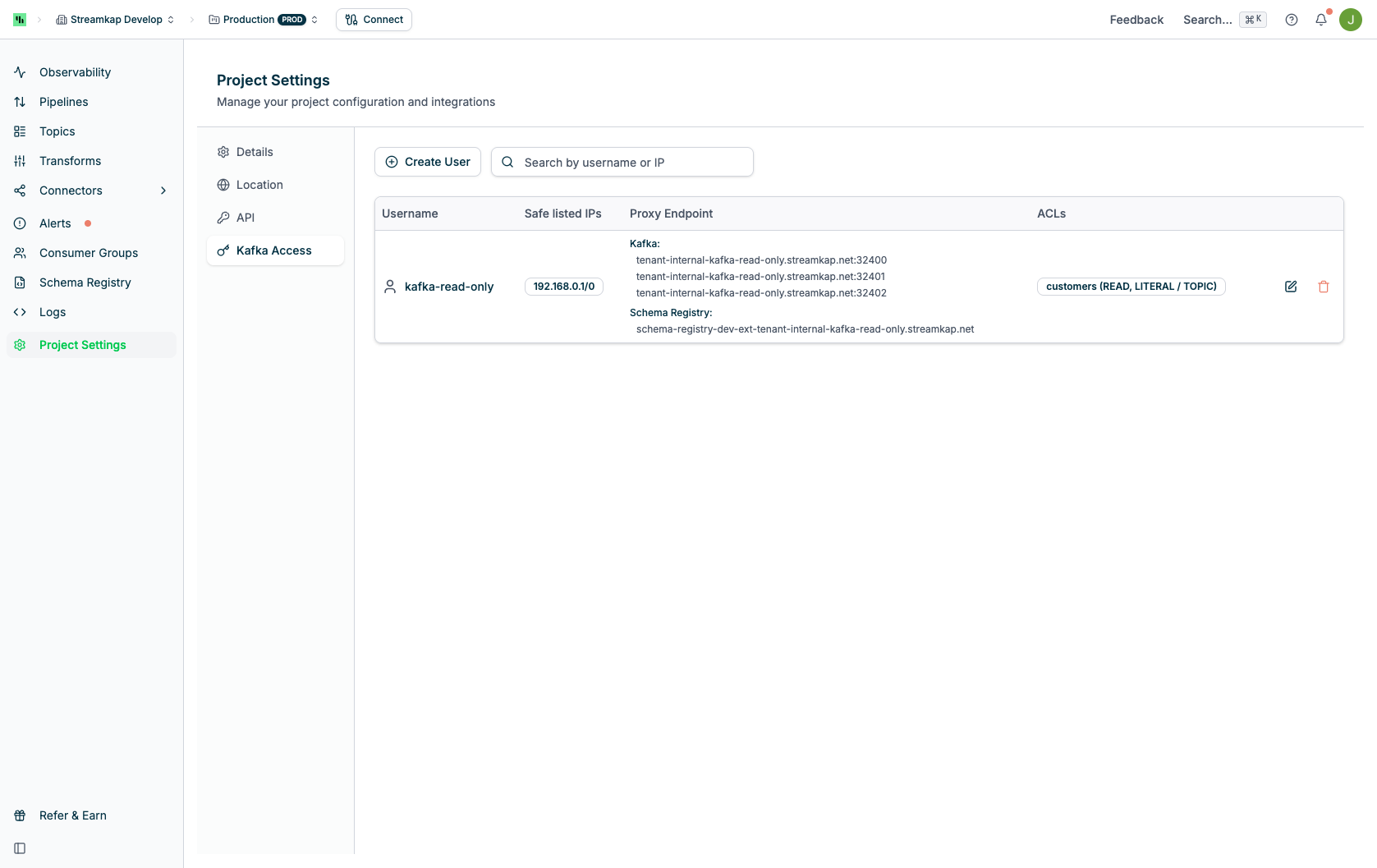 ## Table Columns
The Kafka Access table displays the following information:
* **Username**: The Kafka username (lowercase only)
* **Safe listed IPs**: CIDR-notated IP addresses allowed to connect
* **Proxy Endpoint**: The Kafka proxy connection endpoints (host:port)
* **ACLs**: Summary of configured Access Control Lists showing resource name, operation, pattern type, and resource type
## Quick Actions
Each user row includes action buttons on the right:
* **Edit** (pencil icon): Modify user settings, password, IPs, and ACLs
* **Delete** (trash icon): Remove the Kafka user
## Creating a Kafka User
To create a new Kafka user:
Click the **Create User** button at the top of the page.
## Table Columns
The Kafka Access table displays the following information:
* **Username**: The Kafka username (lowercase only)
* **Safe listed IPs**: CIDR-notated IP addresses allowed to connect
* **Proxy Endpoint**: The Kafka proxy connection endpoints (host:port)
* **ACLs**: Summary of configured Access Control Lists showing resource name, operation, pattern type, and resource type
## Quick Actions
Each user row includes action buttons on the right:
* **Edit** (pencil icon): Modify user settings, password, IPs, and ACLs
* **Delete** (trash icon): Remove the Kafka user
## Creating a Kafka User
To create a new Kafka user:
Click the **Create User** button at the top of the page.
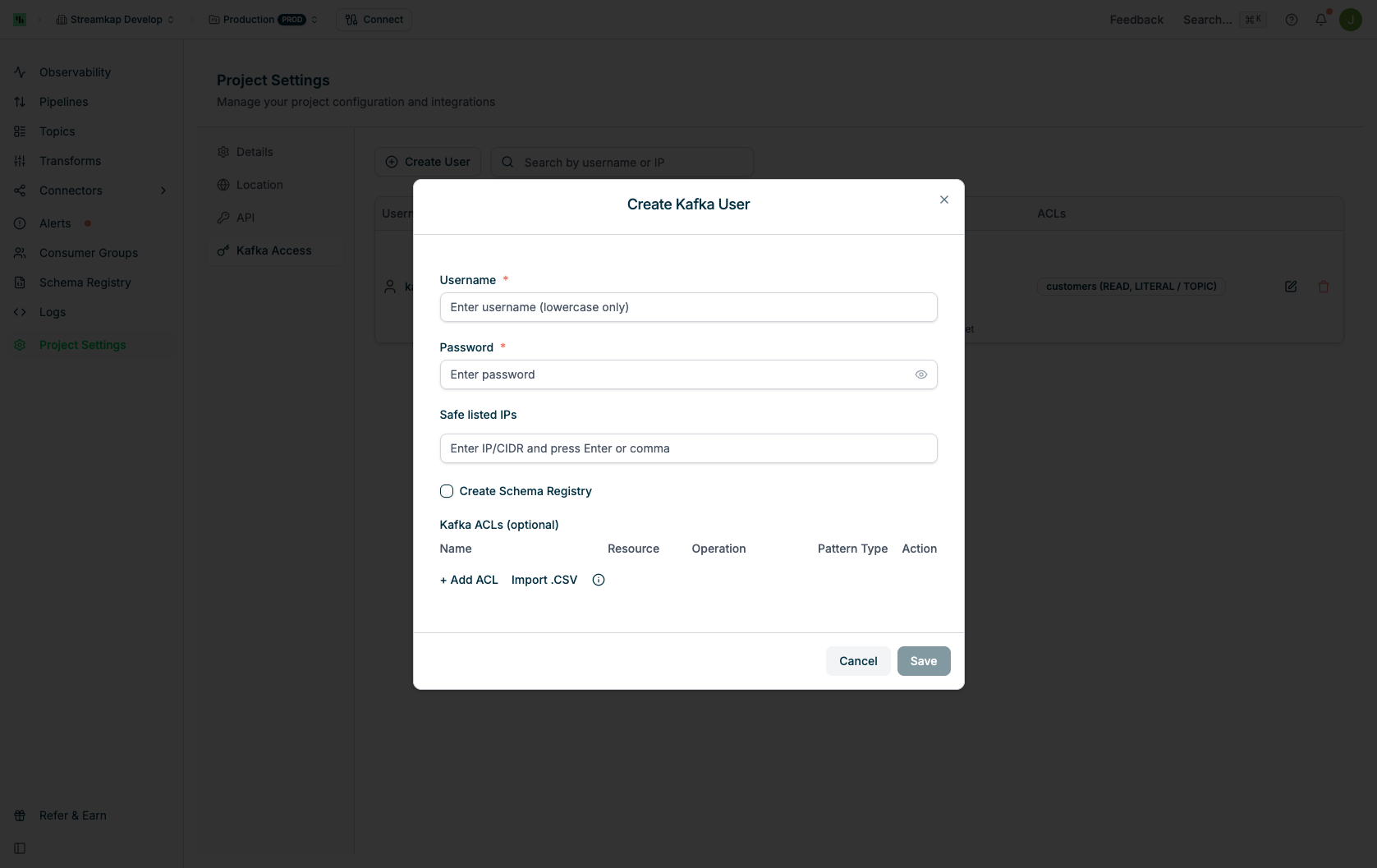 Provide a unique username (lowercase characters only).
Usernames must be lowercase and unique within your project.
Enter a secure password for the user. This will be used for SASL authentication.
Add IP addresses or CIDR ranges that are allowed to connect with this user.
* Enter IP/CIDR notation (e.g., `192.168.1.0/24`)
* Press Enter or comma to add multiple IPs
* Leave empty to allow connections from any IP
Using IP safe listing adds an extra layer of security by restricting where connections can originate.
Define Access Control Lists to control what this user can access.
Click **+ Add ACL** to add a new rule. For each ACL, specify:
* **Name**: The resource name (topic name, consumer group name, or pattern)
* **Resource**: The type of resource
* `TOPIC`: Kafka topics
* `GROUP`: Consumer groups
* `CLUSTER`: Cluster-level operations
* `TRANSACTIONAL_ID`: Transactional IDs
* `DELEGATION_TOKEN`: Delegation tokens
* **Operation**: The allowed operation
* `READ`: Consume from topics or read group offsets
* `WRITE`: Write data to topics
* `CREATE`: Create topics or other resources
* `DELETE`: Delete resources
* `ALTER`: Modify resource configurations
* `DESCRIBE`: View resource metadata (required by many clients alongside READ/WRITE)
* `CLUSTER_ACTION`: Perform cluster-level actions
* `DESCRIBE_CONFIGS`: View configurations
* `ALTER_CONFIGS`: Modify configurations
* `IDEMPOTENT_WRITE`: Idempotent writes
* `ALL`: All operations
* **Pattern Type**: How the resource name is matched
* `LITERAL`: Exact match (e.g., specific topic name)
* `PREFIXED`: Matches resources starting with this prefix
You can add multiple ACL rules for the same user to grant access to different resources.
**Import .CSV**: You can bulk import ACL rules from a CSV file by clicking the "Import .CSV" button.
Click **Save** to create the user. The user will appear in the table with their proxy endpoints.
## Editing a Kafka User
To modify an existing Kafka user:
1. Click the **Edit** button (pencil icon) for the user you want to modify
2. The Edit Kafka User dialog will appear showing current settings
Provide a unique username (lowercase characters only).
Usernames must be lowercase and unique within your project.
Enter a secure password for the user. This will be used for SASL authentication.
Add IP addresses or CIDR ranges that are allowed to connect with this user.
* Enter IP/CIDR notation (e.g., `192.168.1.0/24`)
* Press Enter or comma to add multiple IPs
* Leave empty to allow connections from any IP
Using IP safe listing adds an extra layer of security by restricting where connections can originate.
Define Access Control Lists to control what this user can access.
Click **+ Add ACL** to add a new rule. For each ACL, specify:
* **Name**: The resource name (topic name, consumer group name, or pattern)
* **Resource**: The type of resource
* `TOPIC`: Kafka topics
* `GROUP`: Consumer groups
* `CLUSTER`: Cluster-level operations
* `TRANSACTIONAL_ID`: Transactional IDs
* `DELEGATION_TOKEN`: Delegation tokens
* **Operation**: The allowed operation
* `READ`: Consume from topics or read group offsets
* `WRITE`: Write data to topics
* `CREATE`: Create topics or other resources
* `DELETE`: Delete resources
* `ALTER`: Modify resource configurations
* `DESCRIBE`: View resource metadata (required by many clients alongside READ/WRITE)
* `CLUSTER_ACTION`: Perform cluster-level actions
* `DESCRIBE_CONFIGS`: View configurations
* `ALTER_CONFIGS`: Modify configurations
* `IDEMPOTENT_WRITE`: Idempotent writes
* `ALL`: All operations
* **Pattern Type**: How the resource name is matched
* `LITERAL`: Exact match (e.g., specific topic name)
* `PREFIXED`: Matches resources starting with this prefix
You can add multiple ACL rules for the same user to grant access to different resources.
**Import .CSV**: You can bulk import ACL rules from a CSV file by clicking the "Import .CSV" button.
Click **Save** to create the user. The user will appear in the table with their proxy endpoints.
## Editing a Kafka User
To modify an existing Kafka user:
1. Click the **Edit** button (pencil icon) for the user you want to modify
2. The Edit Kafka User dialog will appear showing current settings
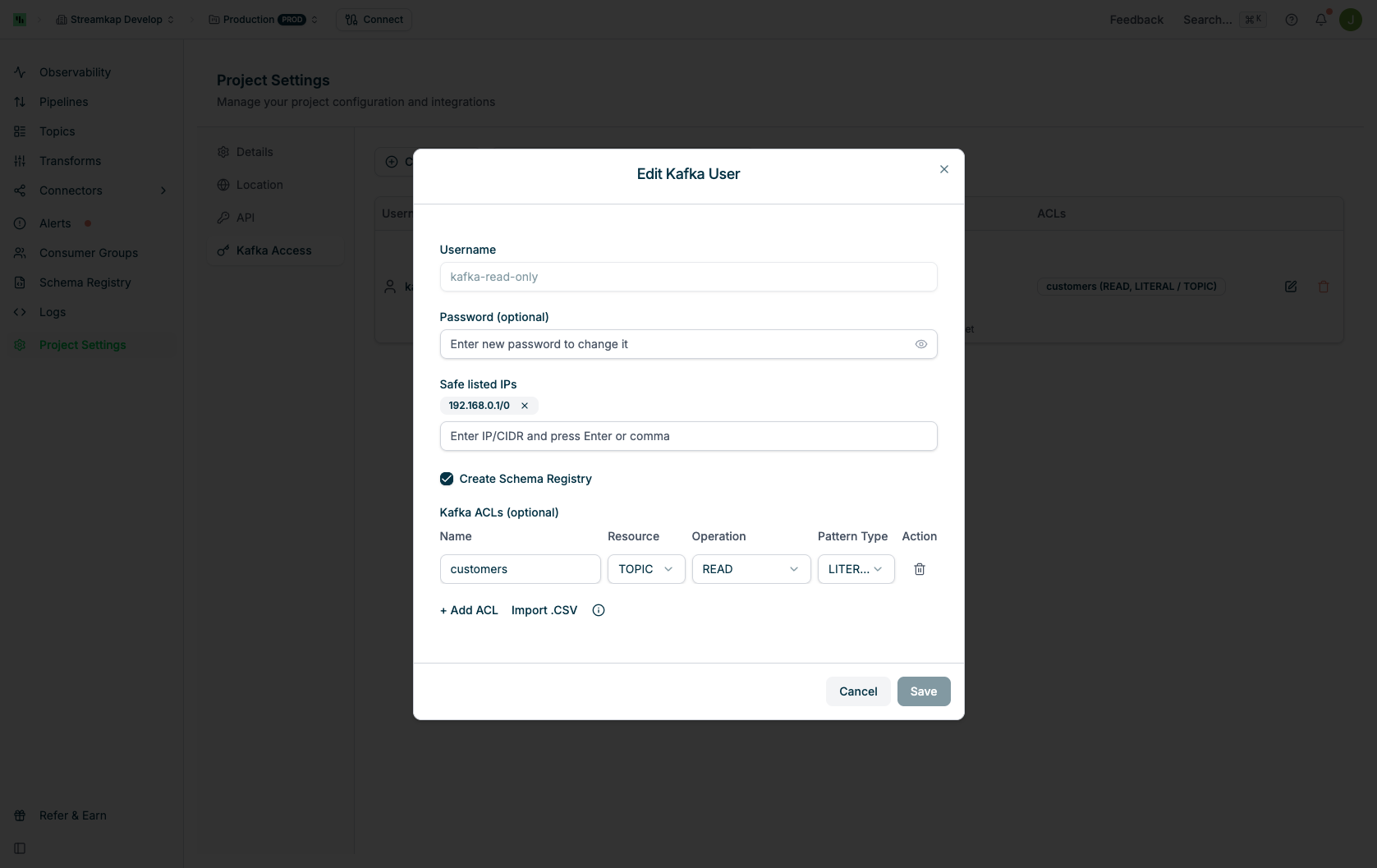 ### Editable Fields
* **Username**: Display only (cannot be changed after creation)
* **Password (optional)**: Enter a new password to change it, or leave empty to keep the current password
* **Safe listed IPs**: Add or remove IP addresses/CIDR ranges
* **Kafka ACLs**: Add, modify, or remove ACL rules
Removing or modifying ACLs will immediately affect the user's access permissions. Ensure you understand the impact before making changes.
## Deleting a Kafka User
To remove a Kafka user:
1. Click the **Delete** button (trash icon) for the user
2. Confirm the deletion when prompted
Deleting a user is permanent and will immediately revoke all access. Any applications using these credentials will lose connectivity.
## Searching and Filtering
Use the search bar to quickly find users:
* Search by **username**
* Search by **IP address** (full or partial match)
The search filters the table in real-time as you type.
## Connecting to Kafka
Once a user is created, you can connect to Kafka using the proxy endpoints displayed in the table.
### Connection Details
* **Bootstrap Servers**: Use the proxy endpoints from the "Proxy Endpoint" column
* **Security Protocol**: `SASL_SSL`
* **SASL Mechanism**: `PLAIN`
* **Username**: The Kafka username you created
* **Password**: The password you set for the user
### Example Connection Configuration
```properties theme={null}
bootstrap.servers=tenant-demo-testare.streamkap.net:32400,tenant-demo-testare.streamkap.net:32401,tenant-demo-testare.streamkap.net:32402
security.protocol=SASL_SSL
sasl.mechanism=PLAIN
```
## Project Selection
The Kafka Access page is project-specific. You can switch between projects using the project selector in the navigation bar.
Each project has its own set of Kafka users and proxy endpoints.
## ACL Best Practices
When configuring ACLs, follow these best practices:
1. **Principle of Least Privilege**: Grant only the minimum permissions required for each user
2. **Use Literal Matches**: When possible, use `LITERAL` pattern type for specific topic names to avoid over-permissioning
3. **Separate Users by Function**: Create different users for producers, consumers, and administrative tasks
4. **Combine READ and DESCRIBE**: Consumers typically need both `READ` (for data) and `DESCRIBE` (for metadata)
5. **Consumer Groups**: Don't forget to grant `READ` access to consumer groups (resource type `GROUP`) for consumer applications
6. **Testing**: Test ACL configurations in a development environment before applying to production
### Common ACL Patterns
#### Read-Only Consumer
* Resource: `TOPIC` with topic name
* Operation: `READ`
* Pattern Type: `LITERAL`
Plus:
* Resource: `GROUP` with consumer group name
* Operation: `READ`
* Pattern Type: `LITERAL` or `PREFIXED`
#### Producer
* Resource: `TOPIC` with topic name
* Operation: `WRITE`
* Pattern Type: `LITERAL`
#### Admin User
* Resource: `CLUSTER`
* Operation: `ALL`
* Pattern Type: `LITERAL`
## Security Considerations
* **Rotate Passwords Regularly**: Change user passwords periodically
* **Use IP Safe listing**: Restrict access to known IP ranges when possible
* **Monitor Access**: Check audit logs regularly for unauthorized access attempts
* **Remove Unused Users**: Delete users that are no longer needed
* **Strong Passwords**: Use complex passwords with a mix of characters
## Troubleshooting
### Connection Refused
If you cannot connect to Kafka:
1. Verify the proxy endpoints are correct
2. Check that your IP address is safe listed (if configured)
3. Confirm the username and password are correct
4. Ensure your firewall allows outbound connections to the proxy ports
### Permission Denied
If you receive permission denied errors:
1. Review the user's ACLs to ensure they have the required permissions
2. Check that the ACL resource name matches your topic/group name exactly (for `LITERAL` matches)
3. Verify the operation type includes what you're trying to do (e.g., `READ` for consuming)
### User Not Found
If a user appears in the list but cannot authenticate:
1. Verify you're connecting to the correct project endpoints
2. Check that the password was set correctly
3. Try editing the user and resetting the password
## Related Documentation
* [Projects](/projects) - Managing Streamkap projects
* [Topics](/topics) - Working with Kafka topics
* [Organisation Security](/organisation-security) - Overall security settings
### Editable Fields
* **Username**: Display only (cannot be changed after creation)
* **Password (optional)**: Enter a new password to change it, or leave empty to keep the current password
* **Safe listed IPs**: Add or remove IP addresses/CIDR ranges
* **Kafka ACLs**: Add, modify, or remove ACL rules
Removing or modifying ACLs will immediately affect the user's access permissions. Ensure you understand the impact before making changes.
## Deleting a Kafka User
To remove a Kafka user:
1. Click the **Delete** button (trash icon) for the user
2. Confirm the deletion when prompted
Deleting a user is permanent and will immediately revoke all access. Any applications using these credentials will lose connectivity.
## Searching and Filtering
Use the search bar to quickly find users:
* Search by **username**
* Search by **IP address** (full or partial match)
The search filters the table in real-time as you type.
## Connecting to Kafka
Once a user is created, you can connect to Kafka using the proxy endpoints displayed in the table.
### Connection Details
* **Bootstrap Servers**: Use the proxy endpoints from the "Proxy Endpoint" column
* **Security Protocol**: `SASL_SSL`
* **SASL Mechanism**: `PLAIN`
* **Username**: The Kafka username you created
* **Password**: The password you set for the user
### Example Connection Configuration
```properties theme={null}
bootstrap.servers=tenant-demo-testare.streamkap.net:32400,tenant-demo-testare.streamkap.net:32401,tenant-demo-testare.streamkap.net:32402
security.protocol=SASL_SSL
sasl.mechanism=PLAIN
```
## Project Selection
The Kafka Access page is project-specific. You can switch between projects using the project selector in the navigation bar.
Each project has its own set of Kafka users and proxy endpoints.
## ACL Best Practices
When configuring ACLs, follow these best practices:
1. **Principle of Least Privilege**: Grant only the minimum permissions required for each user
2. **Use Literal Matches**: When possible, use `LITERAL` pattern type for specific topic names to avoid over-permissioning
3. **Separate Users by Function**: Create different users for producers, consumers, and administrative tasks
4. **Combine READ and DESCRIBE**: Consumers typically need both `READ` (for data) and `DESCRIBE` (for metadata)
5. **Consumer Groups**: Don't forget to grant `READ` access to consumer groups (resource type `GROUP`) for consumer applications
6. **Testing**: Test ACL configurations in a development environment before applying to production
### Common ACL Patterns
#### Read-Only Consumer
* Resource: `TOPIC` with topic name
* Operation: `READ`
* Pattern Type: `LITERAL`
Plus:
* Resource: `GROUP` with consumer group name
* Operation: `READ`
* Pattern Type: `LITERAL` or `PREFIXED`
#### Producer
* Resource: `TOPIC` with topic name
* Operation: `WRITE`
* Pattern Type: `LITERAL`
#### Admin User
* Resource: `CLUSTER`
* Operation: `ALL`
* Pattern Type: `LITERAL`
## Security Considerations
* **Rotate Passwords Regularly**: Change user passwords periodically
* **Use IP Safe listing**: Restrict access to known IP ranges when possible
* **Monitor Access**: Check audit logs regularly for unauthorized access attempts
* **Remove Unused Users**: Delete users that are no longer needed
* **Strong Passwords**: Use complex passwords with a mix of characters
## Troubleshooting
### Connection Refused
If you cannot connect to Kafka:
1. Verify the proxy endpoints are correct
2. Check that your IP address is safe listed (if configured)
3. Confirm the username and password are correct
4. Ensure your firewall allows outbound connections to the proxy ports
### Permission Denied
If you receive permission denied errors:
1. Review the user's ACLs to ensure they have the required permissions
2. Check that the ACL resource name matches your topic/group name exactly (for `LITERAL` matches)
3. Verify the operation type includes what you're trying to do (e.g., `READ` for consuming)
### User Not Found
If a user appears in the list but cannot authenticate:
1. Verify you're connecting to the correct project endpoints
2. Check that the password was set correctly
3. Try editing the user and resetting the password
## Related Documentation
* [Projects](/projects) - Managing Streamkap projects
* [Topics](/topics) - Working with Kafka topics
* [Organisation Security](/organisation-security) - Overall security settings