> ## Documentation Index
> Fetch the complete documentation index at: https://docs.streamkap.com/llms.txt
> Use this file to discover all available pages before exploring further.
# Consumer Groups
> Monitor and manage consumer groups, track consumer lag, and manage offset positions
Consumer Groups provide visibility into a group of Kafka consumers that are reading from your topics. The Consumer Groups page allows you to monitor their status, track lag, inspect group members, and manage offset positions.
## Overview
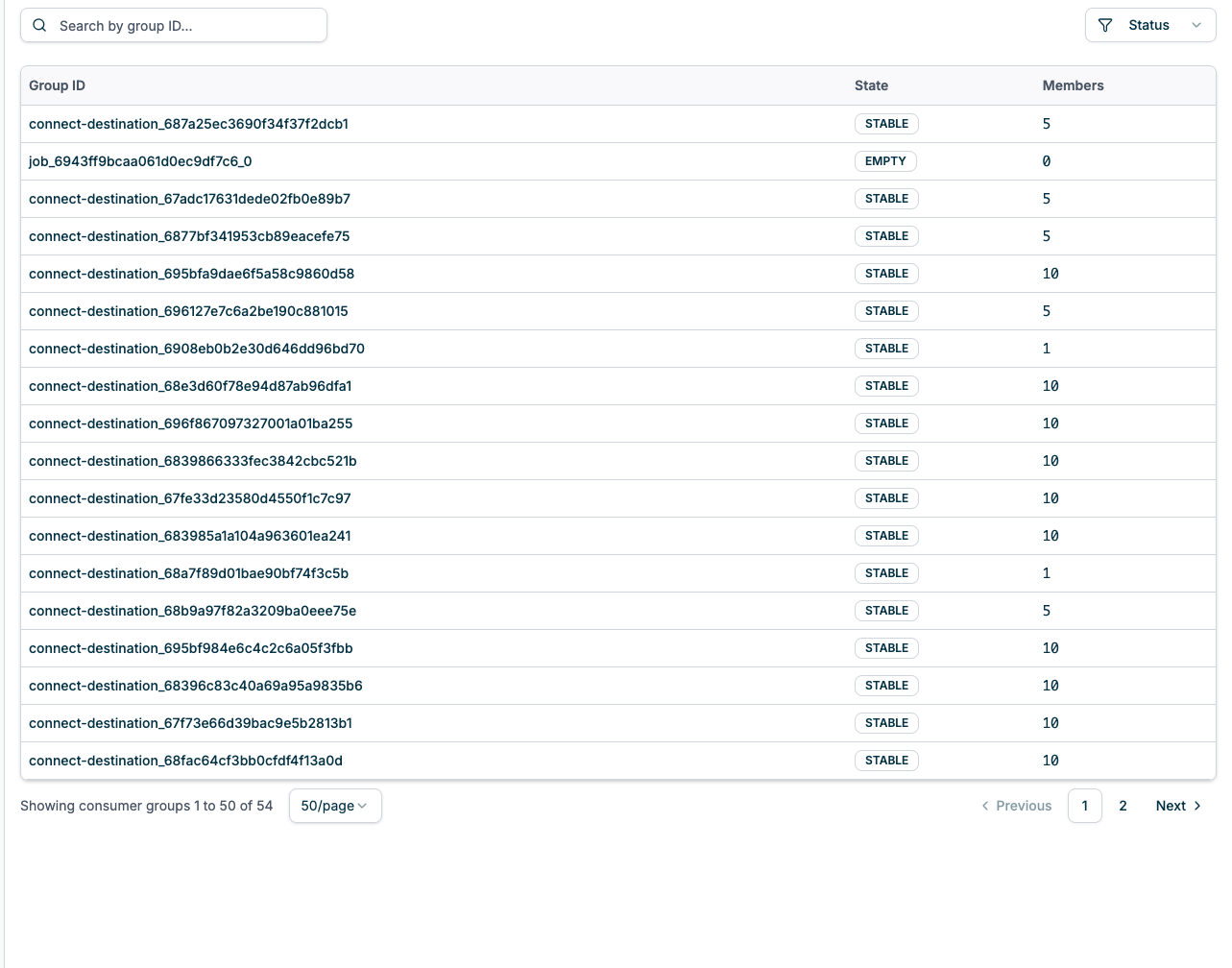
The Consumer Groups page displays all Kafka consumer groups in your project with their current state and membership information:
 ### Key Features
* **Search Functionality**: Filter consumer groups by group ID using the search bar
* **State Filtering**: Filter groups by their current state (STABLE, EMPTY, etc.)
* **Group Overview**: View group status, membership count, and assigned partitions
* **Offset Management**: Reset consumer offsets for specific topic partitions
* **Member Details**: Inspect individual consumer group members and their assignments
## Consumer Groups Table
The main table lists all consumer groups with the following columns:
* **Group ID**: The unique identifier for the consumer group
* Click to navigate to the group detail page
* Naming patterns typically include connector IDs or job identifiers
* **State**: The current state of the consumer group
* `STABLE`: Group is active with members consuming messages
* `EMPTY`: Group exists but has no active members
* **Members**: Number of active consumers in this group
* Shows `0` for `EMPTY` groups
* Indicates the parallelism level for `STABLE` groups
### Search and Filtering
* **Search Bar**: Filter groups by entering part or all of a group ID
* **State Filter**: Use the "Filter by State" dropdown to show only groups in a specific state
* **Pagination**: Navigate through groups with configurable page size (10, 20, 50, or 100 per page)
## Consumer Group Detail Page
Click any group ID to view detailed information about the consumer group, including members and partition assignments.
### Overview Metrics
The detail page displays key metrics for the selected consumer group:
### Key Features
* **Search Functionality**: Filter consumer groups by group ID using the search bar
* **State Filtering**: Filter groups by their current state (STABLE, EMPTY, etc.)
* **Group Overview**: View group status, membership count, and assigned partitions
* **Offset Management**: Reset consumer offsets for specific topic partitions
* **Member Details**: Inspect individual consumer group members and their assignments
## Consumer Groups Table
The main table lists all consumer groups with the following columns:
* **Group ID**: The unique identifier for the consumer group
* Click to navigate to the group detail page
* Naming patterns typically include connector IDs or job identifiers
* **State**: The current state of the consumer group
* `STABLE`: Group is active with members consuming messages
* `EMPTY`: Group exists but has no active members
* **Members**: Number of active consumers in this group
* Shows `0` for `EMPTY` groups
* Indicates the parallelism level for `STABLE` groups
### Search and Filtering
* **Search Bar**: Filter groups by entering part or all of a group ID
* **State Filter**: Use the "Filter by State" dropdown to show only groups in a specific state
* **Pagination**: Navigate through groups with configurable page size (10, 20, 50, or 100 per page)
## Consumer Group Detail Page
Click any group ID to view detailed information about the consumer group, including members and partition assignments.
### Overview Metrics
The detail page displays key metrics for the selected consumer group:
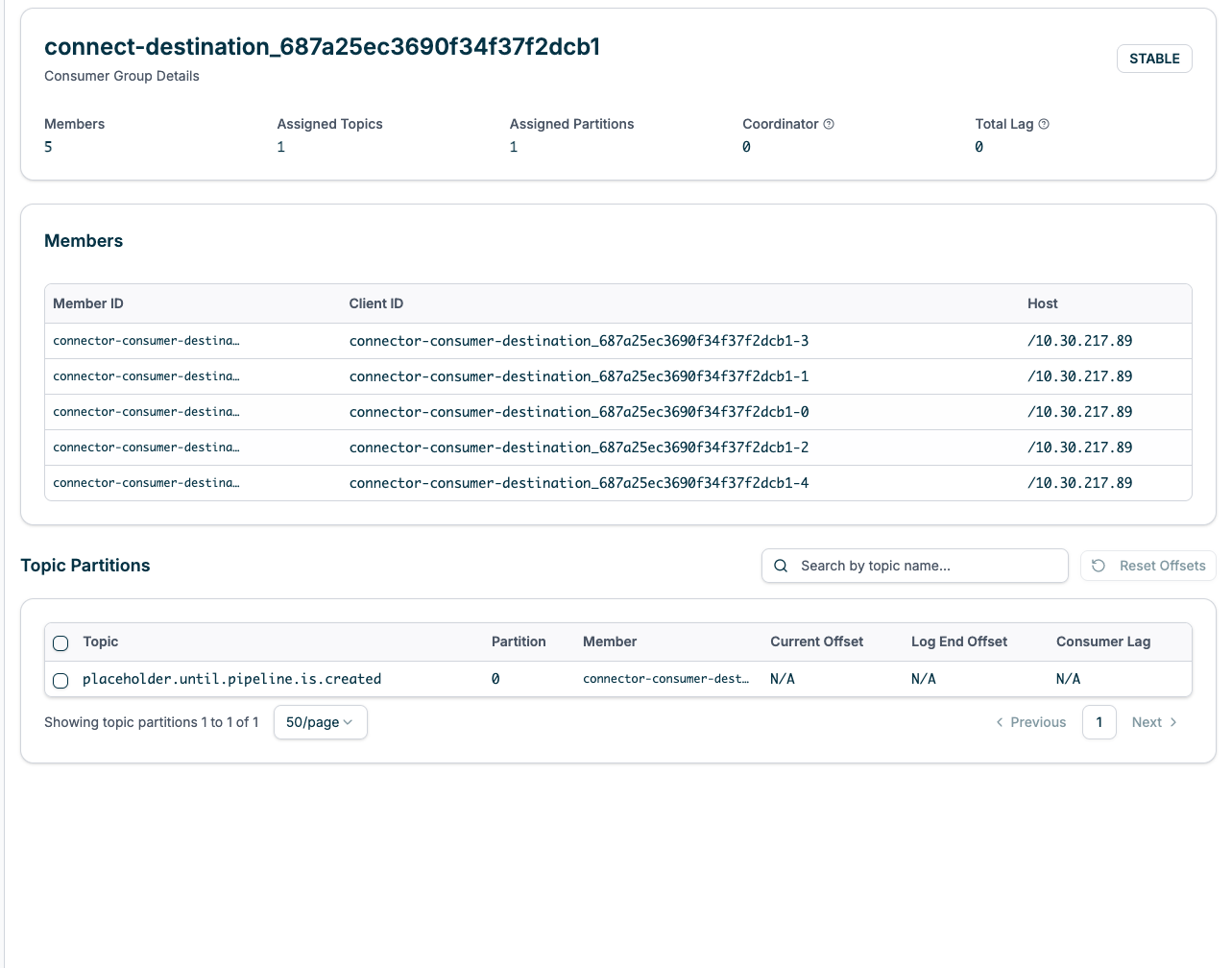 **Metric Cards:**
* **Members**: Number of active consumers in the group
* **Assigned Topics**: Count of topics this group is consuming from
* **Assigned Partitions**: Total number of partitions assigned to group members
* **Coordinator**: The broker ID acting as the group coordinator
* **Total Lag**: Aggregate consumer lag across all assigned partitions
The coordinator is the Kafka broker responsible for managing group membership and partition assignments for this consumer group.
### Members Table
The Members section lists all active consumers in the group:
* **Member ID**: Unique identifier for each consumer instance
* Format typically includes client ID and a UUID
* **Client ID**: The configured client identifier for the consumer
* **Host**: IP address of the machine running the consumer
The number of members determines the maximum parallelism for consuming from topics. Each member can be assigned one or more partitions.
### Topic Partitions
The Topic Partitions section shows partition-level details and consumption progress:
**Metric Cards:**
* **Members**: Number of active consumers in the group
* **Assigned Topics**: Count of topics this group is consuming from
* **Assigned Partitions**: Total number of partitions assigned to group members
* **Coordinator**: The broker ID acting as the group coordinator
* **Total Lag**: Aggregate consumer lag across all assigned partitions
The coordinator is the Kafka broker responsible for managing group membership and partition assignments for this consumer group.
### Members Table
The Members section lists all active consumers in the group:
* **Member ID**: Unique identifier for each consumer instance
* Format typically includes client ID and a UUID
* **Client ID**: The configured client identifier for the consumer
* **Host**: IP address of the machine running the consumer
The number of members determines the maximum parallelism for consuming from topics. Each member can be assigned one or more partitions.
### Topic Partitions
The Topic Partitions section shows partition-level details and consumption progress:
 **Table Columns:**
* **Topic**: The Kafka topic name
* Click to navigate to the topic detail page
* **Partition**: The partition number within the topic
* **Member**: The consumer member ID currently assigned to this partition
* **Current Offset**: The last offset consumed by the consumer
* **Log End Offset**: The latest available offset in the partition
* **Consumer Lag**: The difference between log end offset and current offset
* Higher values indicate the consumer is falling behind
**Actions:**
* **Search**: Filter partitions by topic name
* **Reset Offsets**: Select partitions using checkboxes and click "Reset Offsets" to change offset positions
Resetting offsets can cause messages to be re-consumed or skipped. Use this feature carefully, especially in production environments.
## Understanding Consumer States
Consumer groups can be in different states depending on their activity:
### `STABLE` State
A `STABLE` consumer group has:
* One or more active members
* Partition assignments distributed among members
* Active consumption of messages
* Regular heartbeats from all members
This is the normal operating state for active consumers.
### `EMPTY` State
An `EMPTY` consumer group:
* Has no active members
* Retains its last committed offsets
* May have been created by a connector that stopped
* Will transition to `STABLE` when consumers reconnect
`EMPTY` groups are common for stopped connectors or jobs. They preserve offset information for when consumption resumes.
## Consumer Lag Monitoring
Consumer lag is a critical metric for monitoring data pipeline health:
**What is Consumer Lag?**
Consumer lag represents how far behind a consumer is from the latest message in a partition. It's calculated as:
```
Consumer Lag = Log End Offset - Current Offset
```
**Common Causes of High Lag:**
* Insufficient consumer parallelism (too few members)
* Slow processing in the consumer application
* Network issues between consumer and Kafka
* Destination bottlenecks (for destination connectors)
* Under-provisioned consumer resources
## Resetting Consumer Offsets
Streamkap retains topic data based on your service's retention policy (typically 7 days by default). You can only replay messages that are still within the retention window. Messages older than the retention period have been deleted and cannot be recovered.
Offset management allows you to set consumers to replay messages or skip problematic records.
### When to Reset Offsets
Consider resetting offsets in these scenarios:
* **Replay Messages**: Re-process historical data after fixing a bug
* **Skip Errors**: Move past messages causing processing failures
* **Synchronize State**: Reset to a known good position after an incident
* **Time-Based Recovery**: Jump to messages from a specific timestamp
**For Snowflake Destinations (Append Mode)**: When replaying messages to Snowflake destinations, you must reset **both** offset systems:
1. **Consumer Group offsets** - Set to your desired position (Earliest, Latest, Specific Timestamp, or Specific Offset)
2. **Snowflake channel offsets** - Set to `-1` so Snowflake defers to the Consumer Group position
Resetting only one will cause ingestion failures or data misalignment. See [Snowflake Offset Management](/snowflake#offset-management-append-mode) for complete instructions.
### Reset Procedure
Ensure **all consumers in the group are stopped** to prevent conflicts during the reset. Typically this means stopping the associated Destination, or for direct access consumers, stopping the consumer application.
Open the consumer group detail page for the group you want to reset.
In the Topic Partitions table, check the boxes for partitions you want to reset.
You can select individual partitions or all partitions for a topic.
Click the **Reset Offsets** button that becomes enabled when partitions are selected.
A dialog will appear with offset reset options.
Select how to reset offsets:
* **Earliest**: Reset to the beginning of the partition
* **Latest**: Reset to the end (skip all existing messages)
* **Specific Timestamp**: Reset to the first offset after a given timestamp
* **Specific Offset**: Set a custom offset position
Review your selection and click **Apply** to reset the offsets.
If you're using Snowflake destinations (append mode), you must also reset the Snowpipe Streaming channel offsets to `-1` in Snowflake. This tells Snowflake to defer to the Consumer Group offset position you just set.
```sql theme={null}
SELECT SYSTEM$SNOWPIPE_STREAMING_UPDATE_CHANNEL_OFFSET_TOKEN(
'..',
'',
'-1'
);
-- Repeat for each partition
```
See [Snowflake Offset Management](/snowflake#offset-management-append-mode) for complete instructions.
**Do not resume the Destination until both offset systems are reset.**
Resume your Destinations, or for direct access consumers, resume your consumer applications. The consumers will start processing from the new offset positions.
Resetting to "Earliest" for large topics will cause the consumer to re-process all historical messages, which may take considerable time and could duplicate data in destinations.
Streamkap retains topic data based on your project's retention policy (typically 7 days by default). You can only replay messages that are still within the retention window. Messages older than the retention period have been deleted and cannot be recovered.
## Consumer Group Best Practices
1. **Monitor Lag Regularly**: Set up alerts for consumer lag thresholds to catch issues early
2. **Right-Size Parallelism**: Match the number of consumer members to partition count for optimal throughput
3. **Use Descriptive Group IDs**: Consumer group IDs should clearly indicate their purpose
4. **Coordinate Offset Resets**: Always stop consumers before resetting offsets
5. **Test Offset Changes**: Test offset resets in non-production environments first
6. **Document Offset Operations**: Record when and why you reset offsets for incident tracking
7. **Clean Up Unused Groups**: Remove consumer groups that are no longer needed
## Performance Tuning
For comprehensive tuning guidance, see [Performance Tuning](/performance-tuning).
If your consumer group is experiencing high lag, consider these optimizations:
### Increase Consumer Parallelism
Add more consumer members (up to the number of partitions) to distribute the load:
* For Streamkap destination connectors, increase the **Tasks** setting
* More tasks = more parallel consumers = higher throughput
The maximum useful number of consumers equals the number of partitions. Additional consumers beyond this will remain idle.
### Increase Topic Partitions
More partitions enable greater parallelism. See [Topics](/topics) for the safe partition increase procedure.
### Optimize Consumer Configuration
For destination connectors, adjust these settings under Advanced configuration:
* **Maximum Poll Records**: Increase to fetch more records per poll (e.g., 25000, 50000)
* **Fetch Min Bytes**: Set minimum data to wait for before returning from fetch
* **Fetch Max Wait**: Maximum time to wait for fetch min bytes
## Troubleshooting
### Consumer Group Not Appearing
If a consumer group is missing from the list:
1. **Check Connector Status**: Verify the associated connector is running
2. **Wait for Creation**: Consumer groups are created on first consumption attempt
3. **Refresh the Page**: Click refresh or reload the browser
4. **Verify Project**: Ensure you're viewing the correct Streamkap project
### High Consumer Lag
If a consumer group shows consistently high lag:
1. **Check Consumer Status**: Verify all expected members are active
2. **Review Logs**: Check connector or consumer logs for errors ([Logs](/logs))
3. **Monitor Resources**: Ensure consumers have adequate CPU and memory
4. **Check Destination**: For destination connectors, verify the destination isn't a bottleneck
5. **Increase Parallelism**: Add more tasks or consumers to the group
6. **Optimize Configuration**: Tune poll records and fetch settings
### Reset Offsets Button Disabled
If the Reset Offsets button remains disabled:
1. **Select Partitions**: Ensure you've checked at least one partition in the table
2. **Check Permissions**: Verify you have the required permissions to manage offsets
3. **Verify Group State**: Some operations may not be available for certain group states
### Members Show as N/A
If partition members display as "N/A":
1. **Check Group State**: `EMPTY` groups have no active members
2. **Verify Consumers**: Ensure consumers are running and connected
3. **Check Connectivity**: Verify network connectivity between consumers and Kafka
4. **Review Logs**: Check for authentication or authorization errors
## Related Documentation
* [Topics](/topics) - Manage Kafka topics and partitions
* [Kafka Access](/kafka-access) - Configure Kafka users and ACLs
* [Pipelines](/pipelines) - Monitor pipeline consumption progress
* [Alerts](/alerts) - Set up alerts for consumer lag thresholds
**Table Columns:**
* **Topic**: The Kafka topic name
* Click to navigate to the topic detail page
* **Partition**: The partition number within the topic
* **Member**: The consumer member ID currently assigned to this partition
* **Current Offset**: The last offset consumed by the consumer
* **Log End Offset**: The latest available offset in the partition
* **Consumer Lag**: The difference between log end offset and current offset
* Higher values indicate the consumer is falling behind
**Actions:**
* **Search**: Filter partitions by topic name
* **Reset Offsets**: Select partitions using checkboxes and click "Reset Offsets" to change offset positions
Resetting offsets can cause messages to be re-consumed or skipped. Use this feature carefully, especially in production environments.
## Understanding Consumer States
Consumer groups can be in different states depending on their activity:
### `STABLE` State
A `STABLE` consumer group has:
* One or more active members
* Partition assignments distributed among members
* Active consumption of messages
* Regular heartbeats from all members
This is the normal operating state for active consumers.
### `EMPTY` State
An `EMPTY` consumer group:
* Has no active members
* Retains its last committed offsets
* May have been created by a connector that stopped
* Will transition to `STABLE` when consumers reconnect
`EMPTY` groups are common for stopped connectors or jobs. They preserve offset information for when consumption resumes.
## Consumer Lag Monitoring
Consumer lag is a critical metric for monitoring data pipeline health:
**What is Consumer Lag?**
Consumer lag represents how far behind a consumer is from the latest message in a partition. It's calculated as:
```
Consumer Lag = Log End Offset - Current Offset
```
**Common Causes of High Lag:**
* Insufficient consumer parallelism (too few members)
* Slow processing in the consumer application
* Network issues between consumer and Kafka
* Destination bottlenecks (for destination connectors)
* Under-provisioned consumer resources
## Resetting Consumer Offsets
Streamkap retains topic data based on your service's retention policy (typically 7 days by default). You can only replay messages that are still within the retention window. Messages older than the retention period have been deleted and cannot be recovered.
Offset management allows you to set consumers to replay messages or skip problematic records.
### When to Reset Offsets
Consider resetting offsets in these scenarios:
* **Replay Messages**: Re-process historical data after fixing a bug
* **Skip Errors**: Move past messages causing processing failures
* **Synchronize State**: Reset to a known good position after an incident
* **Time-Based Recovery**: Jump to messages from a specific timestamp
**For Snowflake Destinations (Append Mode)**: When replaying messages to Snowflake destinations, you must reset **both** offset systems:
1. **Consumer Group offsets** - Set to your desired position (Earliest, Latest, Specific Timestamp, or Specific Offset)
2. **Snowflake channel offsets** - Set to `-1` so Snowflake defers to the Consumer Group position
Resetting only one will cause ingestion failures or data misalignment. See [Snowflake Offset Management](/snowflake#offset-management-append-mode) for complete instructions.
### Reset Procedure
Ensure **all consumers in the group are stopped** to prevent conflicts during the reset. Typically this means stopping the associated Destination, or for direct access consumers, stopping the consumer application.
Open the consumer group detail page for the group you want to reset.
In the Topic Partitions table, check the boxes for partitions you want to reset.
You can select individual partitions or all partitions for a topic.
Click the **Reset Offsets** button that becomes enabled when partitions are selected.
A dialog will appear with offset reset options.
Select how to reset offsets:
* **Earliest**: Reset to the beginning of the partition
* **Latest**: Reset to the end (skip all existing messages)
* **Specific Timestamp**: Reset to the first offset after a given timestamp
* **Specific Offset**: Set a custom offset position
Review your selection and click **Apply** to reset the offsets.
If you're using Snowflake destinations (append mode), you must also reset the Snowpipe Streaming channel offsets to `-1` in Snowflake. This tells Snowflake to defer to the Consumer Group offset position you just set.
```sql theme={null}
SELECT SYSTEM$SNOWPIPE_STREAMING_UPDATE_CHANNEL_OFFSET_TOKEN(
'..',
'',
'-1'
);
-- Repeat for each partition
```
See [Snowflake Offset Management](/snowflake#offset-management-append-mode) for complete instructions.
**Do not resume the Destination until both offset systems are reset.**
Resume your Destinations, or for direct access consumers, resume your consumer applications. The consumers will start processing from the new offset positions.
Resetting to "Earliest" for large topics will cause the consumer to re-process all historical messages, which may take considerable time and could duplicate data in destinations.
Streamkap retains topic data based on your project's retention policy (typically 7 days by default). You can only replay messages that are still within the retention window. Messages older than the retention period have been deleted and cannot be recovered.
## Consumer Group Best Practices
1. **Monitor Lag Regularly**: Set up alerts for consumer lag thresholds to catch issues early
2. **Right-Size Parallelism**: Match the number of consumer members to partition count for optimal throughput
3. **Use Descriptive Group IDs**: Consumer group IDs should clearly indicate their purpose
4. **Coordinate Offset Resets**: Always stop consumers before resetting offsets
5. **Test Offset Changes**: Test offset resets in non-production environments first
6. **Document Offset Operations**: Record when and why you reset offsets for incident tracking
7. **Clean Up Unused Groups**: Remove consumer groups that are no longer needed
## Performance Tuning
For comprehensive tuning guidance, see [Performance Tuning](/performance-tuning).
If your consumer group is experiencing high lag, consider these optimizations:
### Increase Consumer Parallelism
Add more consumer members (up to the number of partitions) to distribute the load:
* For Streamkap destination connectors, increase the **Tasks** setting
* More tasks = more parallel consumers = higher throughput
The maximum useful number of consumers equals the number of partitions. Additional consumers beyond this will remain idle.
### Increase Topic Partitions
More partitions enable greater parallelism. See [Topics](/topics) for the safe partition increase procedure.
### Optimize Consumer Configuration
For destination connectors, adjust these settings under Advanced configuration:
* **Maximum Poll Records**: Increase to fetch more records per poll (e.g., 25000, 50000)
* **Fetch Min Bytes**: Set minimum data to wait for before returning from fetch
* **Fetch Max Wait**: Maximum time to wait for fetch min bytes
## Troubleshooting
### Consumer Group Not Appearing
If a consumer group is missing from the list:
1. **Check Connector Status**: Verify the associated connector is running
2. **Wait for Creation**: Consumer groups are created on first consumption attempt
3. **Refresh the Page**: Click refresh or reload the browser
4. **Verify Project**: Ensure you're viewing the correct Streamkap project
### High Consumer Lag
If a consumer group shows consistently high lag:
1. **Check Consumer Status**: Verify all expected members are active
2. **Review Logs**: Check connector or consumer logs for errors ([Logs](/logs))
3. **Monitor Resources**: Ensure consumers have adequate CPU and memory
4. **Check Destination**: For destination connectors, verify the destination isn't a bottleneck
5. **Increase Parallelism**: Add more tasks or consumers to the group
6. **Optimize Configuration**: Tune poll records and fetch settings
### Reset Offsets Button Disabled
If the Reset Offsets button remains disabled:
1. **Select Partitions**: Ensure you've checked at least one partition in the table
2. **Check Permissions**: Verify you have the required permissions to manage offsets
3. **Verify Group State**: Some operations may not be available for certain group states
### Members Show as N/A
If partition members display as "N/A":
1. **Check Group State**: `EMPTY` groups have no active members
2. **Verify Consumers**: Ensure consumers are running and connected
3. **Check Connectivity**: Verify network connectivity between consumers and Kafka
4. **Review Logs**: Check for authentication or authorization errors
## Related Documentation
* [Topics](/topics) - Manage Kafka topics and partitions
* [Kafka Access](/kafka-access) - Configure Kafka users and ACLs
* [Pipelines](/pipelines) - Monitor pipeline consumption progress
* [Alerts](/alerts) - Set up alerts for consumer lag thresholds